

BudMinder
Docker app from SirBusta's Repository
Overview
Readme
View on GitHub
A self-hosted cannabis grow journal. Daily notes and photos for every plant, live sensors from AC Infinity, Ecowitt or Home Assistant, and your seed vault, all on your own hardware.
Runs in Docker (preferred), for example on Unraid, a Synology NAS or a Raspberry Pi, or as a download for Windows, macOS and Linux.






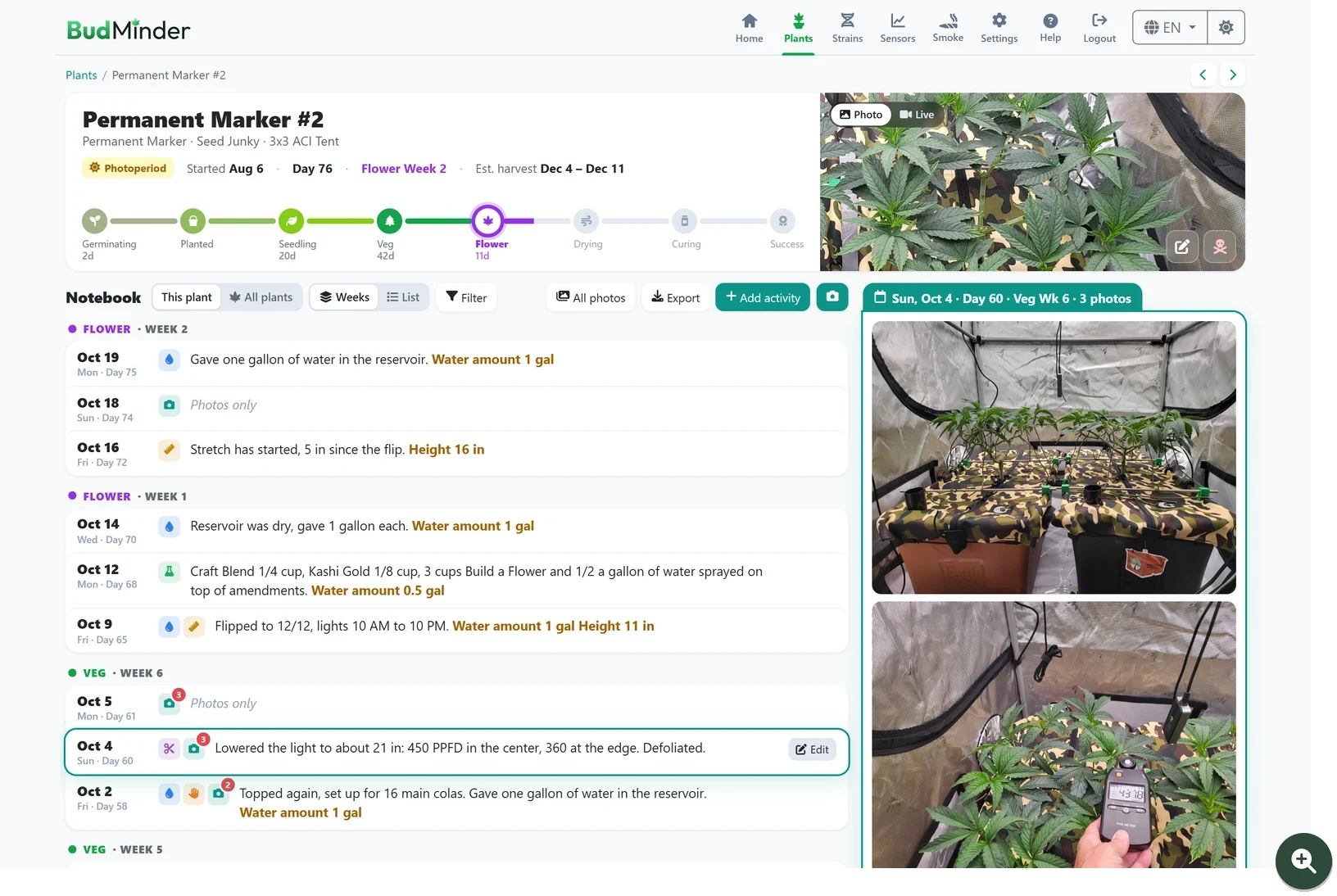
Every plant gets a stage track from seed to harvest and a notebook with one entry per day, shown next to that day's photos.
Try it first: the live demo runs in your browser with six growing plants, a month of sensor history and smoke reports. Nothing to install, and your changes are private and reset after an hour of inactivity.
Why BudMinder?
Your grow, on your hardware. BudMinder is a self-hosted cannabis grow journal designed to run entirely on your own machine or home server. No cloud accounts, no corporate tracking, and no treating your cultivation logs as a commodity. What you record stays on your own hardware.
Free and open source. BudMinder is free, with no subscriptions or paid tiers. Its code is public under the MIT license, so anyone can check exactly what it does with your data, suggest improvements, or build on it.
Connect actions to results. Each day's notes, watering and feeding sit right next to that day's photos. Scroll back through a grow and you can see how each change showed up in the plants: when you topped, when you flipped, when the frost came in.
Close the loop from seed to smoke. Write a smoke report for each harvest or dispensary pickup. Rate bud quality, aroma, flavor and effects. BudMinder auto-fills the dry and cure times so months later you can see which runs were worth repeating and whether an extended cure paid off.
Instant strain lookups. Search large public strain databases and add a strain in one click. That brings in its breeder, lineage, THC and CBD, effects, terpenes and flowering time. You only fill in what's yours: how many seeds you have and where you keep them.
Use the hardware you already own. BudMinder works with AC Infinity controllers and Ecowitt gateways, plus any sensor tracked by Home Assistant: Govee, SwitchBot, Inkbird, Zigbee, ESPHome and more. If Home Assistant sees it, BudMinder can plot it alongside your plant logs.
Everything in one place. Live sensor readings, tent cameras, harvest yields and a seed vault sit alongside your daily grow journal. BudMinder replaces the fragmented mess of vendor apps, spreadsheets and paper notes with a single app built around your grow.
Easy to back up, simple to move. Create a snapshot in one click, packaging your plants, notes, strains, smoke reports and photos into a single portable file. Restoring brings everything back or moves your installation to a new machine. You can also export your journal entries to CSV or Excel, with PDF export coming soon.
Optional read-only guest view. Want to show off your grow without compromising your records? Turn on guest view to let friends browse your plants, seed vault, smoke reports and photos without needing an account or being able to edit your data. Leave it off, and BudMinder stays completely private behind your login.
BudMinder began as a fork of the excellent Isley by dwot, and builds on it with every page redesigned around a cleaner, more visual layout, plus new features like the daily photo notebook, Home Assistant sensors and multi-site strain lookups.
Tour
Plant pages
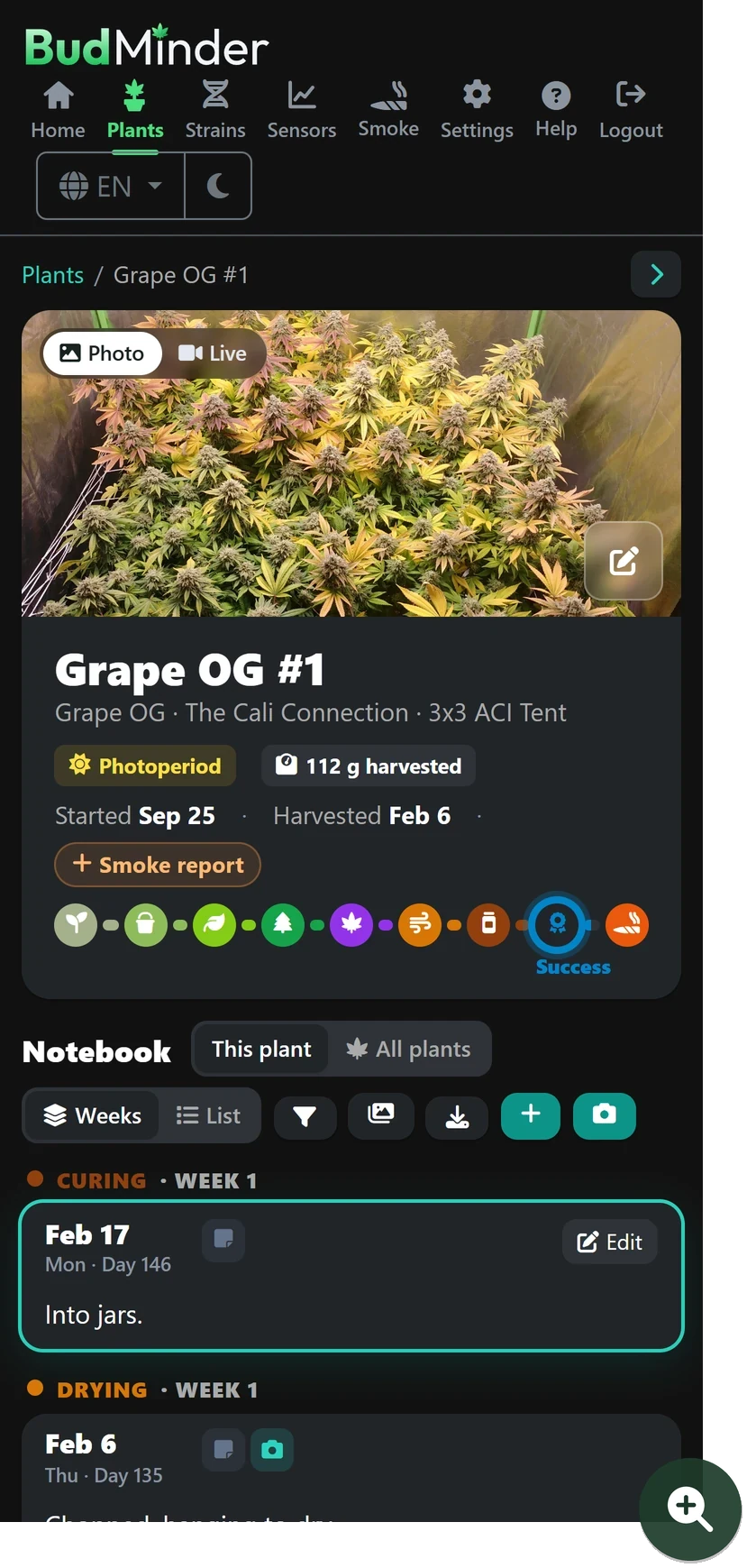
Every plant gets its own page and notebook.
Visual stage tracking. Follow each plant from germination through harvest. See the number of days spent in each stage and view projected harvest dates calculated from the strain's flowering window. Advance through the growth stages with a single click.
Streamlined daily logs. Each day's entry shows water amounts, training, height measurements and notes, right beside that day's photos.
Flexible notebook views. Filter by activity type, switch between a weekly and a list view, search your notes, or see all plant notebooks in an aggregate view.
Logging, camera and export. Log an activity for every plant in a tent in one go, watch the tent camera live, and export the notebook to CSV or Excel.
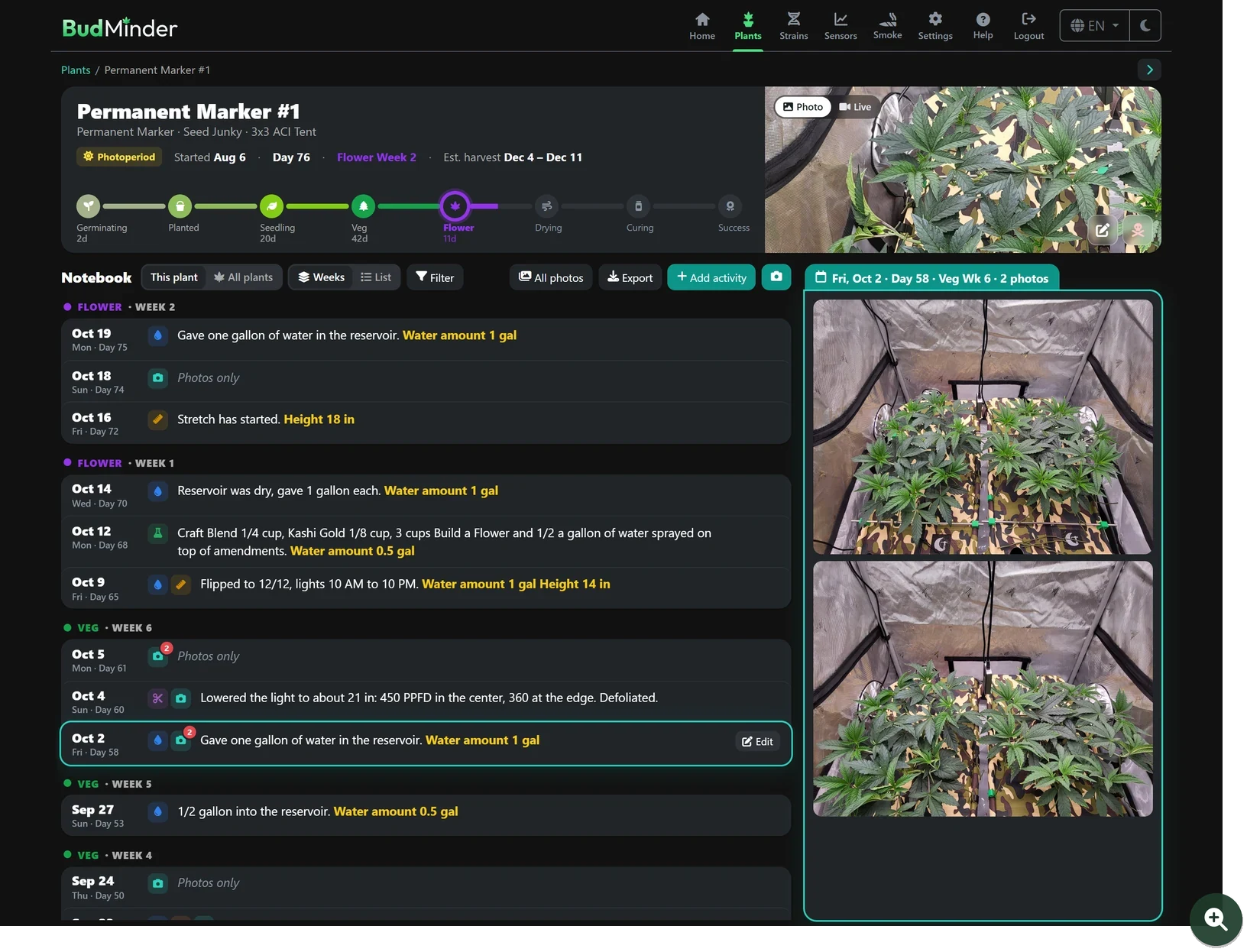
Shown in dark mode.
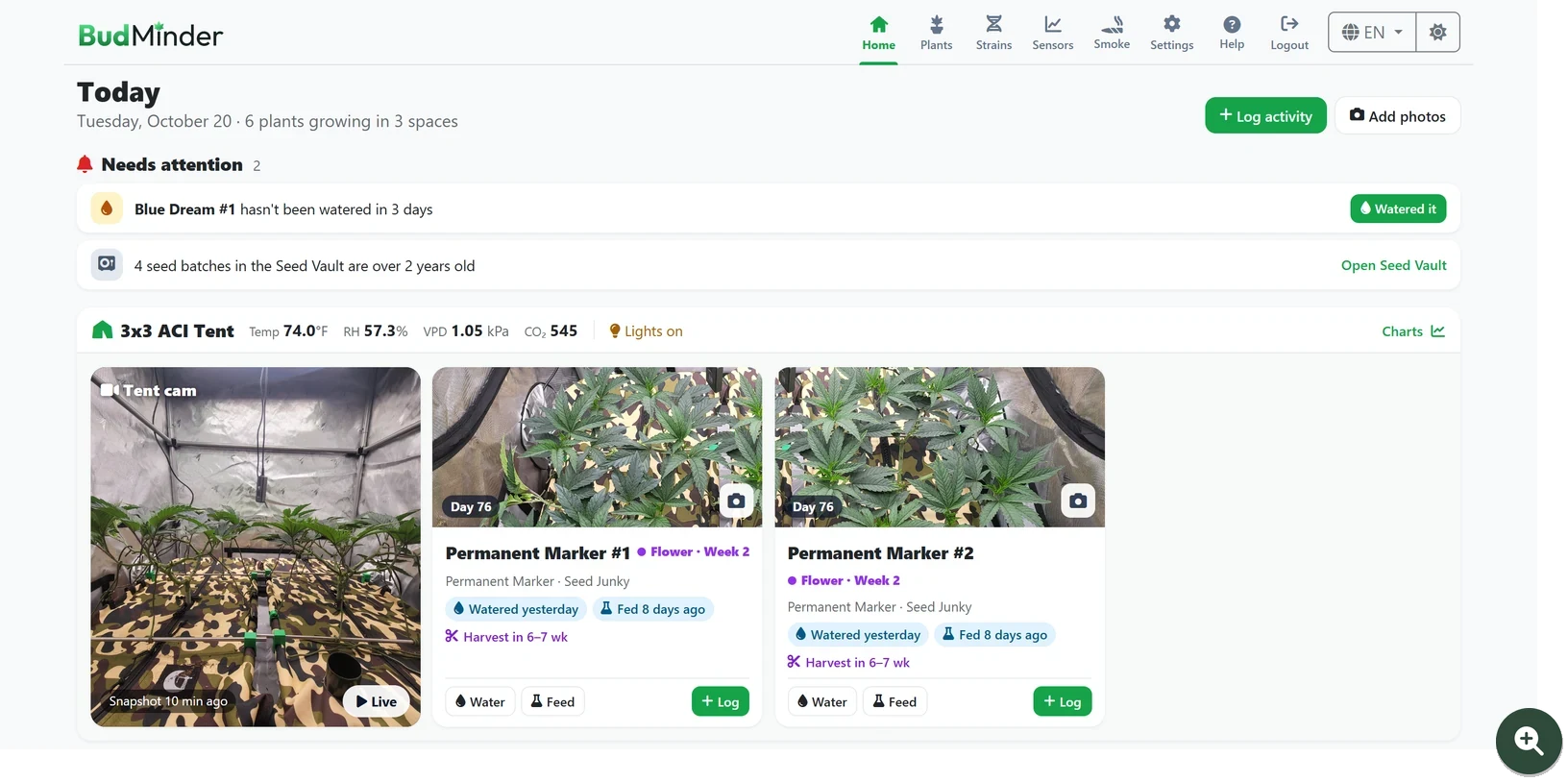
Today
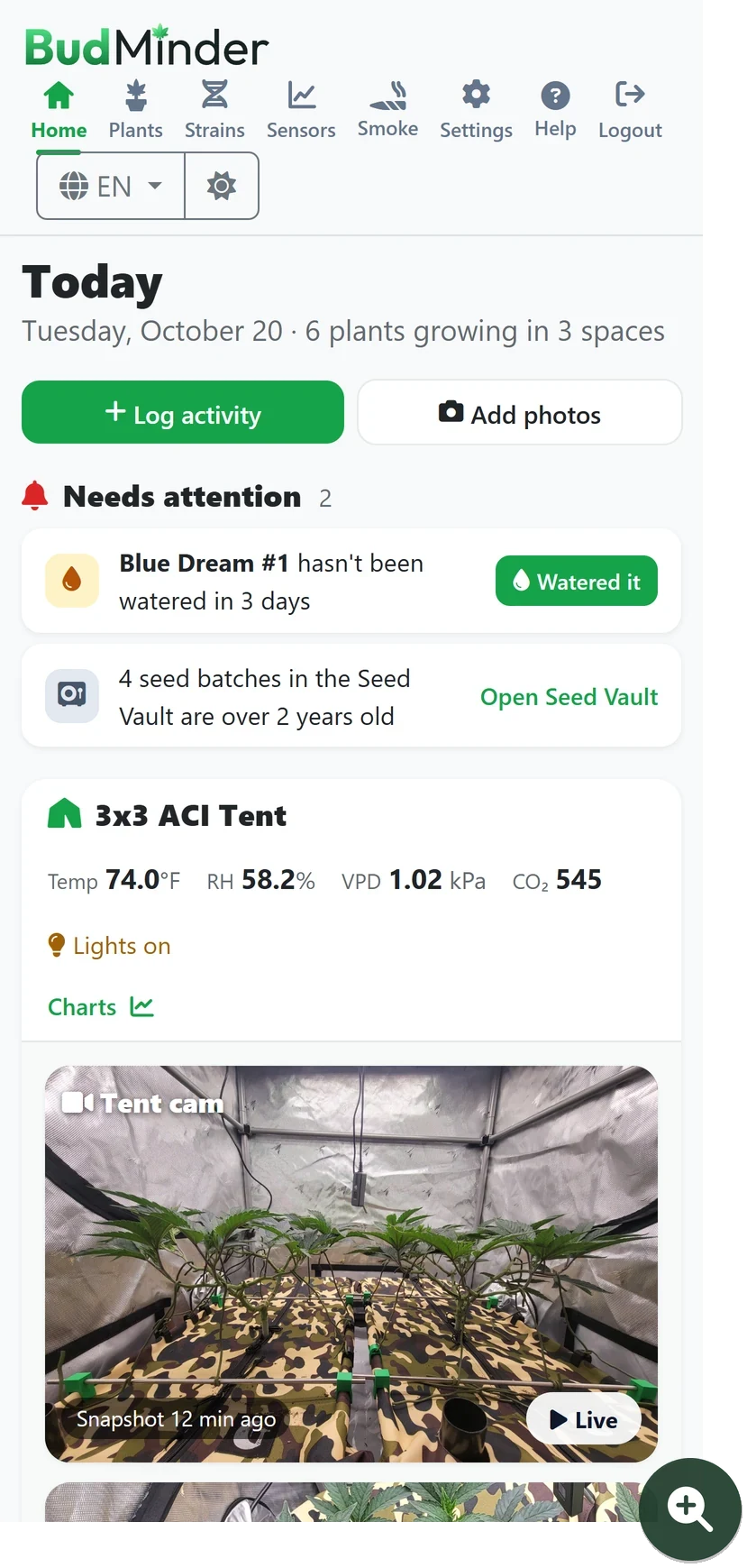
Open BudMinder and see what needs doing: plants you haven't watered or fed in a while, seeds getting old, and every tent's live temperature, humidity, VPD and CO₂ next to its camera and plants. Log water or feeding right from a plant's card.
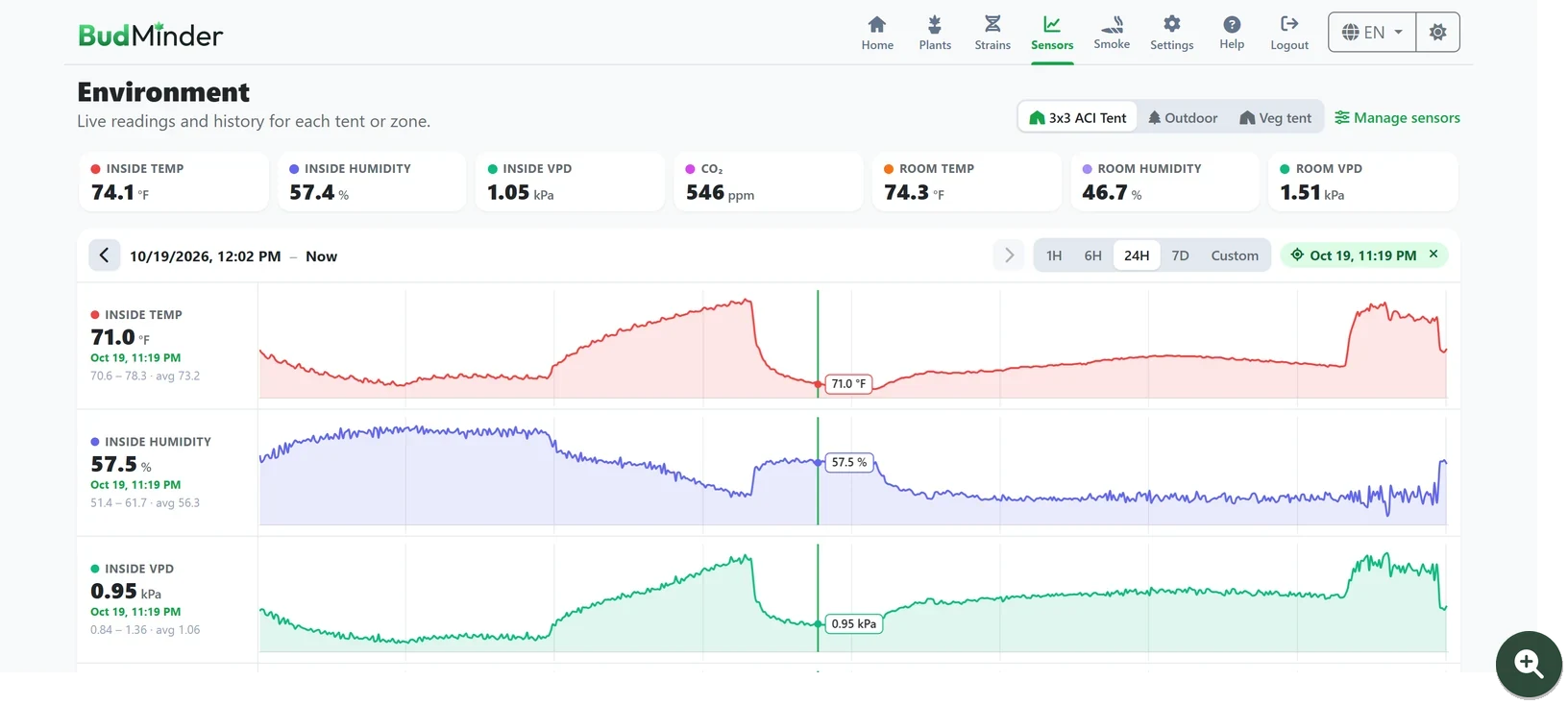
Environment
Every sensor in a tent on one timeline, from the last hour to the last week or any range you pick. Click anywhere on a chart and a marker line shows what every sensor read at that moment; drag it to scrub through the day. Works with AC Infinity controllers, Ecowitt gateways and any sensor in Home Assistant. If you build your own sensors, a simple API lets you send in their readings.
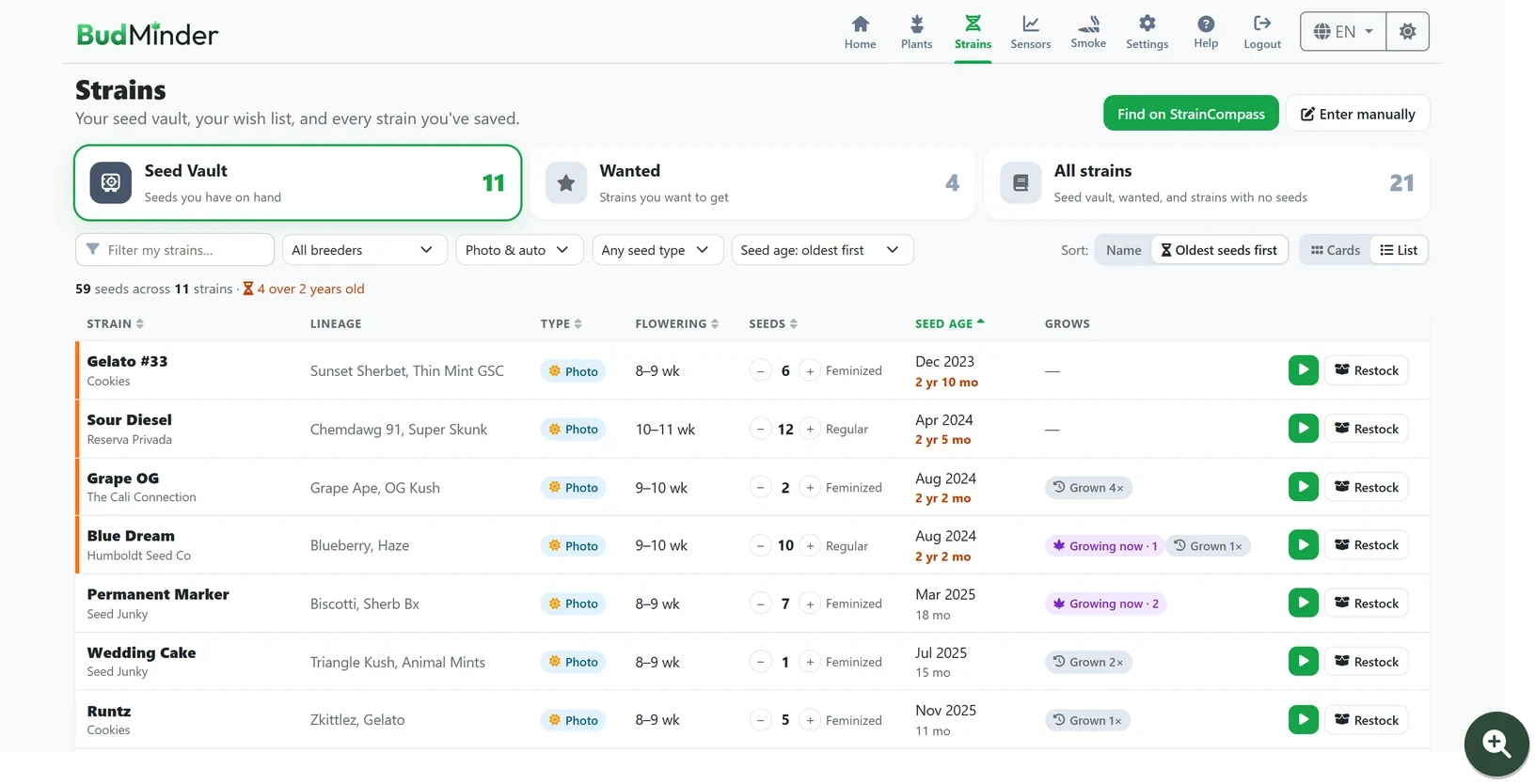
Seed Vault
Track the seeds you have on hand, how old they are and where you keep them, with a warning when a batch passes two years. Use one, restock, or start a grow straight from the list, and keep a wish list of strains you want.
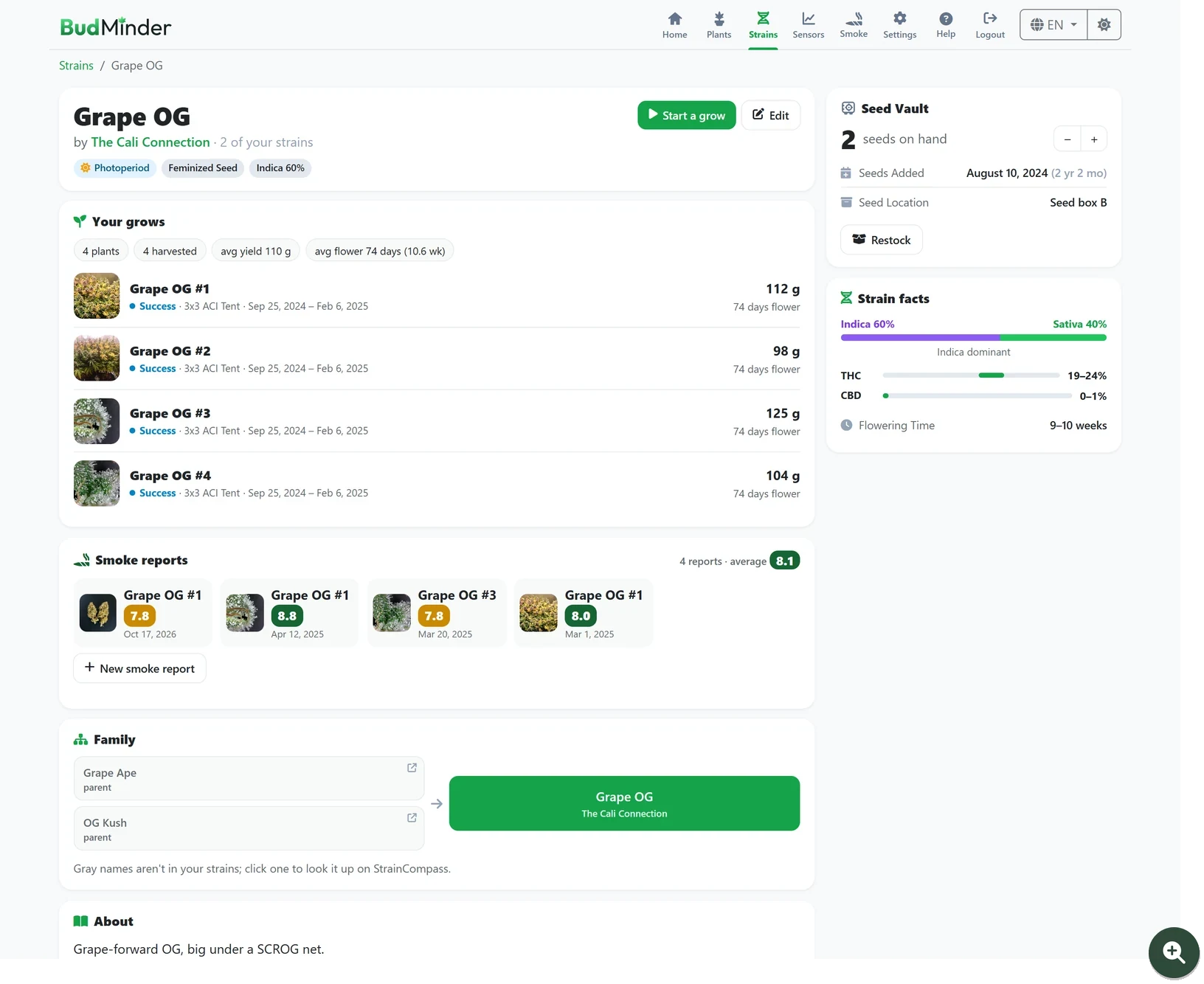
Strain pages
A complete archive for every cultivar you run. Track your full history with a strain, including past harvest yields, flowering times and photos from your grows, alongside its lineage, potency and cultivation traits. When adding a new strain, import it from public strain databases to fill in most of the profile automatically.
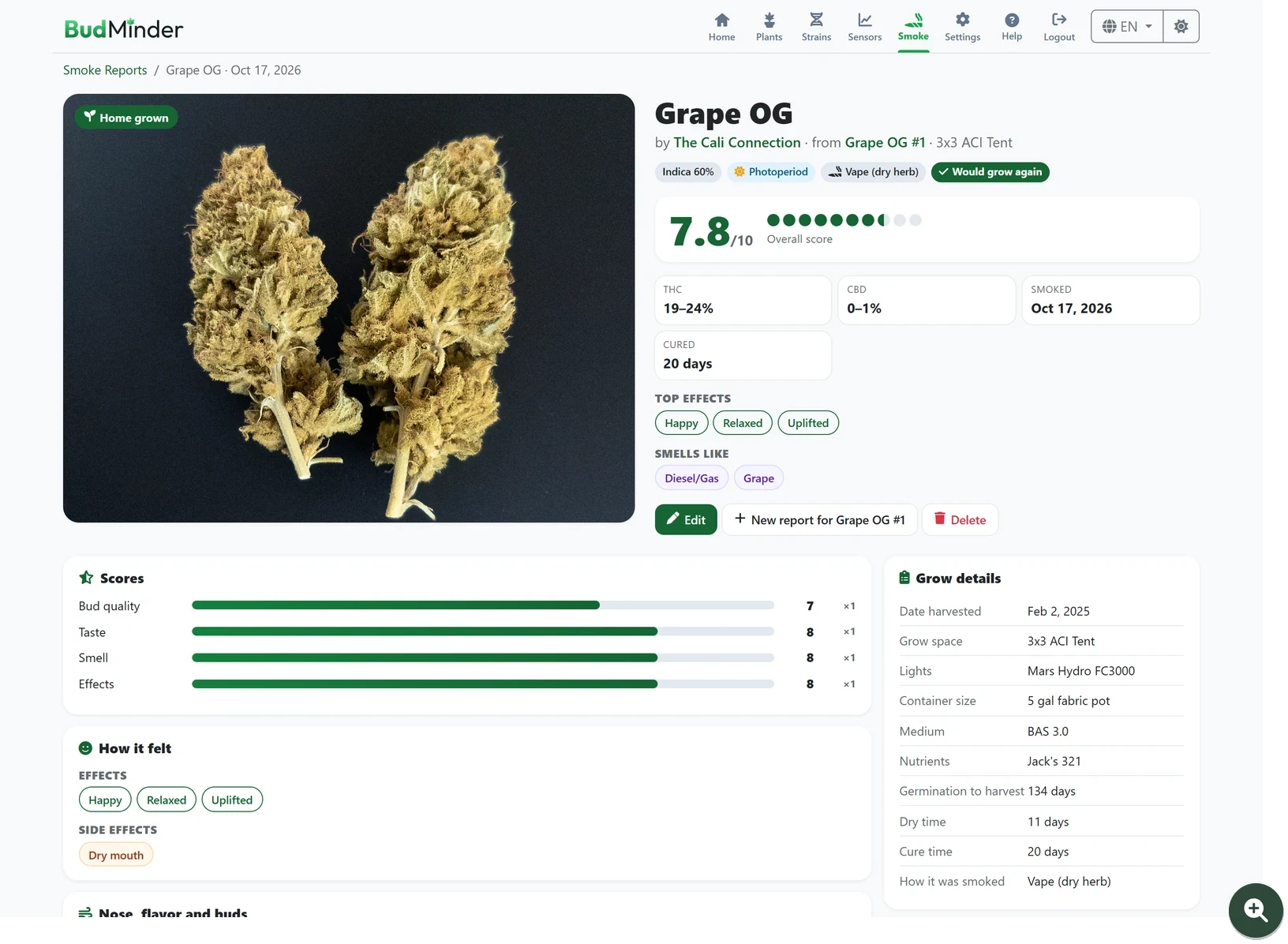
Smoke reports
A complete evaluation suite for home harvests and dispensary pickups. Rate appearance, aroma, flavor and effects on a 1 to 10 scale to generate a custom weighted overall score. Pick traits, side effects and terpene profiles from built-in lists or enter your own, then flag whether the cultivar is worth growing or buying again. For dispensary purchases, log the store and price to automatically calculate the cost per gram. Attach photos by uploading a file, pasting an image URL, or selecting a shot directly from the plant's journal history.
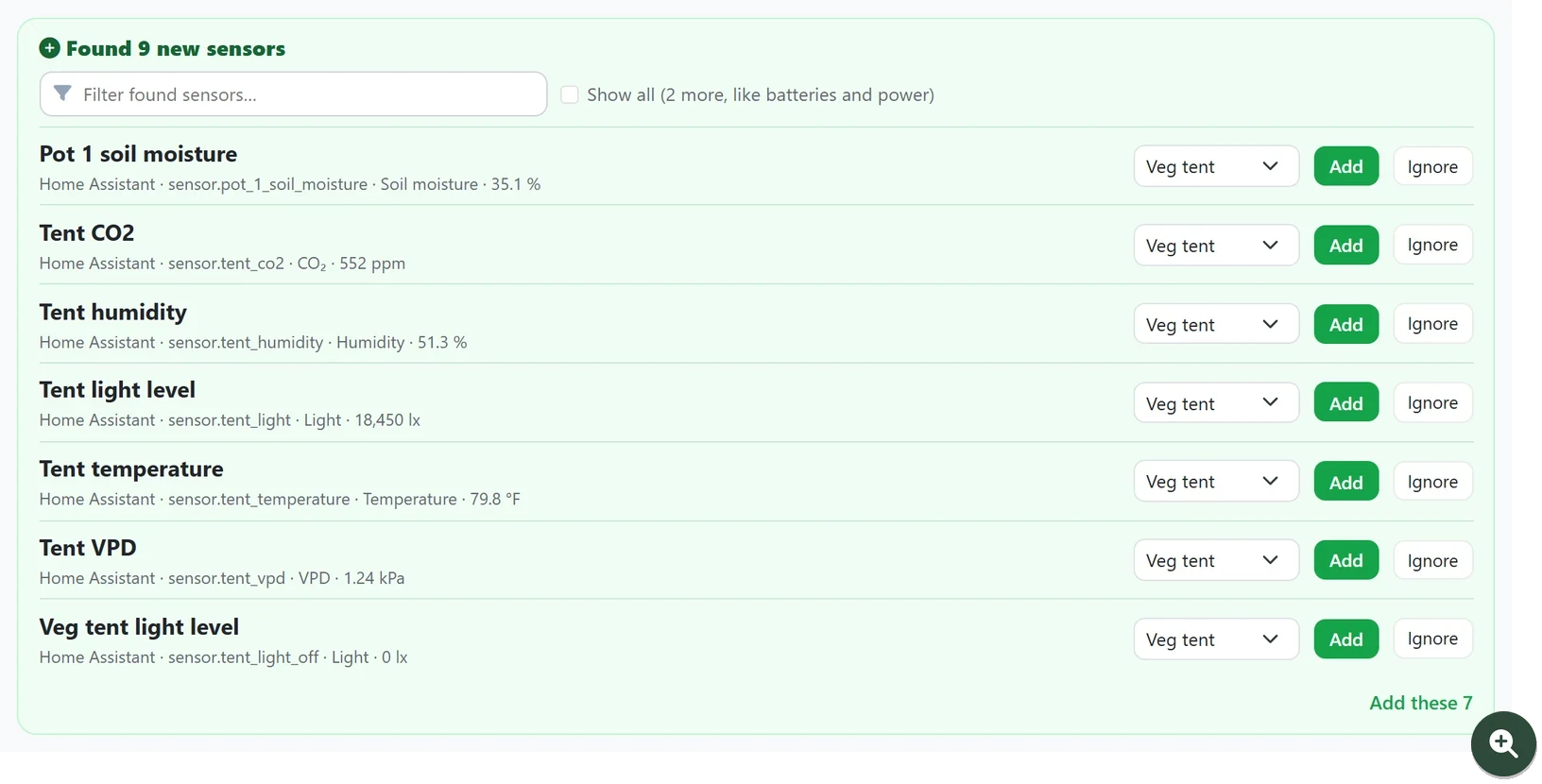
Home Assistant
No sensor left behind. Connect BudMinder to Home Assistant to pull climate readings from any device you run, from Zigbee and ESPHome probes to Govee and SwitchBot units. A quick scan shows your grow-relevant sensors so you can add them straight to your tents, right alongside your AC Infinity and Ecowitt data. It operates completely read-only, leaving your smart home configuration safe and unchanged.
More
| Plants Every plant with its stage, progress to harvest, and when it was last watered and fed. 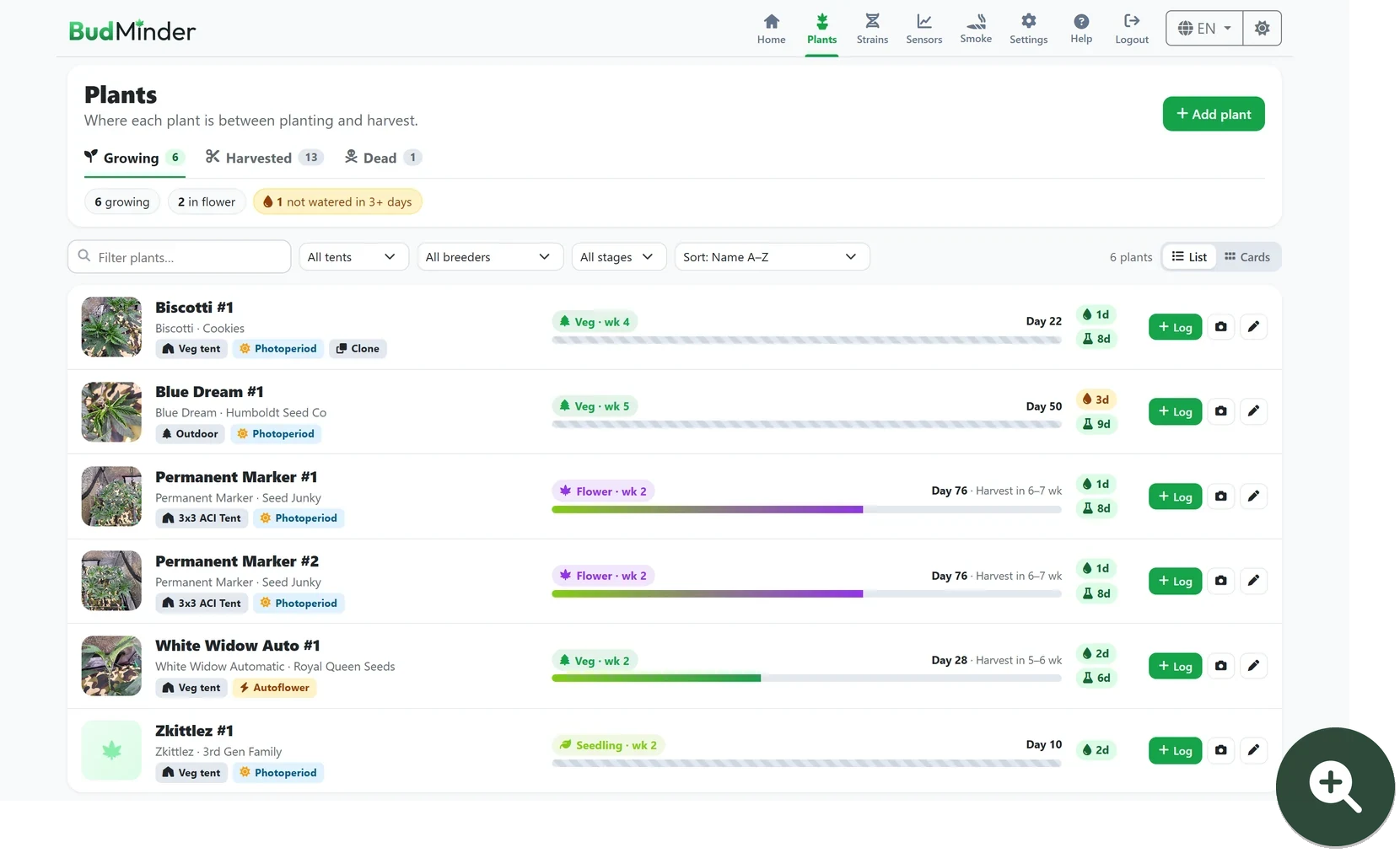 |
Log activity Water, feed, train or add a note for one plant or a whole tent at once. 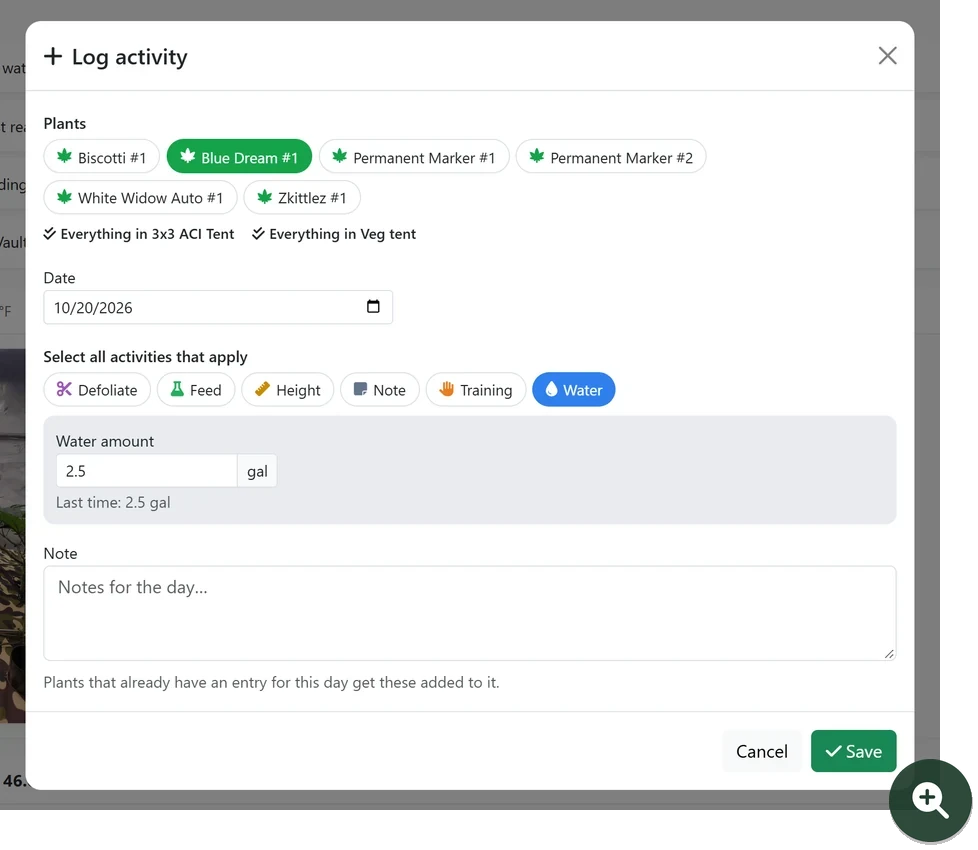 |
| Manage sensors Scan AC Infinity, Ecowitt and Home Assistant for sensors, name them, put each in a tent and choose where it shows. 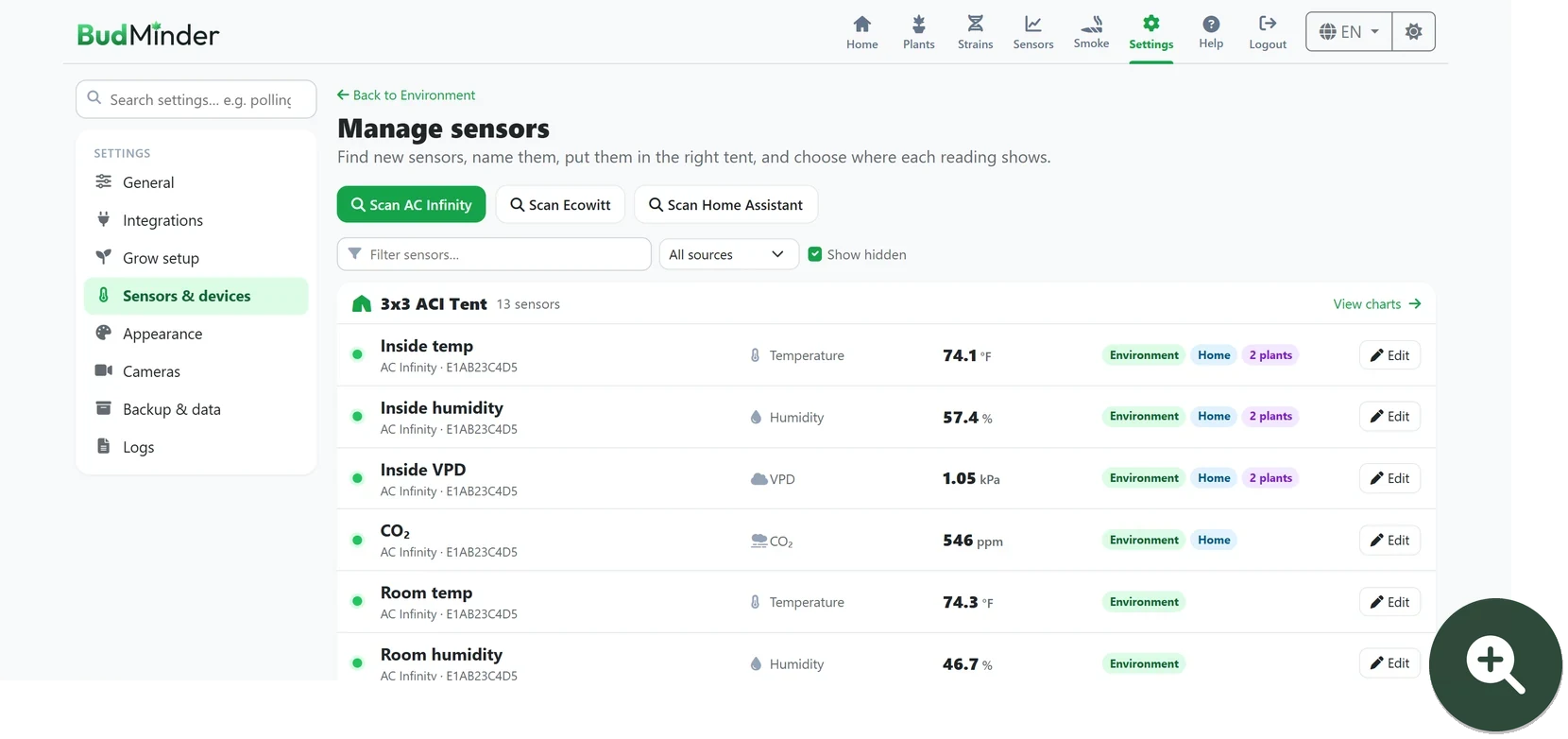 |
Settings Grouped and searchable, and every change saves as you go. 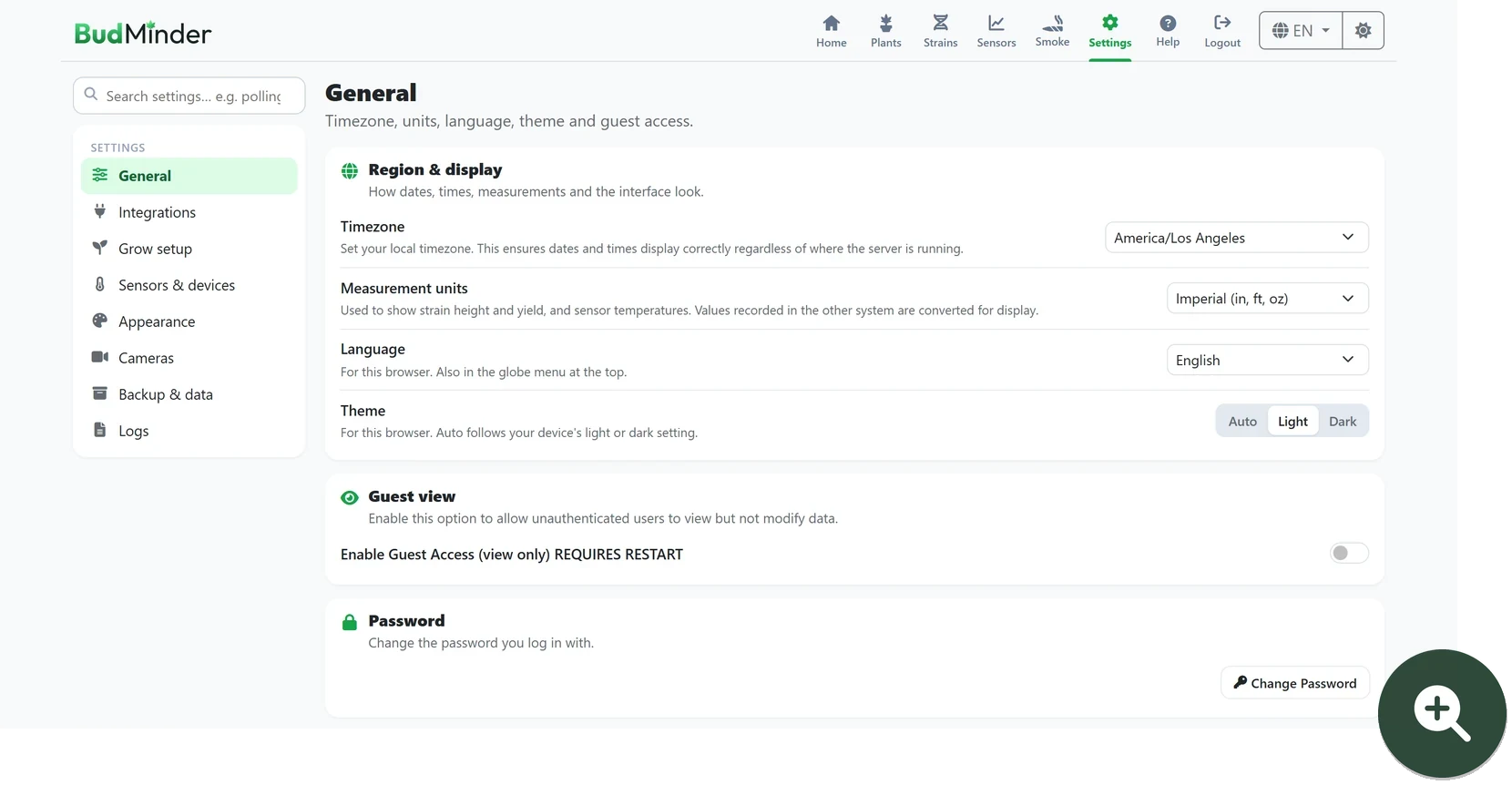 |
| Help Click Help in the top menu to learn about the page you're on. Every page is explained step by step, with numbered pictures that match the text, a search box, and light and dark versions. 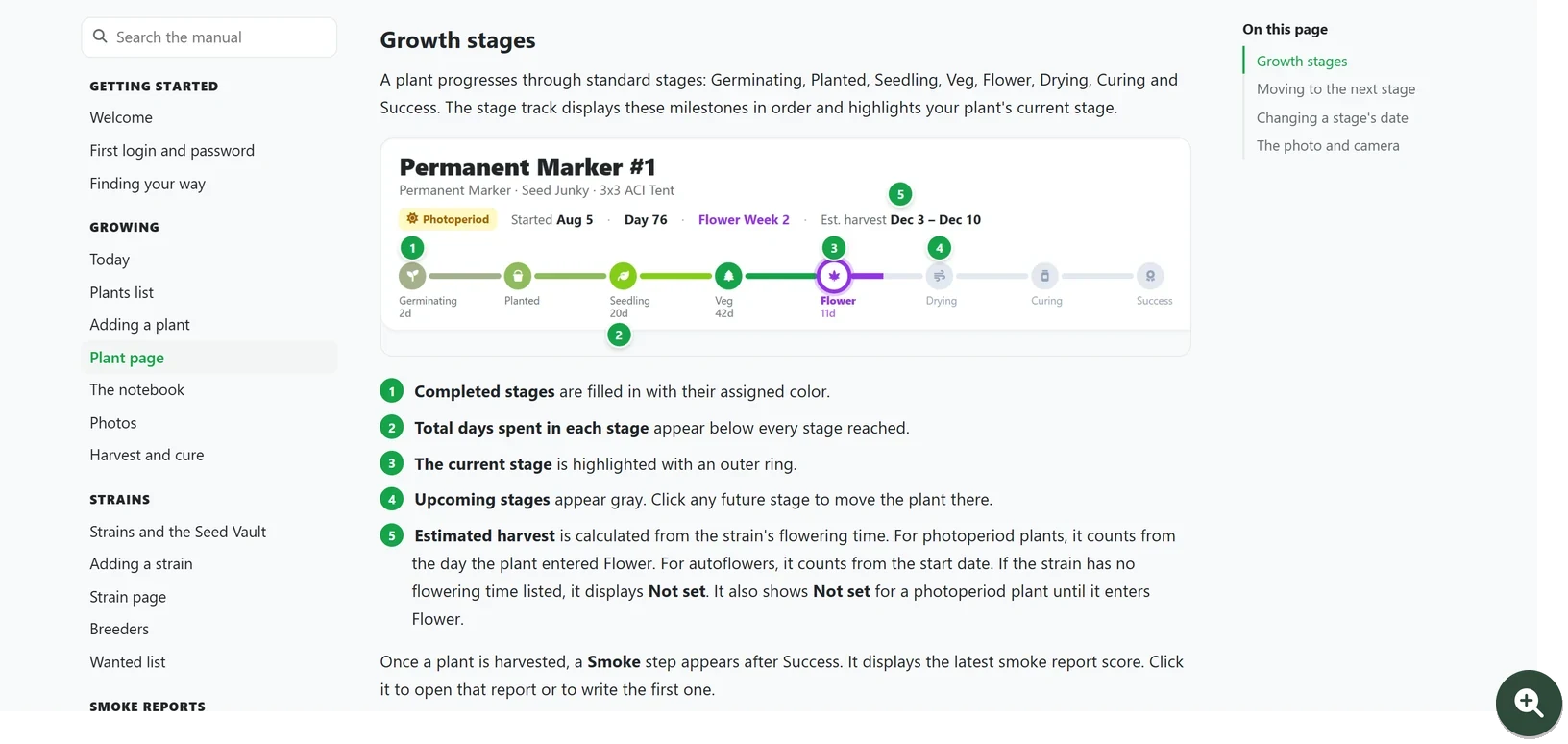 |
On your phone
And also
- A short guided tour for new users, with animated tips, which you can take again any time from Help
- One-click strain import from public strain databases, with THC and CBD ranges, effects, terpenes and lineage
- Hide the smoke report fields you never use, and choose how much each score counts
- Imperial or metric units for heights, yields and temperatures
- Everything is served from your own server: no outside fonts, scripts or trackers
- Journal export to CSV or Excel (PDF coming soon)
- Docker images for regular PCs and ARM (Raspberry Pi, newer Macs), plus ready-to-run programs for Windows, macOS and Linux
- Light and dark themes, in English, German, Spanish and French
- A tent camera: live view plus automatic snapshots
- Guest view for sharing, read-only
- SQLite or PostgreSQL
Screenshots use the same data set as the live demo. The sensor history is a month of real readings from an AC Infinity controller in a 3x3 tent.
Install
There are two ways to run BudMinder:
- In Docker (preferred): on a home server or any computer with Docker, so BudMinder keeps running all the time. Follow the steps right below. You need Docker with Compose.
- As a program on your computer: download it for Windows, macOS or Linux and run it. See Download for Windows, macOS or Linux further down, with step-by-step guides for each.
1. Save this as docker-compose.yml (or use docker-compose.sqlite.yml from this repository):
services:
  budminder:
    image: ghcr.io/sirbusta/budminder:latest
    ports:
      - "8080:8080"
    environment:
      - BUDMINDER_DB_DRIVER=sqlite
    volumes:
      - budminder-data:/app/data
      - budminder-uploads:/app/uploads
    restart: unless-stopped

volumes:
  budminder-data:
  budminder-uploads:
2. Start it:
docker compose up -d
3. Open http://localhost:8080 (or your server's address).
[!TIP] The first time you open BudMinder, it asks you to create a local account: choose your username and password. Do this right away, before anyone else on your network opens it.
To update later, run docker compose pull and then docker compose up -d. Your data stays in the two volumes.
Unraid
BudMinder is in Community Applications:
- Open the Apps tab, search for BudMinder, and click Install.
- Check the WebUI port (8091 is suggested; any free port works). The Data and Uploads folders are already filled in (
/mnt/user/appdata/budminder/…). - Click Apply. When it's running, click the BudMinder icon on the Docker tab and choose WebUI, then create your local account.
Without the Apps tab (the Community Applications plugin not installed), set it up by hand:
In the Docker tab, click Add Container. Leave Template empty.
Fill in:
Field Value Name budminderRepository ghcr.io/sirbusta/budminder:latestNetwork Type Bridge Click Add another Path, Port, Variable, Label or Device three times, once for each of these:
Config Type Name Container Host Port WebUIContainer Port 8080Host Port of your choice, e.g. 8091(any free port)Path DataContainer Path /app/data/mnt/user/appdata/budminder/dataPath UploadsContainer Path /app/uploads/mnt/user/appdata/budminder/uploadsOptional: switch the page to Advanced View (the Basic View / Advanced View switch at the top right) to see two more fields. Set WebUI to
http://[IP]:[PORT:8080]/to get a WebUI link in the container's menu; Unraid replaces[PORT:8080]with the host port you chose, so it opens BudMinder, not whatever else uses 8080. Set Icon URL tohttps://raw.githubusercontent.com/SirBusta/budminder/main/web/static/img/brand/budminder-256.pngfor the BudMinder icon in the Docker tab.Click Apply, then open
http://<your-server>:<host port>.
SQLite is used automatically. To use PostgreSQL instead, see the PostgreSQL section below.
Download for Windows, macOS or Linux
Download the program for your system from the latest release, put it in its own folder and run it. BudMinder starts on http://localhost:8080 and keeps its database and photos in data and uploads folders next to the program. Set the same BUDMINDER_… settings below as environment variables if you need them.
- Windows, Linux and macOS (beta): see the step-by-step guides below.
- From your phone: on the same Wi-Fi, open
http://<your computer's address>:8080, for examplehttp://192.168.1.108:8080. The computer has to stay on with BudMinder running.
BudMinder has no window of its own: it runs in the background and you use it in your web browser.
Windows, step by step
- Download BudMinder. Open the latest release page, scroll down to Assets and click budminder-windows-amd64.exe.
- Give it a home. Make a folder called
BudMinderin your user folder (C:\Users\<you>\BudMinder) and move the downloaded file into it. BudMinder keeps all your data (database and photos) in this folder, so don't run it from Downloads, and don't put it in OneDrive (on many PCs that includes Documents and Desktop) or Program Files. If you start it from Downloads anyway, BudMinder explains this and lets you pick a folder, then sets itself up there. - Start it by double-clicking the file. The program isn't signed, so Windows may say "Windows protected your PC": click More info → Run anyway. If Windows Firewall asks, allow it on private networks so your phone can connect.
- Create your account. A window opens with BudMinder running in it, and your browser opens BudMinder. BudMinder asks you to create a local account: choose your username and password.
- From now on, use the icon. BudMinder adds a BudMinder icon to your desktop and Start menu. Double-click it to start BudMinder in the background (no window) and open it in your browser. You don't need to run the downloaded file again, but keep it and its folder: the icon uses the file, and your data is in the folder.
- To stop it, open the Start menu and click Stop BudMinder. (If you started it from the file, closing its window stops it too.) Closing the browser doesn't stop BudMinder: it keeps running in the background for your phone and sensors.
- Updating. When a new version is out, Update available appears next to the BudMinder logo: click it to see what's new, then Update now. BudMinder backs up your database, installs the new version and restarts by itself. To update by hand instead: click Stop BudMinder, download the new budminder-windows-amd64.exe, and put it in your BudMinder folder in place of the old one (same name). Then start it with the icon as usual. Your data stays in the folder. You can also just download the new version and double-click it (from Downloads is fine): it finds your BudMinder, asks before updating it, and afterwards you can delete the download.
Linux, step by step
Download BudMinder. Open the latest release page and scroll down to Assets. Most computers need budminder-linux-amd64: click it to download. Only ARM computers, such as a Raspberry Pi, need budminder-linux-arm64. Not sure? Open a terminal and type
uname -m:x86_64means amd64,aarch64means arm64.Give it a home. Make a folder called
budminderin your home folder and move the download into it. BudMinder keeps all your data in this folder, so don't run it from Downloads. If you start it from Downloads anyway, BudMinder explains this and lets you pick a folder, then sets itself up there.Make it runnable. In a terminal:
chmod +x ~/budminder/budminder-linux-amd64(Use
arm64instead ofamd64here and below if that's the file you downloaded.)Start it:
~/budminder/budminder-linux-amd64When it's ready, a box at the end shows the address to open. BudMinder also adds a BudMinder icon to your desktop and app menu.
Open it at http://localhost:8080. BudMinder asks you to create a local account: choose your username and password.
To stop it, press Ctrl+C in that terminal, or close the terminal. Closing the browser doesn't stop BudMinder: it keeps running for your phone and sensors.
From now on, use the icon. Double-click BudMinder on your desktop or in the app menu: it starts BudMinder in the background if needed and opens it in your browser. No terminal needed, but keep the program and its folder: the icon uses the program, and your data is in the folder. To stop it, right-click the icon → Stop BudMinder. The first time, your desktop may ask whether to trust the new icon: allow it. If you move the
budminderfolder, start the program once from the terminal to update the icon.Start it with the computer (optional). Instead of steps 4 and 6, let your system run it in the background:
mkdir -p ~/.config/systemd/user
cat > ~/.config/systemd/user/budminder.service <<'EOF'
[Unit]
Description=BudMinder

[Service]
WorkingDirectory=%h/budminder
ExecStart=%h/budminder/budminder-linux-amd64
Restart=on-failure

[Install]
WantedBy=default.target
EOF
systemctl --user enable --now budminder
loginctl enable-linger "$USER"
It now starts when the computer does, even before you sign in. Stop it with
systemctl --user stop budminder, and turn this off withsystemctl --user disable --now budminder.Updating. When a new version is out, Update available appears next to the BudMinder logo: click it to see what's new, then Update now. BudMinder backs up your database, installs the new version and restarts by itself. To update by hand instead: stop BudMinder, replace the program file with the new download (keep the same name), and start it again. If you set up step 8, run
systemctl --user restart budminderafter replacing the file. Your data stays in thedataanduploadsfolders. You can also just download the new version and double-click it (from Downloads is fine): it finds your BudMinder, asks before updating it, and afterwards you can delete the download.Using it from your phone works as described above. If you've turned on the firewall (
ufw), open the port first withsudo ufw allow 8080/tcp.
macOS, step by step
Beta. The Mac version hasn't been tried on a real Mac yet. It runs in a Terminal window, with no app icon, and stopping it means closing that window. If you try it, please say how it went in the support thread or in a GitHub issue.
Download BudMinder. First check which Mac you have: open the Apple menu → About This Mac. Then open the latest release page and scroll down to Assets. If your Mac says Apple M1, M2, M3 or M4 (or later), click budminder-macos-arm64 to download it; if it says Intel, click budminder-macos-amd64.
Give it a folder. In Finder, open your home folder, make a new folder called
BudMinder, and move the download into it. Your data will live in this folder too.Make it runnable. Open Terminal (in Applications → Utilities) and run these two lines:
chmod +x ~/BudMinder/budminder-macos-arm64
xattr -d com.apple.quarantine ~/BudMinder/budminder-macos-arm64
(Use
amd64instead ofarm64here and below if that's the file you downloaded.) The second line tells macOS it may run a program that isn't signed by Apple. If it says "No such xattr", that's fine.Start it by double-clicking the program in Finder. A Terminal window opens with BudMinder running in it; leave that window open. From now on, start BudMinder the same way: double-click the program in your
BudMinderfolder (or use step 8 to start it when you sign in). The first time, macOS may ask whether BudMinder may accept incoming network connections: click Allow if you want to use it from your phone.Open it at http://localhost:8080. BudMinder asks you to create a local account: choose your username and password.
To stop it, close that Terminal window, or press Ctrl+C in it. Closing the browser doesn't stop BudMinder: it keeps running in that window for your phone and sensors.
A shortcut (optional). With BudMinder running, open it in Safari and choose File → Add to Dock, or in Chrome or Edge install it from the browser's menu (in Chrome: Cast, save and share → Install page as app). You get an icon that opens BudMinder in its own window. BudMinder itself still has to be running.
Start it when you sign in (optional). Open System Settings → General → Login Items, click + under "Open at Login", and choose the program in your
BudMinderfolder. It then opens in a Terminal window each time you sign in.Updating. When a new version is out, Update available appears next to the BudMinder logo: click it to see what's new, then Update now. BudMinder backs up your database, installs the new version and restarts by itself. To update by hand instead: stop BudMinder, replace the program file with the new download (keep the same name), repeat step 3 for the new file, and start it again. Your data stays in the
dataanduploadsfolders. Or do step 3 for the new download and open it from wherever it is: it finds your BudMinder, asks before updating it, and afterwards you can delete the download.
Nothing is installed: it's a portable program
There's no installer, no admin rights needed, and nothing goes into Program Files or the Windows registry, so BudMinder doesn't appear in your list of installed apps. Everything it creates is a plain file you can see:
- Its folder (for example
C:\Users\<you>\BudMinderor~/budminder), holding the program,data(the database),uploads(your photos) andlogs. - Its shortcuts: on Windows, BudMinder on the desktop plus BudMinder and Stop BudMinder in the Start menu; on Linux, a
budminder.desktopfile on the desktop and one in~/.local/share/applications. - A one-line note saying where BudMinder is, so a newer download can find it and offer to update it:
%AppData%\BudMinder\home.txton Windows,~/.config/budminder/homeon Linux,~/Library/Application Support/BudMinder/homeon macOS.
Going back to the previous version: each update keeps the version it replaced next to the program, with .old added to its name, until the next update. To go back, stop BudMinder, delete the program, and remove .old from the old one's name. The database is backed up in data/backups before every update (before-<version>-<date>.db). If the new version changed it, also put that backup back: replace data/isley.db with it (this undoes anything entered since the update).
Moving to another computer: stop BudMinder, copy the whole folder over, and start the program there once. It makes new shortcuts.
Removing it: stop BudMinder, then delete its folder and its shortcuts. Deleting the folder deletes your grow journal too, so make a backup first (Settings → Backup & data) if you might want it later.
Using BudMinder away from home
At home, your phone reaches BudMinder at the "From your phone" address in the welcome box, for example http://192.168.1.108:8080. That's your computer's address on your home network, so it only works on your home Wi-Fi.
From anywhere else, the safe way is Tailscale, which is free for personal use. It joins your phone and your computer in a private network of your own, encrypted end to end. Nothing on your router is opened, and nobody else can reach BudMinder.
- Make a Tailscale account at tailscale.com. You can sign in with Google, Microsoft, Apple or GitHub.
- Install Tailscale on the computer that runs BudMinder and sign in:
- Windows and macOS: download it from tailscale.com/download.
- Linux: run
curl -fsSL https://tailscale.com/install.sh | sh, thensudo tailscale upand open the link it prints. - Unraid: install the Tailscale plugin from the Apps tab, then sign in from its settings page.
- Install the Tailscale app on your phone (App Store or Google Play), sign in with the same account and switch it on.
- Find your computer's Tailscale name. In the phone app, or at login.tailscale.com, your computer is listed with a name such as
my-pcand an address starting with100.. - Open BudMinder on your phone at
http://my-pc:8080(your computer's name), orhttp://100.x.y.z:8080if the name doesn't work. Bookmark it, or add it to your home screen. It works at home too, so one bookmark is enough.
Tailscale has to stay on, on both the computer and the phone. If the page doesn't load, check that the computer is awake and BudMinder is running. On Windows, also check that Windows Firewall allows BudMinder (Windows step 3 above).
Don't forward a port on your router to BudMinder. That puts it on the open internet, where it's probed all day, and without HTTPS your password travels unencrypted. If you want a public web address anyway, put BudMinder behind HTTPS (see Reverse proxy (HTTPS) under Reference).
PostgreSQL instead of SQLite
SQLite is built in and is all most people need. If you'd rather use PostgreSQL, docker-compose.postgres.yml starts BudMinder and PostgreSQL together. Put the database password in a .env file next to it:
BUDMINDER_DB_PASSWORD=choose-a-strong-password
docker compose -f docker-compose.postgres.yml up -d
To use a PostgreSQL server you already run (on Unraid, another container, or another machine), set BUDMINDER_DB_DRIVER=postgres and the BUDMINDER_DB_HOST, BUDMINDER_DB_PORT, BUDMINDER_DB_USER, BUDMINDER_DB_PASSWORD and BUDMINDER_DB_NAME settings on BudMinder.
Moving from SQLite to PostgreSQL: use docker-compose.migration.yml. It mounts your SQLite data next to a new, empty PostgreSQL database and copies everything over on first start. Back up first, and switch to docker-compose.postgres.yml afterwards.
Reference
Configuration settings
Most settings live in the app under Settings. These few are startup settings, set on the container (or as environment variables) because BudMinder needs them before it starts. The older ISLEY_… names (for example ISLEY_DB_DRIVER) still work.
| Setting | Default | What it does |
|---|---|---|
BUDMINDER_PORT |
8080 |
Port BudMinder listens on |
BUDMINDER_SESSION_SECRET |
made on first start | Key that keeps you logged in (32+ characters). BudMinder makes one on first start and keeps it in its database; set this only to use your own |
BUDMINDER_SECURE_COOKIES |
false |
true sends the login cookie over HTTPS only. Turn on behind an HTTPS reverse proxy |
BUDMINDER_HSTS_MAX_AGE |
0 |
Above 0, tells browsers to always use HTTPS for this many seconds. Only when BudMinder is reachable over HTTPS alone |
BUDMINDER_HSTS_INCLUDE_SUBDOMAINS |
false |
Adds includeSubDomains to the HSTS header |
BUDMINDER_HSTS_PRELOAD |
false |
Adds preload to the HSTS header |
GIN_MODE |
release |
debug for detailed request logs |
BUDMINDER_DB_DRIVER |
sqlite |
sqlite or postgres |
BUDMINDER_DB_FILE |
data/isley.db |
Where the SQLite database is kept |
BUDMINDER_DB_HOST |
PostgreSQL server address | |
BUDMINDER_DB_PORT |
5432 |
PostgreSQL port |
BUDMINDER_DB_USER |
PostgreSQL user | |
BUDMINDER_DB_PASSWORD |
PostgreSQL password | |
BUDMINDER_DB_NAME |
PostgreSQL database name | |
BUDMINDER_DB_SSLMODE |
disable |
require or verify-full for a PostgreSQL server that uses TLS |
Sensors: AC Infinity, Ecowitt, Home Assistant and your own
AC Infinity (UIS controllers). BudMinder reads your controllers through AC Infinity's cloud, so the controller has to be online and on your AC Infinity account.
- In Settings → Integrations, turn on AC Infinity and sign in with your AC Infinity email and password. BudMinder keeps the access token it gets back. AC Infinity logs that token out from time to time; tick Stay signed in and BudMinder keeps your password, encrypted, and signs in again by itself when that happens. The encryption key is kept in its own file in BudMinder's data folder (
/app/datain Docker), not in the database or in backups. - In Sensors → Manage sensors, click Scan AC Infinity and add the sensors and ports you want.
- Put each sensor in a tent and choose where it shows.
AC Infinity's sign-in only uses the first 25 characters of a password.
Ecowitt gateways (GW1000, GW1100, GW2000 and similar) are read directly on your network, with no cloud account.
- In Settings → Integrations, turn on Ecowitt.
- In Sensors → Manage sensors, click Scan Ecowitt and enter the gateway's IP address.
- Add the sensors you want and put each in a tent. Scan each gateway separately if you have more than one.
Home Assistant. Any numeric sensor in Home Assistant can be added: temperature, humidity, CO₂, soil moisture, light, EC and more. BudMinder only reads values; it never changes anything in Home Assistant.
- In Home Assistant, create a separate user for BudMinder (Settings → People → Add person, allow login, not an administrator).
- Log in to Home Assistant as that user, open your profile → Security → Long-lived access tokens, and create a token. Copy it; Home Assistant shows it only once.
- In BudMinder, Settings → Integrations → Home Assistant: turn it on, enter Home Assistant's address with its port (for example
http://192.168.1.20:8123), paste the token and click Test connection. - In Sensors → Manage sensors, click Scan Home Assistant. Sensors useful for growing are listed first with their current readings; batteries, power and the like appear with Show all. Add the ones you want and put each in a tent.
If Home Assistant restarts or is offline for a while, BudMinder logs it and picks the readings back up when it returns.
Readings are collected at the polling interval set in Settings (every 60 seconds by default).
Your own sensors: if you build your own (an ESP32 board, for example), you can program it to send readings through the API below.
API
Create an API key in Settings → Integrations and send it as an X-API-KEY header. The key is shown once; making a new one replaces the old one.
Send a reading: POST /api/sensors/ingest, one reading per request. A new sensor is created the first time its source, device and type are seen.
{
  "source": "custom",
  "device": "ESP32 tent probe",
  "type": "temperature",
  "value": 25.5,
  "name": "Canopy temp",
  "new_zone": "Tent 1",
  "unit": "°C"
}
Stream overlay: GET /api/overlay returns every growing plant (with its linked sensor readings) and all sensors grouped by source, tent and type. Made for live-stream overlays such as an OBS browser source.
Sensor history: GET /sensorData?sensor=5&minutes=1440 returns readings for one sensor, by minutes, or by start and end dates (YYYY-MM-DD or RFC 3339). It needs a login unless guest view is on.
Backup and restore
From the app: Settings → Backup & data. Choose how much sensor history to include and whether to include photos, then create the backup. It runs in the background and appears in the list to download. Download it to keep it somewhere safe: backups stored only on the same computer are lost if that computer fails. A backup includes your saved connection details, such as the AC Infinity and Home Assistant tokens, so keep backup files private.
Restoring replaces everything in the current BudMinder with the backup. On SQLite you can also skip sensor history to restore faster, or download and upload the database file itself under SQLite file transfer, which is the quickest way to copy a SQLite setup.
Uploads are limited to 5 GB by default; change it in the restore section (minimum 100 MB). Backups are always full backups, and a large backup with photos needs about as much free memory as its size while restoring. For automatic backups, call POST /settings/backup/create on a schedule, or back up the Docker volumes.
From Docker: everything BudMinder stores is in its two volumes: the database volume (/app/data, or PostgreSQL's own volume) and the uploads volume (/app/uploads, your photos and camera snapshots). For SQLite, stop the container before copying the database file.
Reverse proxy (HTTPS)
Nginx
server {
    listen 443 ssl;
    server_name budminder.example.com;

    ssl_certificate     /etc/letsencrypt/live/budminder.example.com/fullchain.pem;
    ssl_certificate_key /etc/letsencrypt/live/budminder.example.com/privkey.pem;

    client_max_body_size 20M;  # photo uploads

    location / {
        proxy_pass http://127.0.0.1:8080;
        proxy_set_header Host $host;
        proxy_set_header X-Real-IP $remote_addr;
        proxy_set_header X-Forwarded-For $proxy_add_x_forwarded_for;
        proxy_set_header X-Forwarded-Proto $scheme;
    }
}
Traefik (labels on the budminder service)
labels:
  - "traefik.enable=true"
  - "traefik.http.routers.budminder.rule=Host(`budminder.example.com`)"
  - "traefik.http.routers.budminder.entrypoints=websecure"
  - "traefik.http.routers.budminder.tls.certresolver=letsencrypt"
  - "traefik.http.services.budminder.loadbalancer.server.port=8080"
BudMinder trusts X-Forwarded-For from private network addresses, so a proxy on your network is handled correctly. Behind HTTPS, also set BUDMINDER_SECURE_COOKIES=true.
Credits and license
BudMinder is based on Isley by dwot. Strain data comes from StrainCompass and CannaDB. Icons are from Font Awesome Free, and the logo is set in Outfit.
Found a bug or have an idea? Open an issue.
Released under the MIT license.
Media gallery
1 / 4Categories
Related apps
Explore more like this
Explore allDetails
ghcr.io/sirbusta/budminder:latestRuntime arguments
- Web UI
http://[IP]:[PORT:8080]/- Network
bridge- Shell
sh- Privileged
- false
Template configuration
Port for the BudMinder web page. Pick any free port on your server; 8091 is suggested because 8080 is often already taken.
- Target
- 8080
- Default
- 8091
- Value
- 8091
The database, settings, backups and BudMinder's key file.
- Target
- /app/data
- Default
- /mnt/user/appdata/budminder/data
- Value
- /mnt/user/appdata/budminder/data
Plant and strain photos.
- Target
- /app/uploads
- Default
- /mnt/user/appdata/budminder/uploads
- Value
- /mnt/user/appdata/budminder/uploads
User ID that owns the files in the Data and Uploads folders. 99 (nobody) is the Unraid default.
- Default
- 99
- Value
- 99
Group ID that owns the files in the Data and Uploads folders. 100 (users) is the Unraid default.
- Default
- 100
- Value
- 100
sqlite (built in, nothing to set up) or postgres (fill in the PostgreSQL settings below).
- Target
- BUDMINDER_DB_DRIVER
- Default
- sqlite
- Value
- sqlite
Only for postgres: the PostgreSQL server's address.
- Target
- BUDMINDER_DB_HOST
Only for postgres.
- Target
- BUDMINDER_DB_PORT
- Default
- 5432
- Value
- 5432
Only for postgres.
- Target
- BUDMINDER_DB_USER
Only for postgres.
- Target
- BUDMINDER_DB_PASSWORD
Only for postgres: the database name.
- Target
- BUDMINDER_DB_NAME