
All apps · 0 apps

BTDEX
Docker app from DeadFeet's Repository
Overview
Readme
View on GitHubDocker container for BTDEX

This project takes the standalone BTDEX application and transforms into portable, web-accessible container using Docker and KasmVNC base image.
 BTDEX is a decentralized exchange (DEX) system running on the Signum blockchain.
Quick Start
NOTE: The Docker command provided in this quick start is given as an example and parameters should be adjusted as needed.
First, clone this repository:
git clone https://github.com/furritos/docker-btdex.git
cd docker-btdex
Launch the BTDEX Docker container with the following, Linux and PowerShell compatible, command:
docker run -d \
  --name=container-btdex \
  -v ${pwd}/config:/opt/btdex/.config \
  -v ${pwd}/plots:/opt/btdex/plots \
  -v ${pwd}/cache:/opt/btdex/cache \
  -p 3000:3000 \
  -p 3001:3001 \
  furritos/docker-btdex
For macOS, the following command will need to be executed (note the capitalized PWD):
docker run -d \
  --name=container-btdex \
  -v ${PWD}/config:/opt/btdex/.config \
  -v ${PWD}/plots:/opt/btdex/plots \
  -v ${PWD}/cache:/opt/btdex/cache \
  -p 3000:3000 \
  -p 3001:3001 \
  furritos/docker-btdex
Finally, take your favorite web browse and open http://localhost:3000/.
For HTTPS, use https://localhost:3001,
Please refer to this Get Started page for more information on using BTDEX.
Cache Volume Configuration
Required if plotting will be performed
- Click on the MINING tab (1) and then click on Select a SSD cache button (2)
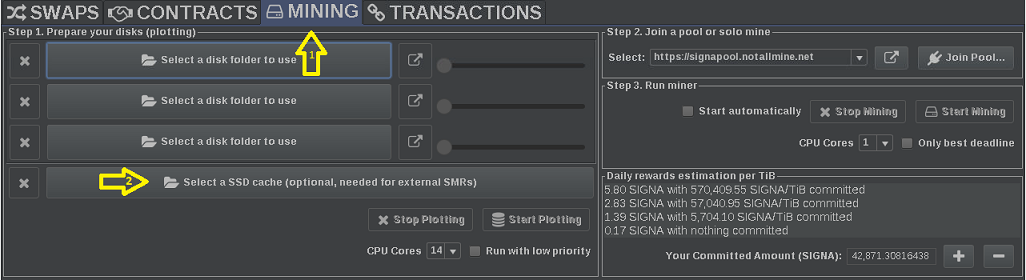
- Select the
cachefolder and clickOpen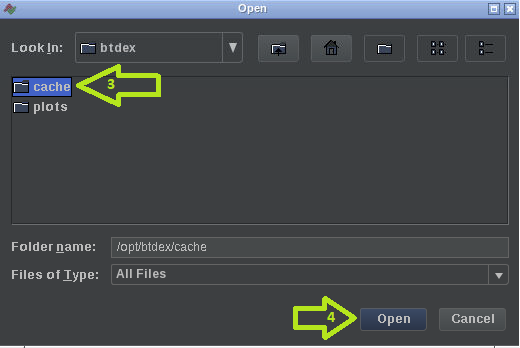
Plots Volume Configuration
Required if mining will be performed
- Click on the MINING tab (1) and then click on Select a disk folder to use button (2)
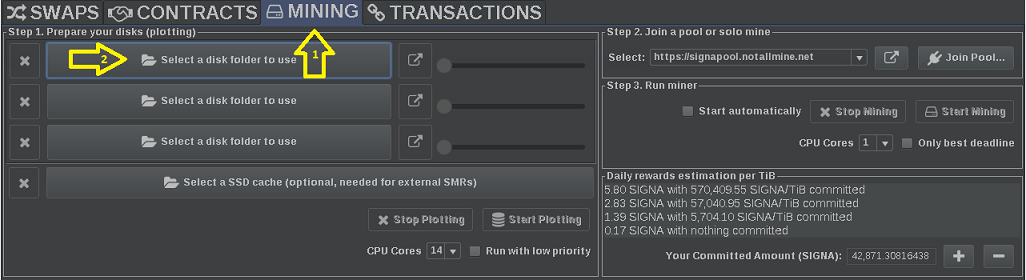
- Select the
plotsfolder and clickOpen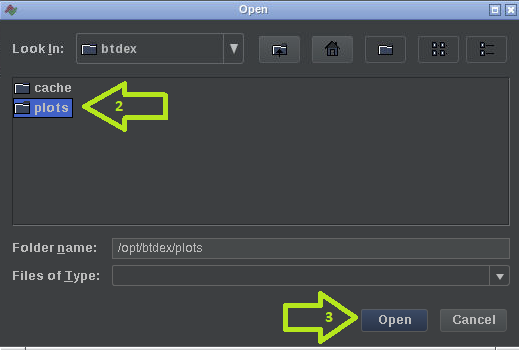
Docker Basic Usage
docker run [-d] \
  --name=container-btdex \
  [-v <HOST_DIR>:<CONTAINER_DIR>[:PERMISSIONS]]... \
  [-p <HOST_PORT>:<CONTAINER_PORT>]... \
  [-e <VARIABLE_NAME>=<VALUE>]... \
  furritos/docker-btdex
| Parameter | Description |
|---|---|
| -d | Run the container in the background. If not set, the container runs in the foreground. |
| -v | Set a volume mapping (allows to share a folder/file between the host and the container). See the Data Volumes section for more details. |
| -p | Set a network port mapping (exposes an internal container port to the host). See the Ports section for more details. |
| -e | Pass an environment variable to the container. See the Environment Variables section for more details. |
Data Volumes
The following table describes data volumes used by the container. The mappings are set via the -v parameter. Each mapping is specified with the following format: <HOST_DIR>:<CONTAINER_DIR>[:PERMISSIONS].
| Container path | Permissions | Description |
|---|---|---|
/opt/btdex/.config |
rw | BTDEX configuration artifacts directory |
/opt/btdex/cache |
rw | Presumably, high-speed storage to aid in plot file creation |
/opt/btdex/plots |
rw | Plot files to be used for mining |
Ports
Here is the list of ports used by the container. They can be mapped to the host via the -p parameter (one per port mapping). Each mapping is defined in the following format: <HOST_PORT>:<CONTAINER_PORT>. The port number inside the container cannot be changed, but you are free to use any port on the host side.
| Host Port | Container Port | Mapping to host | Description |
|---|---|---|---|
| 9000 | 9000 | Optional | Port used by BTDEX to expose API endpoints. More information can be found over at BTDEX - API section. |
Changing Parameters of a Running Container
As can be seen, environment variables, volume and port mappings are all specified while creating the container.
The following steps describe the method used to add, remove or update parameter(s) of an existing container. The general idea is to destroy and re-create the container:
- Stop the container (if it is running):
docker stop container-btdex
- Remove the container:
docker rm container-btdex
- Create/start the container using the
docker runcommand, by adjusting parameters as needed.
NOTE: Since all application's data is saved under the /opt/btdex/.config container folder, destroying and re-creating a container is not a problem: nothing is lost and the application comes back with the same state (as long as the volume mapping of the /opt/btdex/.config folder remains the same).
Docker Image Update
Because features are added, issues are fixed, or simply because a new version of the containerized application is integrated, the Docker image is regularly updated. Different methods can be used to update the Docker image.
The system used to run the container may have a built-in way to update containers. If so, this could be your primary way to update Docker images.
An other way is to have the image be automatically updated with Watchtower. Whatchtower is a container-based solution for automating Docker image updates. This is a "set and forget" type of solution: once a new image is available, Watchtower will seamlessly perform the necessary steps to update the container.
Finally, the Docker image can be manually updated with these steps:
- Fetch the latest image:
docker pull furritos/docker-btdex
- Stop the container:
docker stop container-btdex
- Remove the container:
docker rm container-btdex
- Create and start the container using the
docker runcommand, with the the same parameters that were used when it was deployed initially.
unRAID
For unRAID, a container image can be updated by following these steps:
- Select the Docker tab.
- Click the Check for Updates button at the bottom of the page.
- Click the update ready link of the container to be updated.
Accessing the GUI
Assuming that container's ports are mapped to the same host's ports, the graphical interface of the application can be accessed via:
- Unsecured:
http:/localhost:3000 - Secured:
https://localhost:3001
Shell Access
To get shell access to the running container, execute the following command:
docker exec -ti container-btdex bash
Support or Contact
Having troubles with the container or have questions? Please create a new issue.
Categories
Download Statistics
Total Downloads Over Time
Related apps
Explore more like this
Explore allDetails
furritos/docker-btdex:latestRuntime arguments
- Web UI
http://[IP]:[PORT:3000]/- Network
bridge- Privileged
- false
Template configuration
BTDEX Configuration Path (e.g. /mnt/user/appdata/btdex/config)
- Target
- /opt/btdex/.config/btdex
In-flight storage for plot creation (e.g. /mnt/user/appdata/btdex/cache)
- Target
- /opt/btdex/cache
Plot files used for mining (e.g. /mnt/user/appdata/btdex/plots)
- Target
- /opt/btdex/plots
HTTP Port
- Target
- 3000
- Default
- 3000
HTTPS Port
- Target
- 3001
BTDEX API Port
- Target
- 9000