
All apps · 0 apps
BlockSlot
Docker app from datbird's Repository
Overview
Readme
View on GitHubBlockSlot server
BlockSlot keeps game saves in step between your PCs and your Steam Deck (the project). Each device uploads a save when a game closes and restores the newest one before a game starts. This server is where the saves live, and the web page where you look after them.
One container holds all of it:
- Garage, a small S3 store, on port 3900. Devices upload saves here.
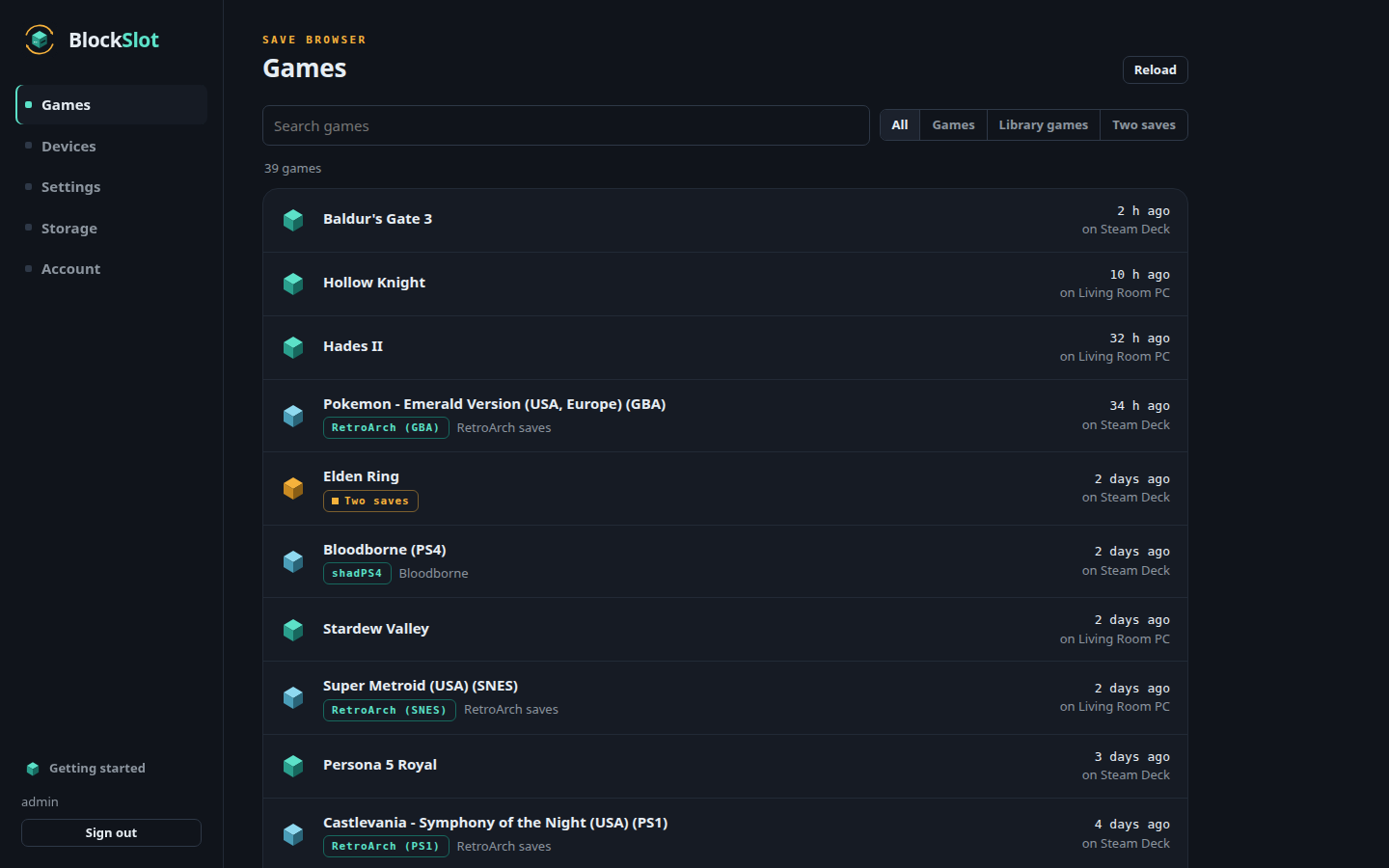
- The BlockSlot web UI on port 8761:
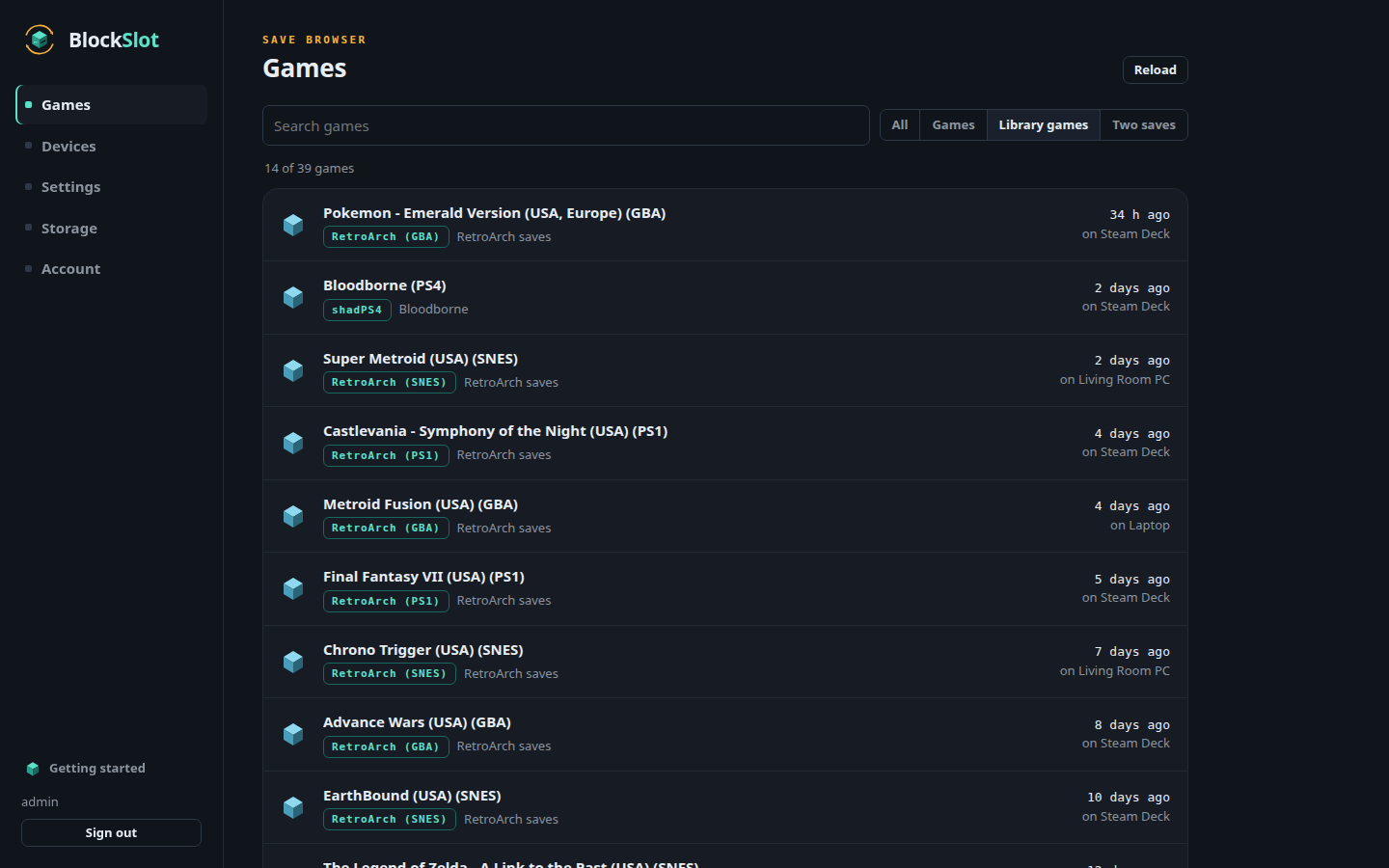
- every game on the store, with its history;
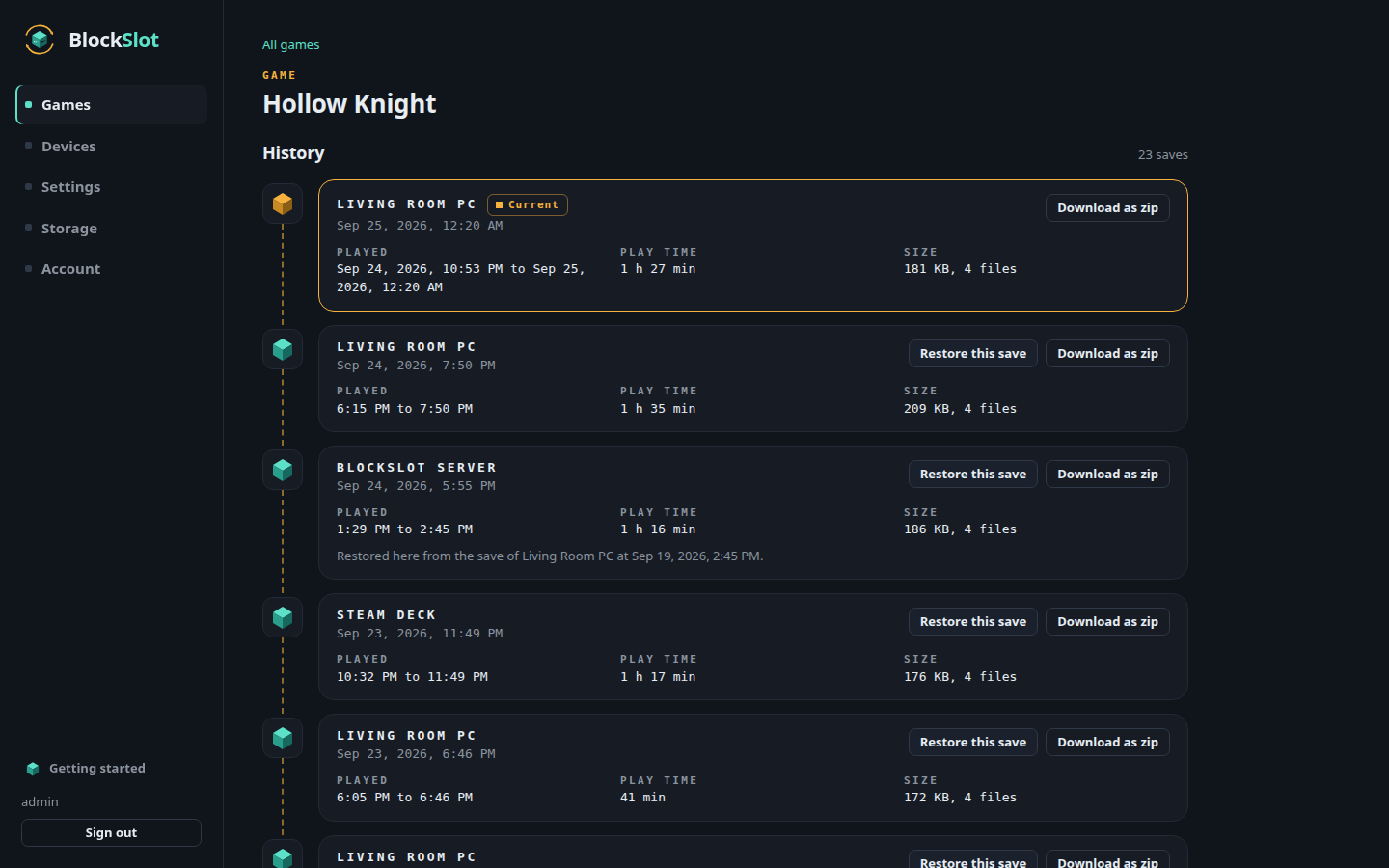
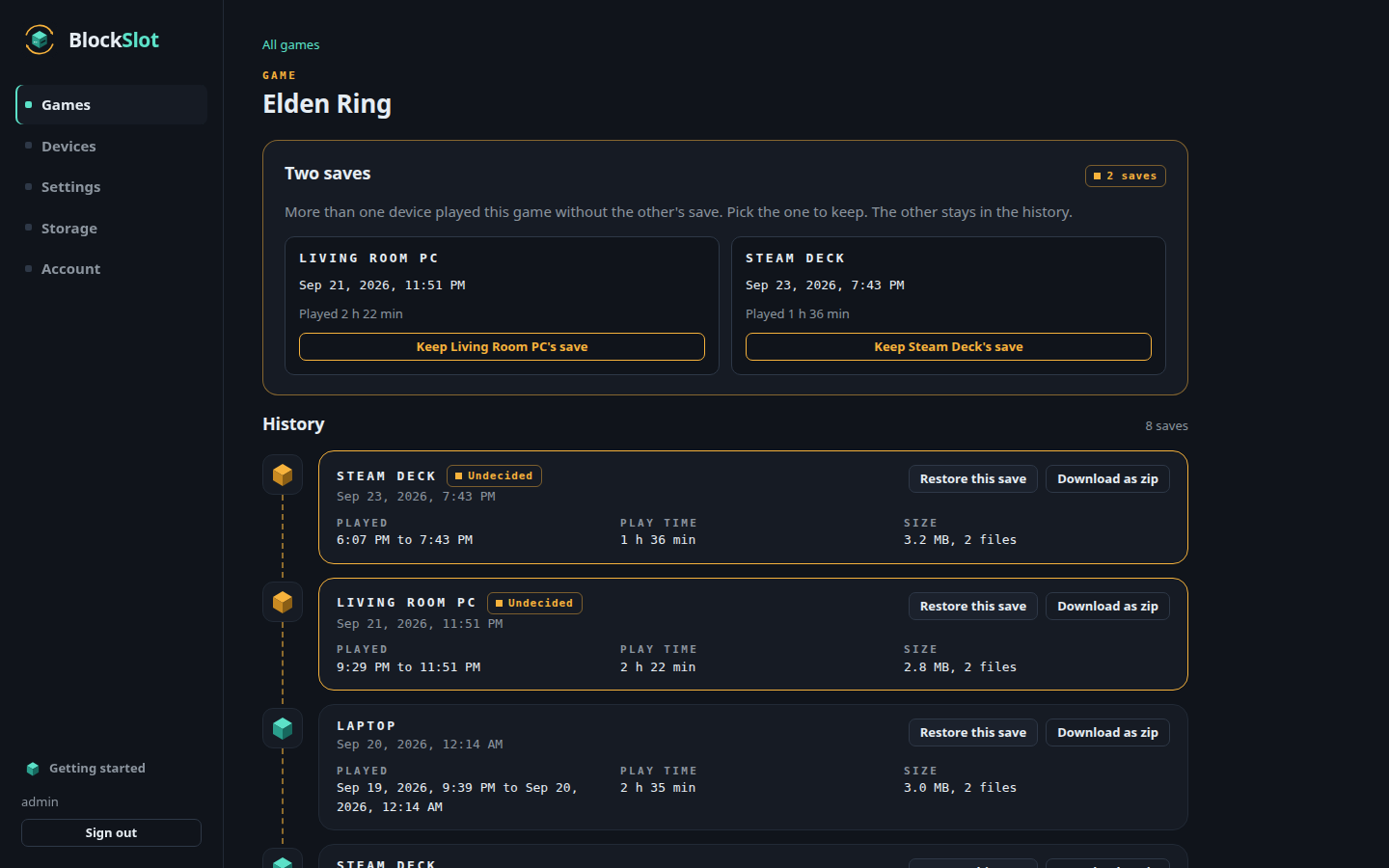
- restore an older save, settle two saves, download any save as a zip;
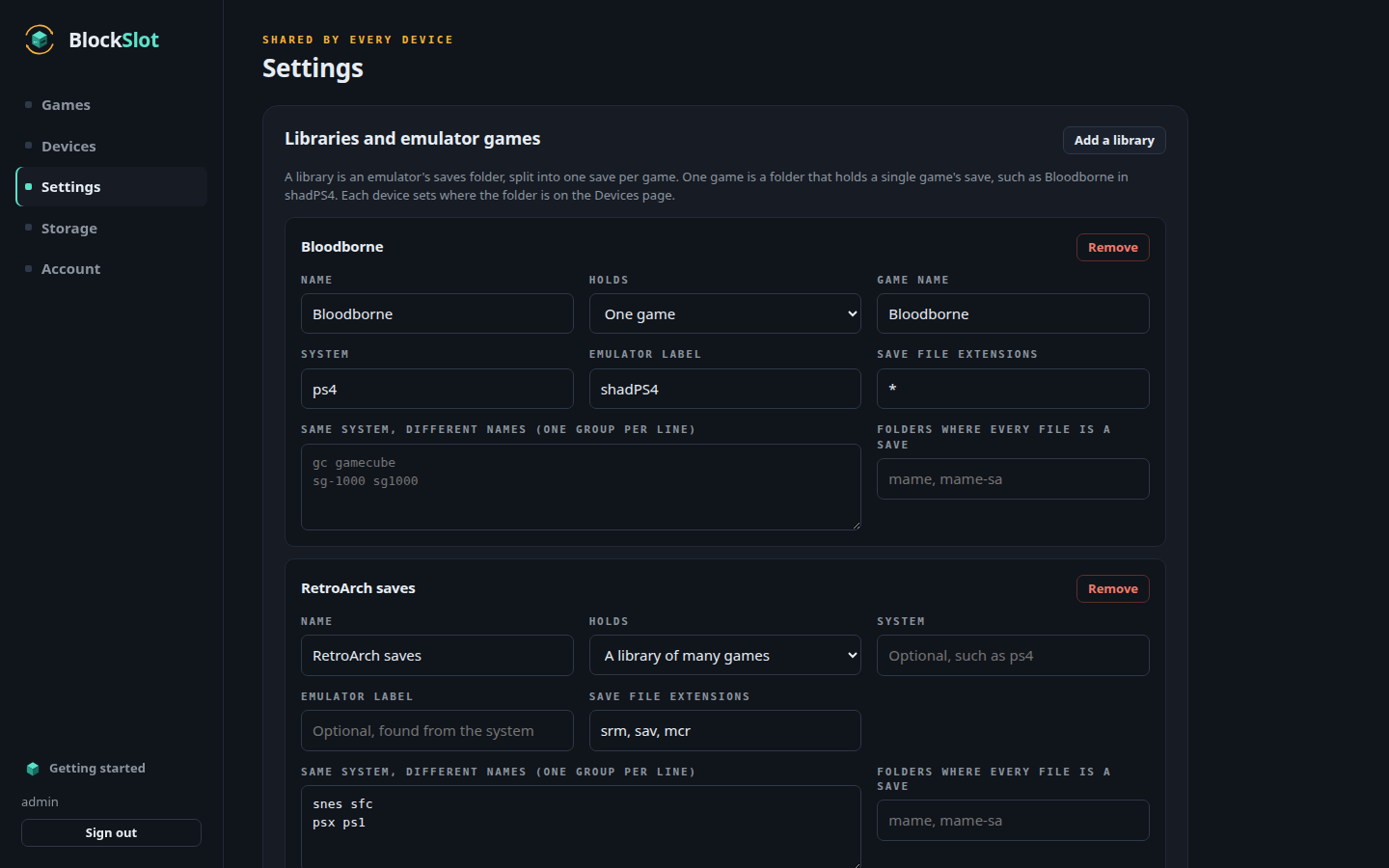
- the settings every device shares;
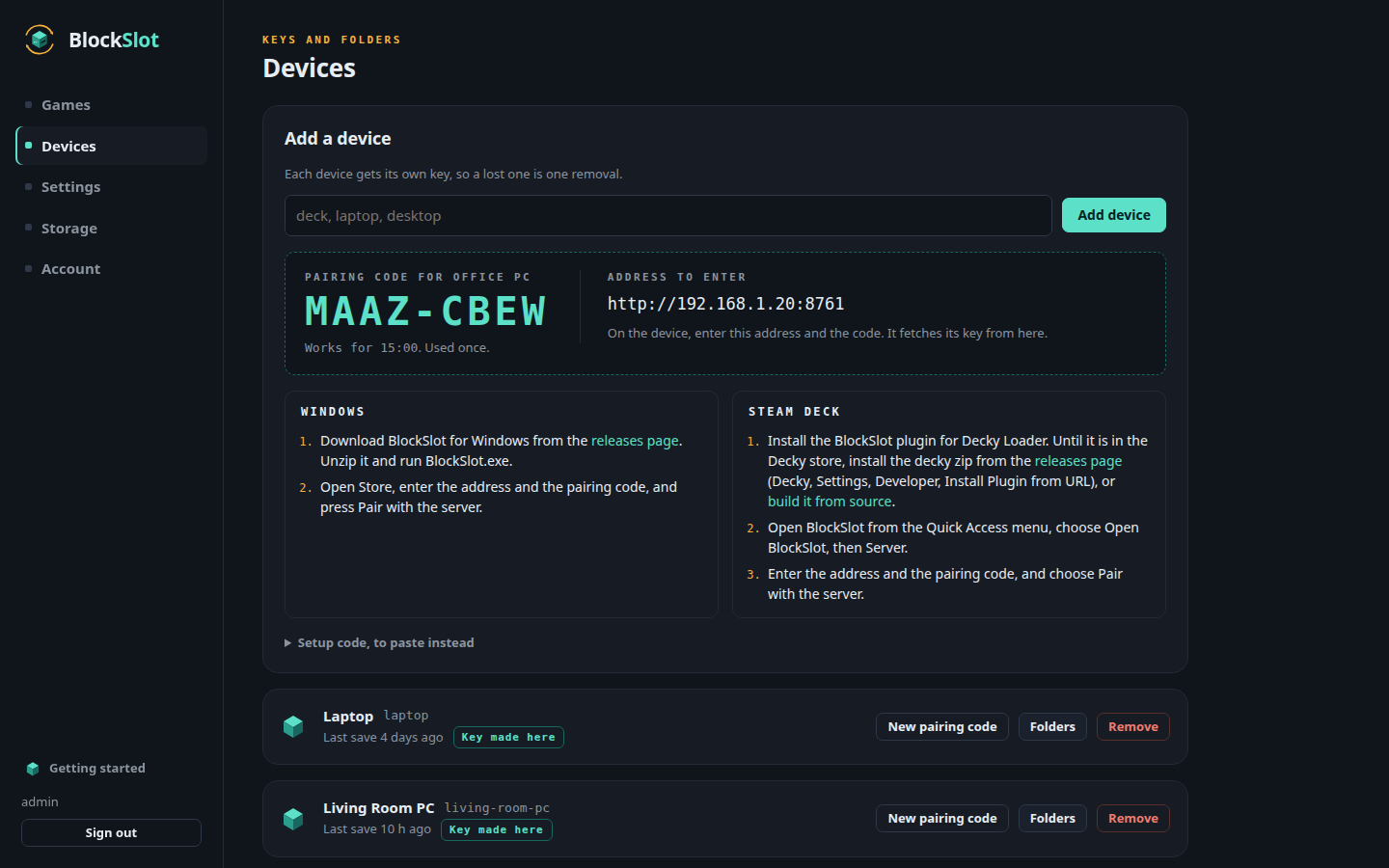
- device keys;
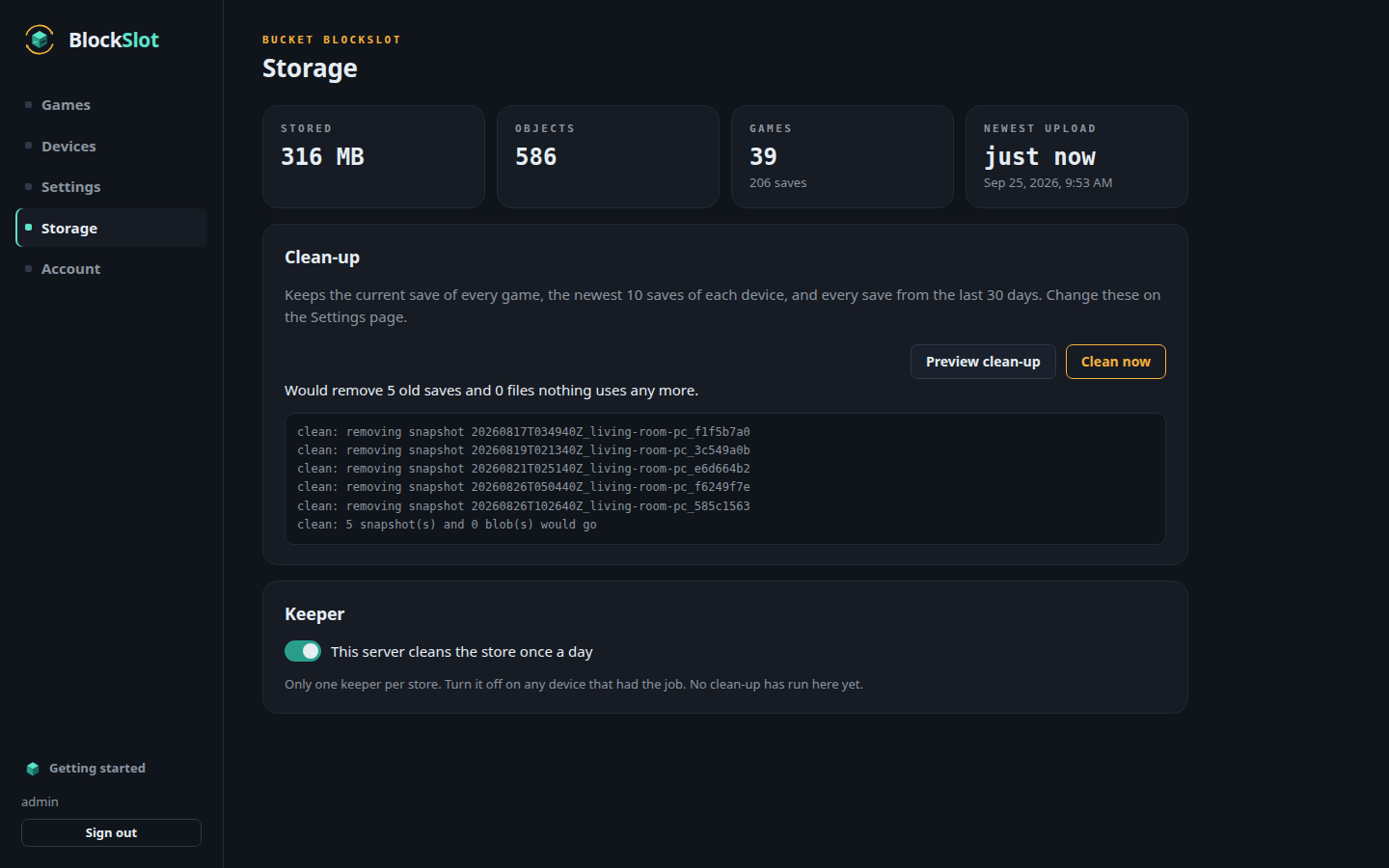
- storage and clean-up.
The web app is the Python standard library and nothing else. The image is Alpine, Garage's static binary and the app, about 75 MB.
Install
Unraid
Search for BlockSlot in the Apps tab. The template sets the two ports and
the /data path.
Docker
docker run -d --name blockslot-server --restart unless-stopped \
  -p 3900:3900 -p 8761:8761 \
  -v /path/to/blockslot:/data \
  ghcr.io/datbird/blockslot-server:latest
| Kind | Container | What |
|---|---|---|
| Port | 3900 | S3, for devices |
| Port | 8761 | Web UI |
| Path | /data | Garage's config, metadata and saves, and the server's own settings |
| Variable | BLOCKSLOT_PUBLIC_S3_PORT | Only when 3900 is mapped to another host port: the port put in setup codes when no device address is set |
Garage's admin API (3903) and its RPC port (3901) stay inside the container. Only the web app uses the admin API.
The container runs as root by default. It also runs as any other user
(--user 99:100 on Unraid) when that user owns /data.
First run
- Start the container with an empty
/data. It writesgarage.tomlwith new secrets, sets up the single-node layout, creates theblockslotbucket and makes a key for the web app. - Open
http://<server>:8761. With no accounts yet, the page asks you to make the first one. There is no default password, so do this straight after the install. - Settings: add your emulator libraries and one-game entries. You can
also paste the
treessection of a device'ssavepick.jsonto import them, with each device's folders. - Devices: add each device. The page shows a setup code once. The code is one line with the address, bucket, region and that device's own key. Paste it into the device's Store screen. Removing a device revokes its key at once. Its saves stay on the store.
- Storage: turn on "This server cleans the store once a day". Then turn keeping off on any device that had the job.
What /data holds:
garage.toml        Garage's config, with its secrets (mode 0600)
meta/  data/       Garage's metadata and the saves themselves
server.json        users (scrypt hashes), devices made here, settings (mode 0600)
sessions.json      signed-in sessions, by the hash of each cookie (mode 0600)
cache/manifests/   snapshot records already read (safe to delete)
Back up /data as a whole. meta/ and data/ hold every save.
Screens
 |
 |
 |
 |
 |
 |
Settings every device shares
The web UI writes the shared settings to the store itself:
blockslot/v1/config/shared.json            libraries and emulator games, retention
blockslot/v1/config/devices/<device>.json  one device's name and save folders
Each device reads both when it starts and then every 5 minutes. It does this with the key it already has. A device's own app can still change that device's folders, because only the device can browse its own disk. If both sides change a folder before they sync, the change made on the device wins.
Behind Cloudflare Access (optional)
Two things can sit behind Cloudflare, each with its own hostname.
The S3 port, for devices. Protect it with an Access app that admits service tokens. To have the server make a token for each new device, fill in the Cloudflare section on the Devices page:
- an API token that can edit Access service tokens, apps and policies;
- the account ID;
- the Access app's ID.
Adding a device then creates blockslot-<device>, adds it to that app's
Service Auth policy, and puts its client ID and secret in the setup code.
Removing the device deletes the token. Set "Address devices use" to the public
address, for example https://saves.example.com.
The web UI, for people. Protect its hostname with an Access app that has an identity policy, for example your email. Then, on the Account page, set:
- Team domain:
yourteam.cloudflareaccess.com - Audience tag: the AUD tag from that Access app's overview
- Allowed emails: who may sign in this way
The server checks every Cf-Access-Jwt-Assertion header. It checks the
signature against the team's keys (https://<team>/cdn-cgi/access/certs),
then the audience, issuer and expiry. An allowed email is signed in with no
password. The server ignores and logs a header that fails any check. It never
trusts one, so the port stays safe on a LAN where anyone can send that
header. Local accounts keep working either way.
Moving from a plain Garage container
If you already run Garage from the official image, with garage.toml,
meta/ and data/ in one folder, mount that folder as /data. Every bucket,
key and save stays where it is.
That garage.toml names paths inside the old container, such as
/var/lib/garage/meta. The server never edits the file, so the old
container still works if you go back. Garage starts from a copy in
/run/blockslot/garage.toml instead. In the copy:
- a
metadata_dirordata_dirthat does not exist in this container points at the folder of the same name in/data(/var/lib/garage/metabecomes/data/meta); - the admin API listens on
127.0.0.1only, whatever the file says.
The copy keeps everything else, secrets and ports included. The bucket must
be called blockslot. On its first start the server adds one Garage key of
its own, blockslot-server. Keys made before stay as they are and show on the
Devices page as "Key made elsewhere".
- Stop the old container. Two Garages must never open the same data at once.
- Start this one with the old folder as
/dataand the same S3 port. - Check that a device can still sync, then remove the old container.
To go back, stop this container and start the old one. This server adds only
server.json, sessions.json, cache/ and its own Garage key.
Updating
Pull the new image and recreate the container. The data stays in /data.
Garage's version is fixed per image and changes only in a release that says
so.
Development
This folder is built from the BlockSlot repo, whose root holds server/,
engine/slotstore.py and engine/saveunits.py. The image takes those two
engine files as they are, so the server and every device read the store
through the same code.
Build from the repo root:
docker build -f server/Dockerfile -t blockslot-server .
BuildKit reads server/Dockerfile.dockerignore, so the builder gets only the
files the image needs.
Tests, from the repo root. PyJWT signs the Cloudflare test tokens, so the server's own RS256 check is tested against another implementation:
pip install -r server/requirements-test.txt
python3 -m unittest discover server/tests
With a Garage binary, the end-to-end test runs too. It covers first start, the bucket, a device key made through the admin API, a device-style upload with that key, a restore, a revoked key, and a restart that adopts the data with the old container's paths:
BLOCKSLOT_TEST_GARAGE=/path/to/garage python3 -m unittest discover server/tests
server/tools/demo.py starts a server with invented data, which is how the
screenshots are made.
License
MIT. The image also carries Garage, which is AGPL-3.0 and unmodified; see THIRD-PARTY-NOTICES.md for its license and source.
Media gallery
1 / 9Install BlockSlot on Unraid in a few clicks.
Find BlockSlot in Community Apps on your Unraid server, review the template, and click Install. Unraid handles the Docker app or plugin setup from the published template.
Requirements
Categories
Related apps
Explore more like this
Explore allDetails
ghcr.io/datbird/blockslot-server:latestRuntime arguments
- Web UI
http://[IP]:[PORT:8761]/- Network
bridge- Shell
sh- Privileged
- false
- Extra Params
--restart unless-stopped
Template configuration
The web page: games, saves, settings, devices and storage.
- Target
- 8761
- Default
- 8761
- Value
- 8761
Where devices upload and fetch saves (Garage's S3 API).
- Target
- 3900
- Default
- 3900
- Value
- 3900
Every save, Garage's config and metadata, and the server's own settings. Back this folder up.
- Target
- /data
- Default
- /mnt/user/appdata/blockslot
- Value
- /mnt/user/appdata/blockslot
Only when the S3 port above is not 3900: the port written into device setup codes. Setting a device address on the Devices page overrides it.
- Target
- BLOCKSLOT_PUBLIC_S3_PORT
- Default
- 3900
- Value
- 3900