
All apps · 0 apps

blockparty
Docker app from ScottSchneck's Repository
Overview
Block Party runs your family's game servers at home: Minecraft Bedrock, Minecraft Java (Paper) and Hytale, from one web panel that works on a desktop or a phone.
Xbox, PlayStation and Switch players can join without any extra apps: the panel has its own console server list and a small DNS server, so consoles see your servers in a menu.
- Add, start, stop, update and restart servers, with a live console
- Players page: who's online, the allowlist, operators, and an Allow button for anyone who tried to join
- Settings as plain labelled controls, worlds and add-ons, Java plugins
- Scheduled backups with one-click restore, without kicking anyone off
- Accounts for the kids, with what each one can do on each server
- Friends outside the house, overnight updates, notifications to your phone, Discord or email
- Two-factor sign-in, and import from Crafty Controller
IMPORTANT: give the container its own IP on your home network (Network Type br0, with a Fixed IP address). Consoles look for DNS on port 53 and the server list on port 19132, and every game server needs its own ports, so it can't share Unraid's IP.
After it starts, open the WebUI and create the owner account. The setup code is in the container's log.
Readme
View on GitHub
A free, open-source, all-in-one panel for running Minecraft (Bedrock and Java) and Hytale servers at home. One container runs your servers, a web panel for desktop and phone, a tiny DNS server, and a console server list so Xbox, PlayStation and Switch players can join without extra apps.
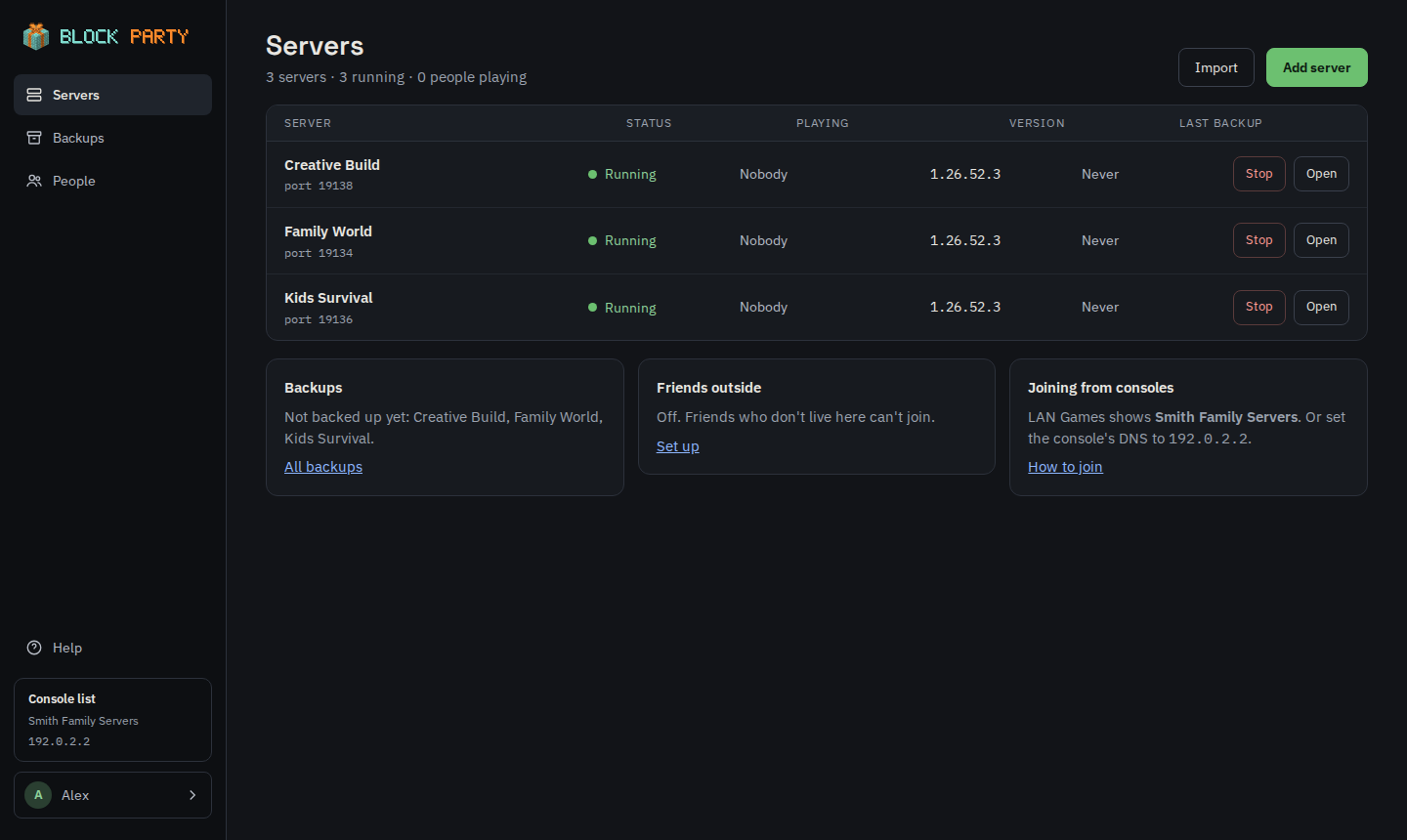
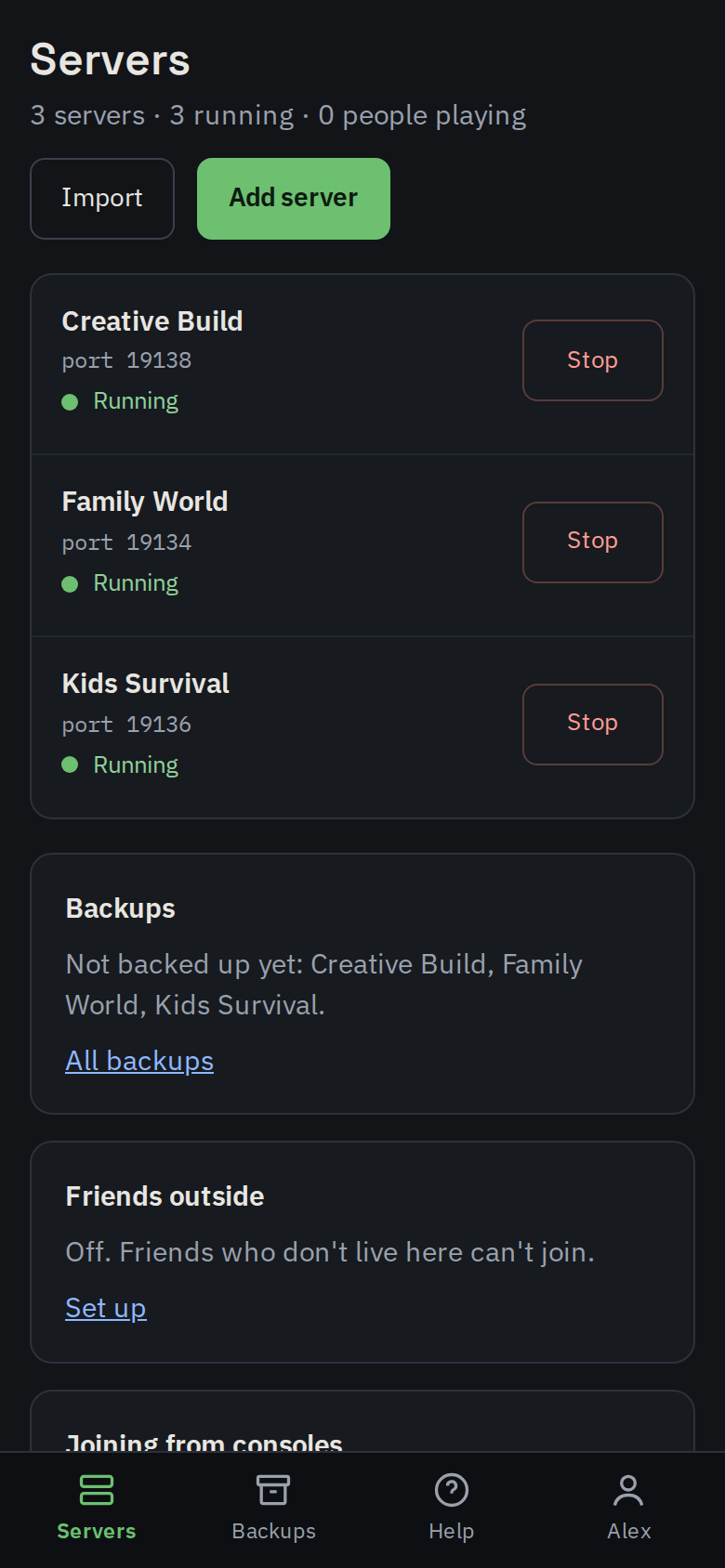
The console server list and built-in DNS are tested on a Nintendo Switch and a PS5, and the panel runs a family's servers day to day. See the design for how it fits together.
What works today
- Bedrock servers, run by the panel. Add a server from the web page: the panel downloads the official Bedrock server from Mojang, gives it its own port and starts it. Start, stop, restart, a live console, players online, automatic restart after a crash, and servers that were running come back after a reboot.
- Safe updates. Update backs the server up first (to
/data/backups), downloads the current version, keeps your worlds,server.properties, allowlist and permissions, and sets the execute bit itself, so "Permission denied: ./bedrock_server" can't happen. - Players page for each server: who's online (message, kick, make operator), the allowlist (add, remove, turn on or off), operators, and Tried to join: anyone the console menu sent to a server whose allowlist they aren't on shows up with an Allow button. Changes apply without a restart. Put your gamertag in Add server and you're added to the allowlist and made an operator on every new server.
- Settings page for each server: game mode, difficulty, cheats, what new
players can do, max players, chat, skins, view distance and more, as
labelled controls with a line of explanation each. Only the lines you change
are rewritten, and the panel offers to restart the server to apply them.
An advanced editor opens the whole
server.propertiesfor everything else. - Backups on a schedule for each server (every hour up to once a day, keeping the number you choose), plus Back up now, Download and one-click Restore. Running servers are backed up without stopping them, using Bedrock's own save hold, so nobody gets kicked. A restore backs up the current world first, so it can be undone. Servers nobody has played on since their last backup are skipped. See Backups.
- Import from Crafty Controller (or any folder of Bedrock servers). Each server is copied in with its worlds, settings, allowlist and operators, and keeps its port. The original is only read, never changed. See Moving from Crafty.
- Owner account with a sign-in page, a setup guide the first time, and a password reset from the command line. Passwords are hashed with Argon2id; repeated wrong passwords lock that address out for 15 minutes. Optional two-factor sign-in with an authenticator app.
- Friends outside the house. Open a server to friends who don't live there: the panel finds your internet address, opens the router's ports with UPnP (or lists the forwards to add by hand), and writes an invite that tells a friend how to join from a PC, phone or console. See Friends outside the house.
- Java Edition servers (Paper). Add a server and pick Java: the panel downloads Paper and the Java it needs, and Java servers get the same console, players, settings, backups, overnight updates, roles and notifications. See Java servers.
- Notifications to your phone (ntfy), a Discord channel, email, or text messages (Twilio), in any combination, each with its own choice of events: someone wants to join, a server crashes, a backup fails, and more. See Notifications.
- Overnight updates and restarts. Optionally, the panel updates servers to each new Bedrock version, and restarts them, in a window each night, but only when nobody is playing. See Overnight updates.
- Deleting servers, for the owner only, with a final backup, and a way to bring a deleted server back. See Deleting a server.
- Worlds and add-ons. Install add-ons (
.mcaddonand.mcpackfiles from CurseForge, MCPEDL or a creator's site), turn them on and off, upload worlds exported from the game, switch worlds, and download a world to play on a device. See Worlds and add-ons. - Accounts for the kids. On the People page the owner gives each kid a sign-in and chooses, server by server, what they can do. See People and roles.
- The web panel at
https://<container IP>:8443, for desktop and phone: a dashboard of every server (status, players, version, last backup, a note when a new Bedrock version is out), and for each server an Overview, Players, Settings, Backups and Console. Two looks, each light or dark (or following the device): Control Room, compact with every server in one table, and Treehouse, big tiles and buttons and plain words ("Turn on", "Let in"). Chosen under your name and saved with your account. Fonts are built in, so it works without internet. - Built-in DNS. It answers the console "featured server" names (The Hive, Lifeboat and others) with the panel's address, and forwards every other lookup for devices on your network. It never acts as an open resolver for the internet.
- Console server list. This replaces BedrockConnect. A console that joins a featured server lands in a menu of your servers and is transferred to the one picked. Xbox sign-in is checked and logged, but a console is never turned away because its sign-in format is new; the game server does the real sign-in and allowlist checks.
- Connect to any server from the console. Like BedrockConnect, the menu has "Connect to a server…" for typing an address. Players can save servers to their own list and remove them again. The house servers stay under the owner's control.
- RakNet by default, NetherNet ready. Consoles join the list over RakNet today. NetherNet (Minecraft's newer connection type) is built in behind a setting in case consoles stop falling back to RakNet. See the proof-of-concept notes for why.
Install
The container needs its own IP address on your home network. Consoles only look for DNS on port 53 and for the server list on port 19132, and every game server needs its own ports, so it can't share your server's IP or sit on Docker's bridge network. Pick a free address outside your router's DHCP range (or reserve one), and keep it: consoles' DNS settings point at it.
On Unraid (Community Apps)
- Open Apps, search for Block Party, and choose Install.
- Set Network Type to Custom: br0 (on some setups it's called eth0) and type a free address in Fixed IP address. This is the step that matters.
- Leave the rest as it is, or set Server list name to what consoles should show (for example Smith Family Servers). Moving from Crafty? Set Crafty servers folder to its servers folder; see Moving from Crafty.
- Apply, then open the container's WebUI (
https://<that IP>:8443).
With docker run
Ready-built images, so there's nothing to compile: :latest is the newest
release (each also has its own tag, such as :1.0.0), and :edge follows
every change on main. On Unraid by hand, or
any Linux machine with a macvlan network (adjust the IP and folders):
docker run -d --name blockparty --restart unless-stopped --stop-timeout 60 \
  --network br0 --ip 192.168.1.60 \
  -e TZ=America/Denver -e LIST_NAME="Smith Family Servers" \
  -v /mnt/user/appdata/blockparty/config:/config \
  -v /mnt/user/appdata/blockparty/data:/data \
  ghcr.io/scottschneck/block-party:latest
The folders are created if they don't exist, and given to nobody:users
(99:100, Unraid's usual owner); set PUID and PGID for a different user.
/config is only needed for an optional servers.json of servers the panel
doesn't run itself (see deploy/servers.example.json).
Upgrading from Blockheads Control Panel? It's the same program with a
new name, and it reads your existing folders as they are. Pull
ghcr.io/scottschneck/block-party:latest, remove the old container, and run
the new one with the same -v folders (you can keep them under
appdata/blockheads). The container name in the commands here is now
blockparty.
Your first ten minutes
- Open the panel at
https://<container IP>:8443. Your browser warns about the certificate once (the panel makes its own); continue anyway. - Create the owner account. To prove it's you and not someone else on
your network, the panel asks for the setup code from its log: in Unraid's
Docker tab, click the Block Party icon and choose Logs, or run
docker logs blockparty 2>&1 | grep -i "setup code". (Upgrading from a version with a single panel password? That password is the setup code.) - Follow the setup guide: your Xbox gamertag (so you're on the allowlist and an operator everywhere), how consoles join, your servers, and a checklist.
- Add a server (or Import them from Crafty). The panel downloads the game server, gives it a port and starts it.
- Join from a console. On a PS5, look under Play → Friends → LAN Games for your server list. On an Xbox or Switch (or if it isn't there), set the console's DNS to the container's IP, restart the console, open Servers and join any featured server: you land in a menu of your servers. The panel's Help page has the details.
You stay signed in on each browser for 30 days after you last used it. Bookmark the panel on your phone; it works there too.
Forgot the password? Run docker exec blockparty blockparty reset-password
and choose "Forgot your password?" on the sign-in page. The code works once,
for an hour, and signs out every browser. It also turns off two-factor sign-in,
since someone who can run commands on the server already controls it.
Two-factor sign-in
On Account → Two-factor sign-in, choose Turn on (it asks for your password), scan the QR code with an authenticator app (Google Authenticator, Microsoft Authenticator, Authy, 1Password and others), and type the 6-digit code it shows. After that, signing in asks for a code from the app after the password. Every other browser is signed out when you turn it on.
You get 10 recovery codes. Each one signs you in once if you lose your phone; save them somewhere safe, because they're only shown once. New recovery codes replaces them all, and Turn off removes two-factor sign-in; both ask for your password. To move it to a new phone, turn it off and on again.
Each code works once, and a phone clock a little off is fine. Ten wrong codes in 15 minutes lock the account (from every address) until they're 15 minutes old. Kids can turn it on for their own sign-in too; if one loses their phone, the owner can turn it off for them from People. If the owner loses both the phone and the recovery codes, the password reset above turns it off.
--stop-timeout 60 gives game servers time to save their worlds when the
container stops.
To update: docker pull ghcr.io/scottschneck/block-party:latest,
then remove and re-run the container. To build it yourself instead, run
docker build -t block-party . in this folder.
At home, try LAN Games first. Consoles on the same network may find the list by themselves under Friends → LAN Games (a PS5 does), with no DNS change at all. Otherwise, set the console's DNS to the container's IP, restart the console, open Minecraft, and join any featured server.
People and roles
The owner can do everything. Everyone else gets an account from the owner (People in the menu, or Account → Open People on a phone): a username and a password you choose and tell them. They can change it on their Account page; if they forget it, give them a new one from People.
Each person only sees the servers you give them, with one of three roles:
| Role | What they can do |
|---|---|
| Can turn it on | See the server and start it. |
| Runs it | Also stop and restart it, let friends in (allowlist, operators, kick), change its settings, use the console, and make a backup. |
| Takes care of it | Also update it, restore a backup, set the backup schedule, and download or delete backups. |
Tick Can add new servers to let someone add their own; they take care of the servers they add. Only the owner can delete a server, import, manage accounts or change panel-wide settings, so nobody can wipe out a sibling's world. New accounts start in the Treehouse look.
The activity log records who did what (turned a server off, restored a backup, changed settings, let someone in). The owner sees all of it on the People page; everyone sees what happened to their own servers on the server's Overview.
Friends outside the house
Open Help → Friends outside the house (owner only):
- Tick Let friends outside the house join. For the address friends use,
type your hostname (your own domain, or a dynamic DNS name like
something.duckdns.org), or leave it empty to use this home's internet address. The panel looks up that address and warns if the hostname leads elsewhere, or if your internet provider shares your address (CGNAT), which stops port forwarding from working at all. - Tick Open the ports on the router automatically if UPnP is on in your router. Otherwise the page lists each forward to add by hand: UDP, to the container's IP. Never forward 8443; the panel stays inside the house.
- For friends on consoles, tick Let friends' consoles use this home's server list. This forwards 19132 (UDP) and 53 (UDP and TCP). A friend sets their console's primary DNS to your address and secondary DNS to 1.1.1.1, joins a featured server, and sees the servers open to them. The panel answers only the featured-server names for consoles outside; every other lookup is refused, so it can't be used as an open resolver.
Then, on a server's Overview, Open to friends outside (the owner, or anyone who takes care of that server). A server can only be open while its allowlist and Xbox sign-in checks are on, and those can't be turned off while it's open. Copy invite gives you text to send a friend: how to join from a PC, phone or tablet, from a console with your server list, and from a console with the public BedrockConnect list as a fallback. Friends still need to be on the allowlist.
Consoles outside only see the servers open to them in the list, and are sent to your hostname. The panel re-checks everything every minute, and closes the forwards it made when it stops.
Java servers
Add server → Java (Paper) sets up a Minecraft: Java Edition server running Paper, which is faster than Mojang's own server and runs plugins. The panel downloads:
- the newest stable Paper build, from papermc.io;
- the Java it needs (Eclipse Temurin from adoptium.net), once, into
/data/runtimes. Minecraft 26.x needs Java 25; 1.20.5 to 1.21.x need Java 21.
New Java servers have their allowlist on, account checks on, and a protected-spawn of 0. Give your Minecraft Java username when you add one to be on its allowlist and an operator. On the Players tab, allowlist and operator changes go by command while the server runs; while it's stopped, the panel looks the account up with Mojang (or waits until the next start if it can't). Players turned away by the allowlist show under Tried to join.
Each Java server has a Memory setting (Settings tab; 2 GB by default):
make sure Unraid has that much free. Java servers use TCP on their port
(open it for friends outside with the same switch as Bedrock servers).
Worlds live in worlds/ (Paper is started with --world-container worlds)
and are backed up while the server runs. Update moves to the newest Paper build,
and to a new Minecraft version when Paper has a stable build for it; worlds
can't go back to an older version afterwards, so the backup made first is the
way back.
The Add-ons tab is for Bedrock servers.
Plugins
Java servers have a Plugins tab. The owner searches Hangar (PaperMC's plugin site) and Modrinth together, and Install puts in the newest release made for the server's Minecraft version, plus any plugins it needs. Each download is checked against the site's checksum, and a plugin that's only offered on its own website isn't installed (the panel says where to get it). Plugins start the next time the server does; the tab offers a restart.
- Update shows when a newer release is out (checked when you open the tab). Moving the server to a new Minecraft version reminds you to check.
- Turn off keeps a plugin but Paper skips it (it's renamed to
.jar.disabled); Remove deletes it and keeps its settings folder. - Plugins run their own code on your server, so only the owner installs, updates and removes them. Kids who take care of a server see the list and can turn plugins off and on.
- Plugins you copy into
plugins/yourself show as added by hand.
Consoles on Java servers
Java servers let Bedrock players in too (Xbox, PlayStation, Switch, phones, tablets and Windows). The panel installs and keeps up to date three plugins: Geyser (translates between Bedrock and Java), Floodgate (lets those players in with their Xbox sign-in, no Java account needed) and ViaVersion (lets Geyser in while Paper is on a slightly older Minecraft than Geyser speaks). Turn it off per server under Settings → Console players.
- Consoles use the same port, over UDP (Java players use TCP), and the server shows up in the console server list while it runs.
- On the Players tab, pick Console, phone or tablet and type their
gamertag. On the server they're called
.Gamer_Tag(a dot in front, spaces become_), and show with a console badge. A console player is made an operator when they next join. - Friends outside: opening the server forwards both TCP and UDP, and the invite covers PCs and consoles.
- Bedrock updates often and consoles update themselves, so Geyser has to keep up: a new Geyser version shows as an update ready, and overnight updates install it (even on a server whose Minecraft version is held).
- Geyser takes a few weeks to support each new Minecraft version, and can't load on a newer one. So a server with console players gets the newest Minecraft version Geyser supports (checked on Modrinth), and Update moves it up once Geyser does. A server already on a newer version says it's waiting for Geyser, and consoles can join again after the next Geyser update.
Hytale servers
Add server → Hytale sets up a Hytale dedicated server. Hytale's server is only downloaded with a Hytale account that owns the game, so the owner signs the panel in to Hytale once, right on the Add server page: open Hytale's sign-in page and enter the code the panel shows, twice (one code lets the panel download the server, the other lets servers sign in so players can join). The sign-in is kept fresh by the panel, and each Hytale server gets its own session when it starts. Sign out is on the same page.
- The server (a few GB) is downloaded from Hytale and checked against its checksum; Java 25 is downloaded once from adoptium.net.
- Players join with Hytale's Add Server and the address and port (UDP; the same open-to-friends switch forwards it).
- New Hytale servers have the allowlist on, with the owner on it and an operator. Add players by Hytale username on the Players tab: by command while it runs, or in the files while it's stopped for players it has seen (others are added when it next starts).
- Settings edits Hytale's
config.json(name, message, password, max players, game mode, view distance). Hytale writes that file while it runs, so change settings while it's stopped. - 4 GB of memory by default (Settings tab). Backups hold
universe/, mods and settings; a backup while it runs asks Hytale to save first. - Update and overnight updates install new Hytale releases; the backup made first holds the worlds (the server itself is downloaded again).
Hytale support is new: kicking players, messages and mods aren't in the panel yet (the Console tab works for anything).
Notifications
Under Help → Notifications (owner only), turn on any of:
- Phone (ntfy). Install the free ntfy app and subscribe to the topic the panel shows (it makes up one that's hard to guess). Works with ntfy.sh or your own ntfy server (with an access token if it's private).
- Discord. Paste a channel's webhook link (channel settings, Integrations, Webhooks). Messages never ping anyone.
- Email. Any SMTP server, on port 587 (STARTTLS) or 465 (TLS). For Gmail use smtp.gmail.com with an app password. A password is never sent over an unencrypted connection.
- Text messages (Twilio). Your Account SID, Auth Token, and a Twilio number or Messaging Service SID, plus the numbers to text. Texts are capped per day (20 unless you change it). US numbers need A2P 10DLC registration, or a verified toll-free number, before carriers deliver them.
Each one has its own list of what to tell you about: someone not on the
allowlist tries to join, a server crashes, a scheduled backup fails, an
overnight update finishes or fails, a new Bedrock version is out (when
overnight updates are off), someone starts playing, or the panel starts.
The same thing isn't repeated within half an hour. Send a test checks a
channel. Passwords and tokens are kept in /data/notify.json, readable only
by the panel, and never shown in the page again.
Overnight updates and restarts
Under Help → Overnight updates and restarts (owner only) choose:
- Update servers when a new Bedrock version is out. Each server is backed up first and started again if it was running. Consoles and phones update Minecraft on their own and can't join a server that's behind, so this keeps friends playing.
- Restart running servers every night.
- Starting at a time (the panel's clock, so set
TZ). For three hours from then, the panel does each server's upkeep once, but only while nobody is playing on it; a server with players is tried again every minute until the window ends.
Preview servers are never updated this way, and a server can be kept on its version with Keep this server on its Bedrock version on its Settings tab (anyone who takes care of it can change that).
Deleting a server
Only the owner can delete a server: Delete server at the bottom of its Settings tab, typing its name to confirm. It's stopped, a final backup of its worlds and settings is made, and it's removed. Its backups are kept, and the Backups page lists it under Deleted servers: Bring back puts it back (same name, and the same port if it's free), downloading Bedrock again; Remove backups deletes them for good. A deleted server's name isn't given to a new server while its backups are kept.
Worlds and add-ons
Each server has an Add-ons tab.
Add-ons. Drop a .mcaddon or .mcpack file on it. Its behavior and
resource packs are installed into the world the server plays (in the world's
own behavior_packs and resource_packs folders) and turned on for it, as the
game does when you add packs to a world. That way they go along with the
world's backups and survive updates. Installing a newer version of a pack
replaces the old one. Turn packs off or remove them from the same tab, then
restart the server. Players' games download the packs when they join (set
Require the world's resource packs in Settings to make that compulsory).
Some add-ons use scripting that needs the world's Beta APIs experiment. The panel marks them; turn the experiment on for the world in the game (Edit world, Experiments), export the world and upload it. Marketplace add-ons are locked to the buyer's account and can't be used on a server.
Worlds. A server keeps its worlds side by side and plays one at a time.
Upload a .mcworld (in the game: Edit world, Export world) to add it, and
optionally play it straight away; nothing is replaced. Play this world
switches (and restarts a running server). Download gives a .mcworld to
open on a phone, tablet or PC; a running server keeps running, the same as
for a backup. Only the owner can delete a world, never the one being played,
and a backup of all the worlds is made first ("Before deleting a world" in
Backups).
Who can do what: anyone who runs a server sees its add-ons and worlds and can switch worlds; installing, turning on and off, removing, uploading and downloading take someone who takes care of it.
Moving from Crafty
Mount Crafty's servers folder read-only at /import. With the Unraid template,
edit the container and set Crafty servers folder to it. With docker run,
add this line (the path is binhex's Crafty on Unraid; adjust it for yours):
-v /mnt/user/appdata/binhex-crafty-4/crafty/servers:/import/crafty:ro \
Then, for each server:
- Stop it in Crafty and leave it stopped (turn off its auto-start). Two copies can't share a port, and copying a running server can damage the world.
- In the panel, press Import, tick the box to say it's stopped, check the name and port (it keeps its Crafty port when it can), and press Import. The server shows as Importing while it copies, then Stopped, or starts straight away if you ticked Start when copied.
- If you port-forward the server for friends, point the router rule at the panel's IP instead of Crafty's.
Ports must be an even number from 19134 to 19198 (each server also uses the next port up for IPv6). A server on 19132, Bedrock's default, gets a free port instead, because 19132 is the console server list's.
If the console menu's servers.json has an entry with the same name as an
imported server, the menu shows only the panel's server, so there's nothing
to clean up there. The first Update of an imported server installs the
current release, since the panel doesn't know which version Crafty had.
Crafty's copy stays as it was. Once you're happy, remove the servers from
Crafty and the /import mount.
Backups
Each server has a Backups tab. New and existing servers are backed up
once a day at 04:00, keeping the last 7; change that per server. Backups are
in /data/backups/<server> as ordinary .tar.gz files holding the worlds
and the settings files (server.properties, allowlist, permissions).
- Automatic backups skip a server nobody has played on since its last backup, so a quiet server's kept copies aren't all the same. A backup that fails is tried again 15 minutes later.
- Back up now makes one by hand; those stay until you delete them.
- Restore stops the server, backs up the current world ("Before a restore", the last 3 are kept), puts the backup back and starts the server again if it was running. Restoring a "Before an update" backup also puts back the server version from before that update.
- Set
TZ(for example-e TZ=America/Denver) so "04:00" is your 4 am; the container is on UTC otherwise.
For copies somewhere else, have Unraid's backup tool (or anything else) copy
/mnt/user/appdata/blockparty/data/backups.
servers.json
The same format as BedrockConnect's custom servers file:
[
  { "name": "Survival", "address": "192.168.1.50", "port": 19134 }
]
iconUrl is optional. The file is re-read every time the menu opens, so edits
apply without a restart.
Settings
| Variable | Default | Meaning |
|---|---|---|
LIST_IP |
the container's IP | The address the DNS hands to consoles, and where the menu sends them to the panel's servers. Only needed if the container has more than one IPv4 address |
PUID, PGID |
99, 100 |
The user and group the panel runs as (Unraid's nobody:users). A new, root-owned data folder is given to them at start |
RUN_AS_ROOT |
false |
Keep running as root instead (not recommended) |
PANEL_PASSWORD |
empty | Only used before the owner account exists, as the setup code (older versions used it as the panel password) |
WEB_PORT |
8443 |
Web panel port |
WEB_TLS |
true |
Serve the panel over HTTPS with a self-signed certificate. false for plain HTTP behind your own reverse proxy |
STOP_TIMEOUT |
30 |
Seconds a game server gets to save and stop before it's forced. With --stop-timeout 60, keep it at 45 or less |
PLAYER_SERVERS |
true |
Players can connect to any server by address from the console menu and save it to their own list |
REQUIRE_SIGN_IN |
false |
Turn away consoles whose Xbox sign-in can't be verified. Off by default because the game server checks sign-in itself |
SERVERS_FILE |
/config/servers.json |
Extra servers for the console menu that the panel doesn't run (optional) |
TZ |
UTC |
Time zone for scheduled backups and overnight updates, e.g. America/Denver. Unraid sets it for you |
IMPORT_DIR |
/import |
Where other panels' server folders are mounted (read-only) for Import |
DATA_DIR |
/data |
Game servers (/data/servers), backups (/data/backups), keys and certificates |
MENU_TITLE |
Pick a server |
Title of the console menu |
LIST_NAME, LIST_SUBTITLE |
Server List, Pick a server |
What consoles show for the list under Friends → LAN Games |
DNS_ENABLED |
true |
Built-in DNS on port 53 |
DNS_UPSTREAM |
1.1.1.1:53 |
Where other lookups from home devices go |
PUBLIC_IP |
empty | This home's internet address, if you'd rather set it than have the panel look it up |
PUBLIC_IP_LOOKUP |
ipify, icanhazip, ifconfig.me | Where the panel asks for this home's internet address (comma-separated URLs), or off |
UPNP_GATEWAY |
empty | The router's UPnP description URL, if searching the network doesn't find it |
DNS_ANSWER_INTERNET |
false |
Older setting: always answer the featured names for consoles on the internet (with PUBLIC_IP). The Friends on Xbox, PlayStation and Switch switch does this now |
CONNECTION |
raknet |
raknet, nethernet or both |
NETHERNET_NAMES |
empty | With both, offer NetherNet only for these names |
SIGNALING |
auto |
NetherNet join endpoint: auto (HTTPS and HTTP), http or tls |
EXTRA_SIGNALING_PORTS |
80,443 |
More TCP ports for the NetherNet endpoint; none for none |
RTC_PORT_MIN, RTC_PORT_MAX |
19300, 19399 |
UDP ports for NetherNet gameplay |
LOAD_PRESET |
standard |
How the empty menu world is built: standard or bedrockconnect |
LOG_LEVEL |
info |
debug for more detail |
Building from source
Go 1.26 or newer:
go mod tidy
make check build
make fakeconsole builds a test client that pretends to be a console, and
sh scripts/smoke.sh uses it to join the list many times. See
CONTRIBUTING.md.
License
GPL-3.0. Minecraft server software is never included; each server is downloaded from the official source on your own machine.
This project is not affiliated with Mojang or Microsoft. Minecraft is a trademark of Mojang Synergies AB.
Media gallery
1 / 3Requirements
Categories
Related apps
Explore more like this
Explore allDetails
ghcr.io/scottschneck/block-party:latestRuntime arguments
- Web UI
https://[IP]:[PORT:8443]/- Network
br0- Shell
bash- Privileged
- false
- Extra Params
--stop-timeout 60
Template configuration
The web panel (HTTPS). With br0 the panel is always on this port at the container's own IP.
- Target
- 8443
- Default
- 8443
- Value
- 8443
Your game servers, worlds, backups, accounts and settings.
- Target
- /data
- Default
- /mnt/user/appdata/blockparty/data
- Value
- /mnt/user/appdata/blockparty/data
What consoles show for your servers under Friends, LAN Games. For example: Smith Family Servers.
- Target
- LIST_NAME
- Default
- Server List
- Value
- Server List
To copy servers in from Crafty Controller (or another panel): its folder that holds one folder per server, for example /mnt/user/appdata/binhex-crafty-4/crafty/servers. It is only read, never changed. Leave empty if you don't need it.
- Target
- /import/crafty
Leave empty: the panel uses the container's own IP. Set it only if the container has more than one address.
- Target
- LIST_IP
Optional servers.json for servers on other machines to show in the console menu.
- Target
- /config
- Default
- /mnt/user/appdata/blockparty/config
- Value
- /mnt/user/appdata/blockparty/config
Where the built-in DNS sends every lookup that isn't for a console's featured servers.
- Target
- DNS_UPSTREAM
- Default
- 1.1.1.1:53
- Value
- 1.1.1.1:53
Seconds a game server gets to save and stop when the container stops. With --stop-timeout 60 in Extra Parameters, keep it at 45 or less.
- Target
- STOP_TIMEOUT
- Default
- 30
- Value
- 30
info, or debug for more detail when something isn't working.
- Target
- LOG_LEVEL
- Default
- info
- Value
- info