

bitwarden-export
Docker app from onetx's Repository
Bitwarden Export to Backup Bash docker image that exports your Bitwarden vault contents Features This simple bash docker image uses the Bitwarden CLI to perform three backup…
Overview
Readme
View on GitHub


Your vault holds every password you have. Bitwarden_Export keeps an encrypted copy of it on your own disk — passwords, organizations and attachments — day after day, without you having to remember. Set it up once, and it tells you if a backup ever fails.
Table of contents
- Features
- Requirements
- Quick start
- Examples
- What it produces
- Configuration
- Several vaults
- Handling secrets
- Notifications
- Monitoring
- Scheduling
- Retention
- Encrypted attachments
- Permissions of the backups
- Off-site copy (3-2-1)
- File ownership: PUID and PGID
- Hardened setup
- Platform notes
- Image tags
- Troubleshooting
- Upgrade notes
- Development
- Contributing
- Security
- Credits
- Disclaimer
- License
Features
- Exports your personal vault to JSON, plain or password-encrypted.
- Exports your organization vaults (every one you own or administer, or the ones you list).
- Exports several accounts in one container, even on different servers, each into a folder of its own (details).
- Downloads file attachments, one subfolder per vault item, or packs them into one encrypted archive with
ENCRYPT_ATTACHMENTS(details). - Keeps passwords off the command line, so other users on the host cannot read them with
ps(details). - Reads its credentials from Docker secrets or from Infisical instead of the compose file.
- Sends the outcome to any platform supported by Shoutrrr (Telegram, Gotify, and about thirty more), with a summary of what was backed up.
- Pings a watchdog (healthchecks, uptime-kuma, any dead man's switch) at start and on completion.
- Prunes old exports automatically: the last N with
KEEP_LAST_BACKUPS, or daily/weekly/monthly withKEEP_GFS(details). - Pairs with an rclone sidecar for an off-site copy (details).
- Runs without root, with a read-only filesystem and no capabilities, for a container that stays up with
CRON(details). - Exits with the export's own status code, so
restart: on-failure, cron and orchestrators see a failed backup as a failure.
Requirements
- Docker or Podman. Linux, macOS and Windows all work; adapt the compose file to your host.
- Personal API key for CLI authentication: how to get it.
- If you self-host, a server reachable over HTTPS. The Bitwarden CLI refuses plain-HTTP URLs.
- Vaultwarden 1.37.4 or later. The bundled Bitwarden CLI (2026.11.0) calls an endpoint older Vaultwarden releases do not have, and the export then fails with
Failed to unlock vault with BW_PASSWORDeven though the password is right (vaultwarden#7693). bitwarden.com is not affected.
Quick start
Docker Compose (recommended)
Copy docker-compose.yml from this repository, fill in the three credentials and the export password, and run it:
services:
  bw-export:
    container_name: bw-export
    image: 0netx/bw-export:latest
    volumes:
      - ./export/data:/var/data
      - ./export/attachments:/var/attachments
    environment:
      - BW_CLIENTID=<CLIENT ID FROM BITWARDEN API>
      - BW_CLIENTSECRET=<CLIENT SECRET FROM BITWARDEN API>
      - BW_PASSWORD=<BITWARDEN PASSWORD>
      - EXPORT_PASSWORD=<EXPORT PASSWORD>
      # Server: leave commented out for bitwarden.com.
      # - BW_URL_SERVER=https://vault.example.com
The file lists every other option, commented out.
docker compose up
The container performs one export and exits with the export's status code.
Docker Compose with built-in CRON
If you want the container to stay running and run backups on a schedule (for example daily at 03:00), use docker-compose.cron.sample.yml:
services:
  bw-export:
    container_name: bw-export
    image: 0netx/bw-export:latest
    restart: unless-stopped
    volumes:
      - ./export/data:/var/data
      - ./export/attachments:/var/attachments
    environment:
      - BW_CLIENTID=<CLIENT ID FROM BITWARDEN API>
      - BW_CLIENTSECRET=<CLIENT SECRET FROM BITWARDEN API>
      - BW_PASSWORD=<BITWARDEN PASSWORD>
      - EXPORT_PASSWORD=<EXPORT PASSWORD>
      # Server: leave commented out for bitwarden.com.
      # - BW_URL_SERVER=https://vault.example.com
      - CRON=0 3 * * *
      - TZ=Europe/Madrid
      - KEEP_LAST_BACKUPS=5
      - FILE_LOG=/var/data/bw-export-logfile.log
docker compose -f docker-compose.cron.sample.yml up -d
The container validates the CRON expression, runs an initial backup immediately on startup, and keeps running to execute scheduled backups.
Plain docker run
docker run --name bw-export \
  -v ./export/data:/var/data \
  -v ./export/attachments:/var/attachments \
  -e BW_CLIENTID=<CLIENT ID FROM BITWARDEN API> \
  -e BW_CLIENTSECRET=<CLIENT SECRET FROM BITWARDEN API> \
  -e BW_PASSWORD=<BITWARDEN PASSWORD> \
  -e EXPORT_PASSWORD=<EXPORT PASSWORD> \
  0netx/bw-export:latest
Without Docker
The script can also be run directly from a terminal, which prompts for what it needs:
bash bw_export.sh
Examples
Each example is a complete compose file. They go from the simplest to the most complete; start with the first and move on when you need what the next one adds.
| File | What it adds | Start with |
|---|---|---|
docker-compose.yml |
One backup, then exit. Lists every option, commented out. | docker compose up |
docker-compose.cron.sample.yml |
Backups on a schedule, with retention. See Scheduling. | docker compose -f docker-compose.cron.sample.yml up -d |
docker-compose.secrets.sample.yml |
Credentials as Docker secrets. See Option A. | docker compose -f docker-compose.secrets.sample.yml up |
docker-compose.multi.sample.yml |
Several accounts, on bitwarden.com or self-hosted servers, each into a subfolder. See Several vaults. | docker compose -f docker-compose.multi.sample.yml up |
docker-compose.infisical.sample.yml |
Credentials from Infisical. See Option B. | docker compose -f docker-compose.infisical.sample.yml up |
docker-compose.hardened.sample.yml |
Schedule and secrets, without root, capabilities or a writable image. See Hardened setup. | docker compose -f docker-compose.hardened.sample.yml up -d |
docker-compose.offsite.sample.yml |
A second copy off the host with an rclone sidecar. See Off-site copy. | docker compose -f docker-compose.offsite.sample.yml up -d |
compose.podman.yml |
Not standalone: an override for rootless Podman, added to any of the above. See Rootless Podman. | podman compose -f docker-compose.yml -f compose.podman.yml up |
All of them write the exports to ./export/data and the attachments to ./export/attachments, next to the compose file, and leave BW_URL_SERVER commented out, which means bitwarden.com.
What it produces
Every run writes a dated folder, <DateTime>-bw-export, into the output path:
- a JSON file with your personal vault (password-encrypted when
EXPORT_PASSWORDis set — recommended), - a JSON file per organization vault, if you export any,
- a folder with your attachments, one subfolder per vault item, or a single
attachments.tar.gz.gpgwhenENCRYPT_ATTACHMENTSis on. Each subfolder is named after its item. Items that share a name get their short ID appended,Passport (1a2b3c4d), and so do attachments that share a name within an item,scan (9f8e7d6c).pdf, so that none overwrites another. Names are compared ignoring case, as on Windows and macOS.
The log ends with a summary of the run, which is also what the notification carries:
----- Summary -----
Duration: 41s
Personal vault: exported (encrypted)
Organizations: 1 exported, 1 skipped, 0 failed
Attachments: 14 saved, 0 failed (encrypted archive)
Backup size: 3.2MiB
Old backups deleted: 1
-------------------
The Bitwarden CLI cannot export items in your Trash or your password history, so neither is included.
Configuration
Everything is set through environment variables. Only the three credentials are required; every other variable has a default that works, and the tables below give it.
Any variable that carries a secret (BW_CLIENTID, BW_CLIENTSECRET, BW_PASSWORD, EXPORT_PASSWORD, NOTIFICATION_URL, PING_URL, INFISICAL_TOKEN) can be given instead as NAME_FILE, the path of a file holding it, so that docker inspect does not show it. Set only one of the two: for the credentials, both set stops the run. See Option A: Docker secrets.
Required
| Variable | Description |
|---|---|
BW_CLIENTID |
The client_id of your personal API key. |
BW_CLIENTSECRET |
The client_secret of that API key. |
BW_PASSWORD |
Your Bitwarden/Vaultwarden master password. |
With several vaults, these go in each vault's own variables (VAULT_<NAME>_BW_CLIENTID, …) instead.
Recommended
| Variable | Description |
|---|---|
EXPORT_PASSWORD |
Encrypts the export files. Use a strong password you can remember, and do not store it only inside Bitwarden: if you get locked out of your account you could not decrypt your own backups. Left unset, the exports are written in plain text. |
PUID / PGID |
The host user and group the export runs as and the files belong to. Without them the export runs as root. See PUID and PGID. |
Optional
Server and what is exported
| Variable | Default | Description |
|---|---|---|
BW_URL_SERVER |
bitwarden.com | URL of your self-hosted Vaultwarden/Bitwarden server. Must be HTTPS. |
BW_ORGANIZATIONS_LIST |
every organization you own or administer | Comma-separated organization IDs to export, or none to export no organization. |
BW_VAULTS |
— (one vault) | Comma-separated names of several vaults to export in one run, each configured with VAULT_<NAME>_… variables. See Several vaults. |
Where backups go and how long they are kept
| Variable | Default | Description |
|---|---|---|
OUTPUT_PATH |
/var/data/ |
Where the vault exports are written. The path must exist in the container, normally as a mounted volume. |
ATTACHMENTS_PATH |
/var/attachments/ |
Where the attachments are written, same condition. |
KEEP_LAST_BACKUPS |
keep everything | Keep only the N newest export folders, delete the rest. See Retention. |
KEEP_GFS |
— | Keep the newest export of each recent day, week, month and year, e.g. 7d:4w:6m. Can be combined with KEEP_LAST_BACKUPS. See Retention. |
Encryption and permissions
| Variable | Default | Description |
|---|---|---|
ENCRYPT_ATTACHMENTS |
false |
true packs the attachments into one archive encrypted with EXPORT_PASSWORD, which must then be set. See Encrypted attachments. |
BACKUP_PERMISSIONS |
default |
private makes each run's folders 700 and its files 600, so only their owner can read them. See Permissions of the backups. |
Schedule and log
| Variable | Default | Description |
|---|---|---|
CRON |
— (one backup, then exit) | When to back up: a standard 5-field expression such as 0 3 * * * (supercronic's extended 6- and 7-field forms work too) or a macro: @hourly, @daily, @midnight, @weekly, @monthly, @yearly, @annually. Anything else stops the container at start. The container then stays up, backs up once at start and at every scheduled time, and skips a run while the previous one is still going. Set restart: unless-stopped. See Scheduling. |
TZ |
UTC |
Timezone for the log and for CRON, e.g. Europe/Madrid. |
FILE_LOG |
inside the container only | Path of a log file, e.g. /var/data/bw-export-logfile.log. Put it in a mounted volume or it is lost with the container. Each run overwrites it; with CRON, runs are appended instead and the file is rotated to <FILE_LOG>.1 once it reaches FILE_LOG_MAX_BYTES. |
FILE_LOG_MAX_BYTES |
104857600 (100 MiB) |
Size at which the CRON log is rotated. |
Notifications and monitoring
| Variable | Default | Description |
|---|---|---|
NOTIFICATION_URL |
— | Shoutrrr URL for the start, success and failure messages. See Notifications. |
NOTIFICATION_LEVEL |
all |
failure sends a message only when a run fails. |
PING_URL |
— | Watchdog endpoint (healthchecks, uptime-kuma, …) pinged at start and on completion. See Monitoring. |
Secrets from Infisical
| Variable | Default | Description |
|---|---|---|
INFISICAL_TOKEN |
— | Infisical service token: the credentials and EXPORT_PASSWORD are then read from Infisical. See Option B. |
INFISICAL_PATH |
the token's own path | Secrets Path to read. A service token always applies its own scope, so this rarely needs setting. |
Advanced
Rarely needed; the defaults suit almost every setup.
| Variable | Default | Description |
|---|---|---|
NODE_EXTRA_CA_CERTS |
— | Path of a PEM file with an extra certificate authority to trust, for a self-hosted server whose certificate is signed by your own CA. Mount the file and point this at it, e.g. /certs/ca.crt. |
BITWARDENCLI_APPDATA_DIR |
/app/data, or $TMPDIR/bitwarden-cli without root |
Where the Bitwarden CLI keeps its session while a run is logged in. With BW_VAULTS, each vault uses <this>/vaults/<name>. |
TMPDIR |
/tmp |
Temporary folder. Without root it also holds the CLI's session and the default log, and with ENCRYPT_ATTACHMENTS one run's attachments before they are encrypted, so it must fit them. |
Other variables you may find in the scripts (ADDUSER_BIN, APP_DIR, LOG_LIB and the other *_LIB, SHOUTRRR_BIN, …) exist so the test suites can run the scripts outside the image. They are not settings and may change without notice.
Volumes
| Path | Contents |
|---|---|
/var/data |
Vault exports. |
/var/attachments |
Attachments. |
Several vaults
One container can back up several accounts, on bitwarden.com or on different self-hosted servers. List them in BW_VAULTS and give each one its settings with its name in capitals after VAULT_:
environment:
  - BW_VAULTS=personal,work
  - VAULT_PERSONAL_BW_CLIENTID=<client id>
  - VAULT_PERSONAL_BW_CLIENTSECRET=<client secret>
  - VAULT_PERSONAL_BW_PASSWORD=<master password>
  - VAULT_WORK_BW_URL_SERVER=https://vault.example.com
  - VAULT_WORK_BW_CLIENTID=<client id>
  - VAULT_WORK_BW_CLIENTSECRET=<client secret>
  - VAULT_WORK_BW_PASSWORD_FILE=/run/secrets/work_password
  - EXPORT_PASSWORD=<export password>     # for every vault without its own
See docker-compose.multi.sample.yml.
Names may use letters, digits and
_, because they become part of variable names. Each vault writes into a subfolder named after it in lower case:/var/data/personal/<DateTime>-bw-exportand/var/attachments/personal/….Credentials and server belong to each vault and are never shared:
BW_CLIENTID,BW_CLIENTSECRET,BW_PASSWORD(or their_FILEforms) andBW_URL_SERVER. Without a server, a vault uses bitwarden.com.These options apply to every vault unless a vault sets its own:
EXPORT_PASSWORD(orEXPORT_PASSWORD_FILE),BW_ORGANIZATIONS_LIST,ENCRYPT_ATTACHMENTS,BACKUP_PERMISSIONS,KEEP_LAST_BACKUPSandKEEP_GFS. An empty value turns an option off for that vault, e.g.VAULT_WORK_KEEP_GFS=.Everything else is shared by the whole run:
CRON,TZ,FILE_LOG, the notification,PING_URL,PUID/PGIDand Infisical.One mode or the other. With
BW_VAULTS, settingBW_CLIENTID,BW_CLIENTSECRET,BW_PASSWORDorBW_URL_SERVERwithout a prefix is an error and nothing is exported. AVAULT_variable that matches no vault, such as a typo, is reported as a warning.The vaults are exported one after another, each with its own CLI session. A vault that fails does not stop the others, and the run then exits
1.One notification and one ping cover the whole run. The summary has a line per vault with its duration and size, and leaves out counts that are 0:
Vaults: 1 of 2 failed, 1 exported, in 19s

✅ personal (7s, 772KiB)
   Personal vault: exported (encrypted)
   Organizations: 1 exported
   Attachments: none

❌ work (failed with exit 1, 12s, 0B)
   Personal vault: FAILED
   Organizations: 2 failed
   Attachments: none
Without BW_VAULTS nothing changes: the single vault is configured as before and writes straight into /var/data.
Handling secrets
This container automates the official Bitwarden CLI. It does not save, trace or store any information of its own, and the CLI session is closed once the backup is done.
Passwords stay off the command line
Any user on the host can read the command line of any process with ps, including processes inside a container, under Docker as under Podman. So the script never passes a password as an argument:
- the master password (
BW_PASSWORD) reachesbw unlockthrough an environment variable (--passwordenv), which only the process owner and root can read; - the export password (
EXPORT_PASSWORD) reachesbw exportthrough stdin, answering the CLI's own prompt. That prompt is kept out of the log, since it is redrawn once per character and would give away the password's length.
Nothing has to be configured for this. Each of the six secret-carrying variables (BW_CLIENTID, BW_CLIENTSECRET, BW_PASSWORD, EXPORT_PASSWORD, NOTIFICATION_URL and PING_URL) also has a _FILE variant, such as BW_PASSWORD_FILE, that holds the path of a file with the value: the convention of the official Docker images (POSTGRES_PASSWORD_FILE and the like). With files, the container's configuration holds only paths, so docker inspect shows no secret. A value is read only when it is used, and handed only to the program that needs it.
NAME_FILEis always a path. A file that does not exist, cannot be read or is empty is reported: for a credential the run stops, and a notification or ping URL is skipped with a warning. Setting bothNAMEandNAME_FILEis the same kind of error.NAMEkeeps working as before: the value itself, or the path of a file holding it. A path under/run/secretsthat does not exist is treated as a secret that was not mounted, never as a literal value.- If
EXPORT_PASSWORDorEXPORT_PASSWORD_FILEis set but no password can be read from it, the run fails: the vault is never exported unencrypted in its place.
Option A: Docker secrets
mkdir -p ./.secrets && chmod 700 ./.secrets
echo '<client id>'        > ./.secrets/.bwclientid
echo '<client secret>'    > ./.secrets/.bwsecret
echo '<master password>'  > ./.secrets/.bwpassword
echo '<export password>'  > ./.secrets/.exportpassword
# Optional, only if you use them:
echo '<shoutrrr url>'     > ./.secrets/.notificationurl
echo '<ping url>'         > ./.secrets/.pingurl
chmod 400 ./.secrets/.*
The notification and ping secrets are optional. Leave their lines commented out unless you created their files: Compose refuses to start with a secret whose file does not exist.
services:
  bw-export:
    container_name: bw-export
    image: 0netx/bw-export:latest
    volumes:
      - ./export/data:/var/data
      - ./export/attachments:/var/attachments
    environment:
      - BW_CLIENTID_FILE=/run/secrets/bwclientid
      - BW_CLIENTSECRET_FILE=/run/secrets/bwsecret
      - BW_PASSWORD_FILE=/run/secrets/bwpassword
      - EXPORT_PASSWORD_FILE=/run/secrets/exportpassword
      # Optional:
      # - NOTIFICATION_URL_FILE=/run/secrets/notificationurl
      # - PING_URL_FILE=/run/secrets/pingurl
    secrets:
      - bwclientid
      - bwsecret
      - bwpassword
      - exportpassword
      # - notificationurl
      # - pingurl

secrets:
  bwclientid:
    file: ./.secrets/.bwclientid
  bwsecret:
    file: ./.secrets/.bwsecret
  bwpassword:
    file: ./.secrets/.bwpassword
  exportpassword:
    file: ./.secrets/.exportpassword
  # notificationurl:
  #   file: ./.secrets/.notificationurl
  # pingurl:
  #   file: ./.secrets/.pingurl
Mount /var/data and /var/attachments separately, never a parent such as /var: the image declares both as volumes, so Docker would put anonymous volumes over them and the exports would never reach your folder.
See docker-compose.secrets.sample.yml. Reference: Docker secrets in Compose.
Option B: Infisical
Create a free Infisical account and a project.
Add the secrets
BW_CLIENTID,BW_CLIENTSECRET,BW_PASSWORDand, optionally,EXPORT_PASSWORD.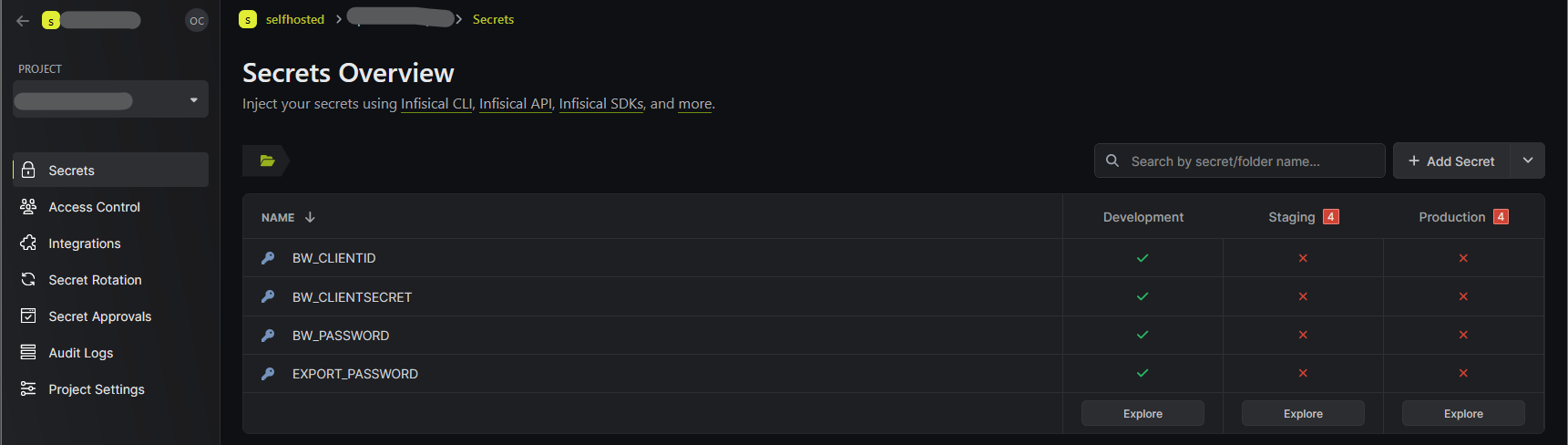
Create a service token under Project → Access Control → Service Tokens, with the name and Secrets Path you need.
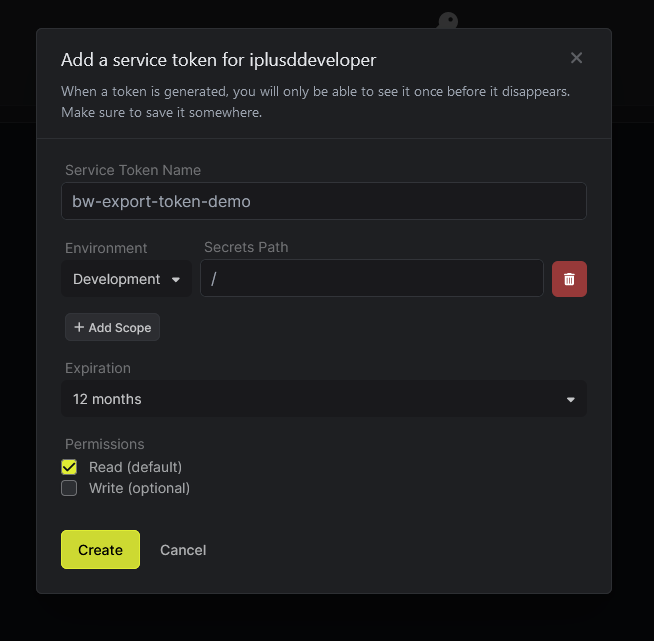
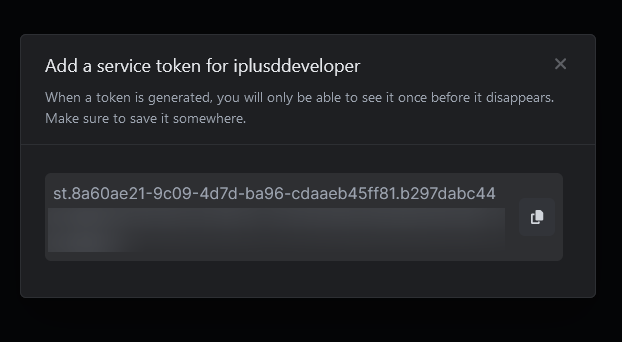
Set
INFISICAL_TOKENto that token, then start the container as usual.INFISICAL_PATHis optional: the token's own Secrets Path always applies (see below).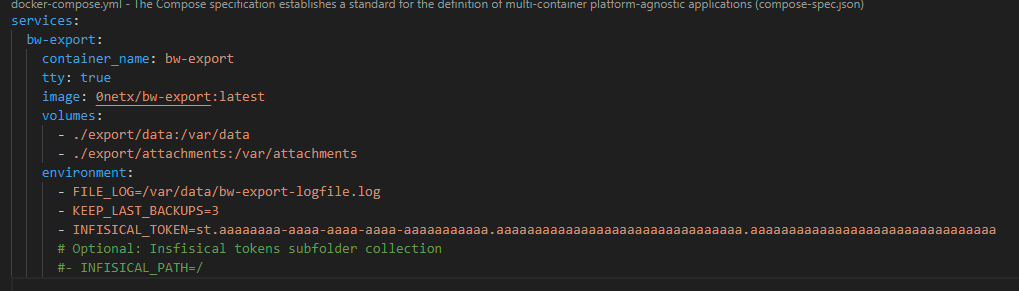
See also docker-compose.infisical.sample.yml.
[!IMPORTANT] A service token carries its own environment and Secrets Path, and Infisical always applies them:
INFISICAL_PATHcannot point a token anywhere else, and a wrong value is not reported as an error. If a run uses the wrong secrets, check the token's scope in Infisical, notINFISICAL_PATH.When a variable is set both in the compose file and in Infisical, the Infisical value wins.
If the secrets cannot be fetched, the container exits with code 1 and, when notifications are on, sends a message carrying Infisical's own error.
Notifications
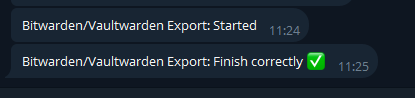
Set NOTIFICATION_URL to any Shoutrrr service URL and you get a message when the run starts, succeeds or fails. Both outcomes carry the run summary (duration, what was exported, organizations skipped, attachments saved, size), so a drop in the numbers shows without opening the log; a failure also carries the last lines of the log. The URL usually holds a token, so the container never prints it and hands it to Shoutrrr through the environment rather than on its command line. A notification that cannot be sent is logged without the address and does not change the backup's exit code.
By default you get a message at the start and another at the end of every run, which on a daily schedule is two a day when all goes well. NOTIFICATION_LEVEL=failure sends only the failures, with the same summary and the last lines of the log; pair it with PING_URL so a run that never started is still noticed. Any other value is reported in the log and treated as all, since a typo should never be why an alert does not arrive.
Telegram
NOTIFICATION_URL=telegram://$BOT_TOKEN@telegram/?channels=$CHAT_ID
# e.g.
NOTIFICATION_URL=telegram://1009999999:AAaaaaaaaaaaaaaaaaaaaaaaaaaaaaaaaaaaaaa@telegram/?channels=19599999999
Gotify
The URL is the Gotify host followed by an application token:
NOTIFICATION_URL=gotify://$GOTIFY_HOST/$GOTIFY_TOKEN
# e.g.
NOTIFICATION_URL=gotify://gotify.example.com/gtfya.AbCdEf0123456789AbCdEf0123456789AbCdEf01234
If Gotify runs under a subpath, add it before the token (gotify://example.com/gotify/$GOTIFY_TOKEN). If it is served over plain HTTP, append ?disabletls=yes. If it uses a certificate your container does not trust, such as a self-signed one, append ?skiptlsverify=yes.
Only an application token works; a client token is rejected when the URL is read.
Both token formats work: the legacy one from Gotify below 3.0.0 (15 characters starting with A) and the one issued by Gotify 3.0.0 and later (gtfya. prefix, around 50 characters). Support for the newer format is why this image builds Shoutrrr from the nicholas-fedor fork: the original containrrr project stopped at v0.8.0, which rejects any token that is not exactly 15 characters starting with A.
Monitoring
NOTIFICATION_URL tells a person what happened; PING_URL tells a machine. It is pinged when the export starts and again when it finishes, carrying the outcome, so a watchdog can tell a successful run from a failed one — and notice a run that never happened at all.
PING_URL=https://hc-ping.com/<your-uuid>
That is all healthchecks needs: the outcome is appended as a path segment, /start at the beginning, /0 on success and /<exit code> on failure. Services that expect the outcome elsewhere use a placeholder:
| Placeholder | Start | Success | Failure |
|---|---|---|---|
{code} |
start |
0 |
the export's exit code |
{status} |
not pinged | up |
down |
A URL using {status} is not pinged at start: that vocabulary has no value meaning "starting", and a push monitor has no concept of one.
# healthchecks, written out explicitly — same behaviour as the example above
PING_URL=https://hc-ping.com/<your-uuid>/{code}

# uptime-kuma push monitor
PING_URL=https://kuma.example.com/api/push/<token>?status={status}

# uptime-kuma, with the exit code in the message
PING_URL=https://kuma.example.com/api/push/<token>?status={status}&msg=exit-{code}
A trailing slash is removed before anything is appended, so https://hc-ping.com/<uuid> and https://hc-ping.com/<uuid>/ behave the same. A failed ping never fails the backup: it is logged as a warning and the container still exits with the export's own status code. An unreachable monitor cannot hold the container open for long either — a refused connection or a name that does not resolve fails in about a second, a host that silently drops packets costs at most eleven, and there are two pings per run.
Scheduling
The container runs one export and exits, so the schedule lives on the host. With cron:
# every day at 03:30
30 3 * * * cd /opt/bw-export && docker compose run --rm bw-export >> /var/log/bw-export.log 2>&1
A systemd timer, Unraid's own scheduler or a container scheduler such as Ofelia work just as well. Because the container exits with the export's status code, cron and your orchestrator see a failed backup as a failure; pair it with PING_URL so a run that never started is noticed too.
Retention
environment:
  - KEEP_LAST_BACKUPS=5
Each run writes its own <DateTime>-bw-export folder. With KEEP_LAST_BACKUPS set, the container sorts those folders and deletes the oldest ones, keeping the number you ask for.
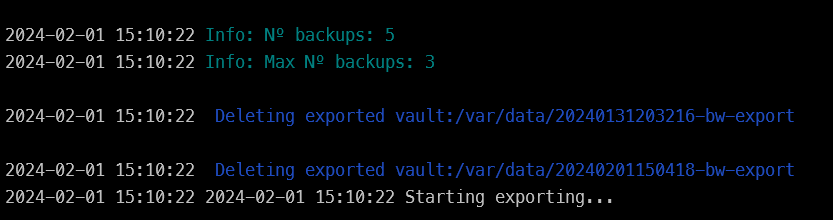
A fixed window has a weakness: with daily backups and KEEP_LAST_BACKUPS=7, an item deleted by mistake and noticed two weeks later is gone from every backup. KEEP_GFS keeps backups spread over time instead (grandfather-father-son):
environment:
  - KEEP_GFS=7d:4w:6m
| Unit | Keeps |
|---|---|
d |
the newest backup of each of the last N days that have one |
w |
the newest of each of the last N weeks (ISO weeks, Monday to Sunday) |
m |
the newest of each of the last N months |
y |
the newest of each of the last N years |
With one backup a day, 7d:4w:6m holds about 15 backups that reach six months back. Units can come in any order and any can be left out (30d, 4w:12m:2y). When both variables are set, a backup either of them keeps is kept.
Either way:
- only folders named
<14 digits>-bw-exportdirectly inside the output and attachments paths are ever deleted; - the backup the run has just written is always kept, even with
KEEP_LAST_BACKUPS=0; - when the run is incomplete, nothing is deleted, so a broken export never pushes a good one out;
- an invalid value deletes nothing and makes the run exit
1after the backup has been written.
Encrypted attachments
EXPORT_PASSWORD encrypts the vault exports, but attachments (SSH keys, certificates, recovery codes, scanned documents) are saved as plain files. With ENCRYPT_ATTACHMENTS=true each run instead writes one attachments.tar.gz.gpg into its attachments folder, encrypted with EXPORT_PASSWORD (AES-256, OpenPGP format).
environment:
  - EXPORT_PASSWORD=<EXPORT PASSWORD>
  - ENCRYPT_ATTACHMENTS=true
- The attachments are downloaded to a private temporary folder inside the container and only the encrypted archive reaches your volume, so no plain copy lands on the NAS or in its snapshots. That folder needs room for one run's attachments; it is deleted however the run ends.
- Each archive is decrypted once after it is written, to prove it can be restored.
- If encryption fails, the run fails and nothing is kept in the clear.
EXPORT_PASSWORDis required: without it the container stops before exporting anything.
To restore, on any machine with GnuPG (Gpg4win on Windows, GPG Suite on macOS):
gpg -d attachments.tar.gz.gpg | tar -xz
GnuPG asks for the password, and the folders are recreated in the current directory, one per vault item.
On Windows, install Gpg4win and use two steps in PowerShell, because Windows PowerShell corrupts binary data sent through a pipe:
gpg -o attachments.tar.gz -d attachments.tar.gz.gpg
tar -xzf attachments.tar.gz
tar is part of Windows 10 and later. Kleopatra, which comes with Gpg4win, does the first step from the file's right-click menu (Decrypt and verify), and 7-Zip opens the resulting .tar.gz.
Permissions of the backups
The Bitwarden CLI already writes what it saves with restricted modes: the exports and the attachments are 600 and each vault item's folder is 700, so another user of the host cannot read them. What is left open is what the container itself creates, with its umask (normally 022):
- each run's
<DateTime>-bw-exportfolder, in the data and attachments paths, is755. Anyone who can reach the volume can list what is inside: the names of your vault items and of their attachments, and the export files; - the encrypted attachments archive (
ENCRYPT_ATTACHMENTS) is644. It is encrypted, but anyone can copy it.
environment:
  - BACKUP_PERMISSIONS=private
| Default | private |
|
|---|---|---|
Each run's folders (<DateTime>-bw-export) |
755 |
700 |
| The encrypted attachments archive | 644 |
600 |
| Exports and attachments written by the CLI, and each item's folder | 600 / 700 |
600 / 700 (the CLI's own modes) |
- It applies from before the first file of the run exists, and is checked again at the end for filesystems that ignore the
umask(shares with default ACLs). The folders you mount,/var/dataand/var/attachments, are never changed. - It takes access away from anyone who is not the owner. The owner is
rootby default, thePUIDuser if you set one, or theuser:of the hardened setup. A script or a share that lists or copies the backups as another user stops working: give it the same user or leave this off. - It is not applied to the log (
FILE_LOG), which keeps its own mode. - A filesystem without Unix modes, such as an NTFS share, cannot be restricted: the run still works and says so in a warning.
- Backups written earlier are not changed. Change them once with
chmod -R go-rwx <folder>.
Off-site copy (3-2-1)
All backups live on one volume, so a failed disk, a stolen server or ransomware takes them all. The image does not upload anything itself; docker-compose.offsite.sample.yml adds an rclone sidecar that copies the export folders to any of rclone's remotes (S3, Backblaze B2, WebDAV/Nextcloud, SFTP, Google Drive, …), keeping the remote's credentials out of the bw-export container.
- Set
EXPORT_PASSWORDandENCRYPT_ATTACHMENTS=true, so everything that leaves the host is encrypted. - The sidecar mounts the backups read-only and uses
rclone copy, which never deletes on the remote: a backup lost locally is still there. Expire old copies with the provider's lifecycle rules (ideally with versioning or object lock), not withrclone sync, which would mirror local deletions.
File ownership: PUID and PGID
Processes inside a container run as root by default, so every file created in a mounted volume ends up owned by root and out of your reach. PUID and PGID map the container's internal user onto a user on the host:
environment:
  - PUID=1000
  - PGID=1000
docker create ... -e PUID=1000 -e PGID=1000 ...
Use your own ids, which id $user reports as uid and gid.
[!TIP] Set them even if root-owned files do not bother you. Without
PUID, the export itself runs as root: the Bitwarden CLI, which handles your master password, then has root's access to everything mounted in the container. WithPUID/PGIDit runs as that user and can write only to the backup folders and its own data folder. For a container that stays up withCRON, the hardened setup goes further: it never starts as root at all.
Rootless Podman
Rootless Podman maps the container's uids onto your subordinate uid range, so PUID=1000 inside the container is not uid 1000 on the host: exports end up owned by an unknown user, or cannot be written at all. Add the compose.podman.yml override, which uses keep-id so your uid means the same inside and outside the container:
podman compose -f docker-compose.yml -f compose.podman.yml up
With it, PUID/PGID behave exactly as under Docker. Without PUID, rootless Podman already writes the files as you, since the container's root is your user. The override is Podman only: Docker rejects keep-id.
On SELinux hosts (Fedora, RHEL) also add :z to the bind mounts, e.g. ./export:/var/data:z, or the container cannot read them.
Hardened setup
With CRON the container stays up around the clock, holding everything needed to open your vault. docker-compose.hardened.sample.yml runs it with as little as possible:
| Setting | Effect |
|---|---|
user: "1000:1000" |
Never root. The user setup and su are skipped, and the files are created as that uid:gid. |
read_only: true |
Nothing in the image can be modified. |
tmpfs: /tmp |
The only writable place outside the volumes, in memory: the CLI's session data (so its tokens never touch the disk), the default log and, with ENCRYPT_ATTACHMENTS, one run's attachments before they are encrypted. Size it to fit them. |
cap_drop: [ALL], no-new-privileges |
No kernel capabilities, and no way to gain any. |
secrets: |
BW_CLIENTID, BW_CLIENTSECRET, BW_PASSWORD and EXPORT_PASSWORD are read from files through their _FILE variables instead of environment variables, so docker inspect does not show them. |
What changes when the container does not start as root:
PUID/PGIDare ignored: theuser:setting already decides who owns the files, and the container says so if they are set.- The mounted folders must be writable by that user, e.g.
sudo chown -R 1000:1000 export. A folder it cannot write to stops the run before anything is exported, naming the folder and the uid. - When the image's own folder cannot be written to (
read_only, or any user other than the image's), the CLI's data and the default log move to/tmp. SetFILE_LOGinside a volume to keep the log across restarts.
[!NOTE] Rootless Podman cannot start this file as is: with
read_only: trueit has nowhere to create the mount points for the Docker secrets under/run/secrets, and stops withcrun: open …/run/secrets/<name>: No such file or directory. Under Podman setread_only: false; every other setting in the file works.
read_only and cap_drop: [ALL] need user: as well. Started as root, the container sets its user up with usermod and chown and then switches to it with su, which a read-only filesystem and a capability-less container both prevent.
Platform notes
- Unraid: see the Bitwarden_Export Unraid template README.
- SELinux hosts: add
:zto the bind mounts. - Windows / macOS: adapt the volume paths in the compose file.
Image tags
| Tag | Published from | Use it for |
|---|---|---|
0netx/bw-export:latest |
a v* release tag |
production |
0netx/bw-export:beta |
the dev branch |
testing what is coming next |
0netx/bw-export:<commit sha> |
each build | pinning one exact build |
Troubleshooting
Reading the log
Each line is <date> <time> LEVEL: message, where the level is INFO, WARNING, ERROR, or HINT (what to do about the line above). The first lines of every run say what it is about to do, which is what a support request needs before anything else:
2026-11-20 17:54:10 INFO: bw-export 2.00, Bitwarden CLI 2026.11.0
2026-11-20 17:54:10 INFO: Mode: one backup, then exit, timezone UTC
2026-11-20 17:54:10 INFO: Runs as uid 1000, gid 1000
2026-11-20 17:54:10 INFO: Vaults: one; notifications: on; monitoring ping: off; Infisical: off; log file: on
2026-11-20 17:54:10 INFO: Server: self-hosted, Vaultwarden 1.37.4
2026-11-20 17:54:10 INFO: Credentials: BW_CLIENTID set, BW_CLIENTSECRET set, BW_PASSWORD from a file
2026-11-20 17:54:10 INFO: Vault export: encrypted with EXPORT_PASSWORD (from a Docker secret)
...
Messages from the Bitwarden CLI itself appear indented under the error they explain, prefixed with bw:.
The log is safe to share. It never contains a password, API key, token or notification URL, a self-hosted server's address (only its kind and Vaultwarden version), or anything from inside your vault: no item, folder, organization or attachment names. Organizations and failed attachments are named by their IDs. When asking for help, paste the whole log of a failing run, from the bw-export line to Run finished with exit code.
Common problems
| Symptom | Cause and fix |
|---|---|
Failed to unlock vault with BW_PASSWORD, but the password is right |
Vaultwarden older than 1.37.4. Upgrade the server; see Requirements. |
| The CLI refuses your server URL | BW_URL_SERVER must be HTTPS. Plain HTTP is rejected. |
Failed to export the organization vault, then You are not logged in. |
Only a confirmed Owner or Admin, or a custom role allowed to, can export an organization; the server refuses anyone else and the CLI logs itself out. Left unset, BW_ORGANIZATIONS_LIST already skips those organizations and logs Skipping organization. If you listed one by hand, remove it, or set BW_ORGANIZATIONS_LIST=none. |
Could not find the folder in which to save the files |
OUTPUT_PATH or ATTACHMENTS_PATH points somewhere that is not mounted in the container. |
| The export works, but no attachments appear on the host | The old /var/attachment mount. See Upgrade notes. |
| The run uses the wrong secrets with Infisical | The service token's own scope, not INFISICAL_PATH. See Option B. |
Exported files belong to root, or to nobody you recognise |
Set PUID/PGID; under rootless Podman add compose.podman.yml. See PUID and PGID. |
| The log disappears with the container | Point FILE_LOG inside a mounted volume. |
| No notification arrives | A failed notification is logged without the address and does not change the exit code. Check the log and the Shoutrrr URL. |
Saved … lines with item and file names are gone |
Since 2.00 the log names no attachment: it says how many were saved, and names a failed one by its position and item ID. |
Upgrade notes
Upgrading to 2.00
Every setting from 1.12 keeps its meaning, so most setups only need docker compose pull and a restart. Check these if they apply to you:
- You use Gotify notifications: see Notifications: Shoutrrr 0.25. A self-signed certificate now needs
skiptlsverify=yes, and only application tokens work. - You read or parse the container log: every line is now
<date> <time> LEVEL: message(see Reading the log). The run ends withRun finished with exit code Ninstead ofReturn Code: N. The log no longer names attachments, organizations or the server. - You set
CRON: it must be a schedule only, i.e. 5 to 7 fields or a macro. Anything after the schedule stops the container at start; supercronic never accepted@everyeither. - You have items with the same name: their attachments now go to separate folders,
Passport (1a2b3c4d), instead of overwriting each other. Unique names keep their folders. - You belong to organizations you do not own or administer: they are skipped now; see below.
- Self-hosted: Vaultwarden 1.37.4 or later, as in 1.12.
New and optional: several vaults in one container, CRON scheduling, encrypted attachments, GFS retention, BACKUP_PERMISSIONS, NOTIFICATION_LEVEL, *_FILE for every secret, and a hardened profile.
Notifications: Shoutrrr 0.25
The image now ships Shoutrrr 0.25 instead of 0.22, which fixes two high-severity vulnerabilities in the Go runtime it was built with. Telegram and the other URLs keep working as before, but a few services changed:
- Gotify:
disabletls=yesno longer skips certificate verification. For a self-signed certificate, addskiptlsverify=yes. And only application tokens are accepted, not client tokens. - All services: a message counts as delivered only on a 2xx answer, and a redirect to another host or from HTTPS to HTTP is refused instead of followed. A notification that used to fail silently may now be reported as failed; it never changes the backup's own exit code.
- Discord:
@everyone,@hereand mentions written in the message no longer ping; list them in the URL'smentionskey. - URLs are checked more strictly when read: an invalid port or a
..in a path is rejected.
If a notification stops arriving after the upgrade, the log says so (WARNING: Sending the notification failed). See the Shoutrrr release notes for every service.
Bitwarden CLI data folder
The CLI's session data now lives in /app/data, the only folder in /app the export user can write to; the rest of /app belongs to root. Earlier versions kept that data in /app itself and gave the whole folder to that user. Nothing needs changing: on start the container moves ownership back and removes the old /app/data.json, which held only the previous run's logged-out session. A BITWARDENCLI_APPDATA_DIR you set yourself is still used.
Moving to several vaults
A single-vault setup keeps working unchanged. To back up a second account, move the existing one into BW_VAULTS too: its BW_CLIENTID becomes VAULT_<NAME>_BW_CLIENTID, and so on.
From then on its new backups go to /var/data/<name>/. The ones already at the top of /var/data stay where they are and are no longer rotated by KEEP_LAST_BACKUPS or KEEP_GFS, which now look inside each vault's folder. Nothing is lost; to keep them under rotation, move them into the vault's folder once, with the container stopped:
mkdir -p export/data/personal && mv export/data/*-bw-export export/data/personal/
mkdir -p export/attachments/personal && mv export/attachments/*-bw-export export/attachments/personal/
Organizations you do not own or administer
Only a confirmed Owner or Admin, or a custom role allowed to, can export an organization. Without BW_ORGANIZATIONS_LIST, the image used to try every organization you belong to, and the server refused the others. The CLI then logged itself out, so the attachments, and any organization tried after it, were lost too. Before 1.12 all of this was reported as a successful backup. Those organizations are now skipped, each one with a Skipping organization line in the log.
- You own or administer every organization you belong to, or you set
BW_ORGANIZATIONS_LIST: nothing changes. - You belong to an organization as User or Manager: the run stops failing, and your attachments and the organizations you do own are saved again. That organization's backup is the job of whoever owns it.
- You use bitwarden.com with a Custom role that may export: the CLI does not show a custom role's permissions, so that organization is no longer exported on its own. Add its ID to
BW_ORGANIZATIONS_LIST.
Rotation of old backups
KEEP_LAST_BACKUPS works as before, with three safety fixes. Most setups see no difference.
- Only
<14 digits>-bw-exportfolders directly inside the output and attachments paths are deleted. Before, any folder whose name ended in-bw-exportcounted, at any depth, including a vault item's attachments folder with such a name. - A folder name with spaces no longer breaks the rotation.
KEEP_LAST_BACKUPS=0keeps the backup just written instead of deleting it.
Attachments path
Earlier versions of this README and of docker-compose.yml mounted the attachments folder on /var/attachment, but the image saves attachments to /var/attachments. With that mount the export succeeded and the attachments never reached the host folder: they went to an anonymous Docker volume instead. Unraid's template already uses /var/attachments and is not affected.
You mount
/var/attachmentand do not setATTACHMENTS_PATH: nothing breaks. The image notices the old mount, saves the attachments there and logs a warning. Change the mount when convenient:volumes: - ./export:/var/data - ./export:/var/attachmentsYou mount
/var/attachments, or setATTACHMENTS_PATH: nothing changes. That includes mounting both paths to different folders —/var/attachmentskeeps being used.You set
ATTACHMENTS_PATH=/var/attachmentwithout mounting it: the run now fails withCould not find the folder in which to save the attachments. Before, the files were written inside the container and lost with it. Mount a folder there, or drop the variable.
Recovering the attachments saved so far. They are in the anonymous volume of your existing container, as long as it has not been removed with docker rm -v or run with --rm (docker compose keeps anonymous volumes when it recreates a container). Copy them out before recreating it, replacing bw-export with your container's name and ./export with your host folder:
docker run --rm --volumes-from bw-export -v ./export:/restore \
    --entrypoint cp 0netx/bw-export:latest -a /var/attachments/. /restore/
Each run's attachments land in the same dated folder as its vault export. Under Docker the copied files belong to root; add --user "$(id -u):$(id -g)" if you need them to be yours (on SELinux hosts, also :z on the /restore mount).
Development
git clone https://github.com/0neTX/Bitwarden_Export.git
cd Bitwarden_Export
docker build --no-cache -t bw-export --progress=plain .
The unit suite needs no network and no containers:
SCRIPT=$PWD/bw_export.sh bash tests/run_tests.sh
See tests/README.md for the rest of the suite, including the end-to-end tests.
Build arguments
| Argument | Default | Description |
|---|---|---|
IMAGE_VERSION |
the release | The version the image reports (label and log). |
BW_CLI_VERSION |
the tested CLI | Bitwarden CLI release to install. |
BW_CLI_SHA256 |
its digest | SHA-256 of that release's zip, checked before it is installed. Change it together with BW_CLI_VERSION; CONTRIBUTING shows how to get it. |
SHOUTRRR_VERSION / SHOUTRRR_SHA256 |
pinned | shoutrrr release and its checksum. |
SUPERCRONIC_VERSION / SUPERCRONIC_SHA256 |
pinned | supercronic release and its checksum. |
docker build --build-arg BW_CLI_VERSION=<version> --build-arg BW_CLI_SHA256=<sha256> -t bw-export .
Contributing
Pull requests go to dev, not main. The full guide is in CONTRIBUTING.md.
Bug reports: open an issue.
Security
To report a vulnerability, follow SECURITY.md. Please do not open a public issue for one.
Running it safely:
- Do not run the export as root. Set
PUID/PGID, or use the hardened setup, which never starts as root. - Keep secrets out of the compose file. Use the
_FILEvariables with Docker secrets (includingINFISICAL_TOKEN_FILE), or Infisical; values inenvironment:are visible to anyone who can rundocker inspect. - Encrypt what you store. Set
EXPORT_PASSWORDandENCRYPT_ATTACHMENTS=true, and keep that password somewhere other than Bitwarden. - Restrict who can read the backups on a shared host with
BACKUP_PERMISSIONS=private. - The log is safe to share: it never contains secrets, server addresses or names from your vault (see Reading the log).
Credits
Based on the script from @dh024/Bitwarden_Export, used as a base and inspiration. Thank you very much.
Disclaimer
This image creates a copy of all the passwords and secrets stored in your vault. Inspect it carefully to make sure it does what you need and behaves as you expect. No guarantee is given that it will work for you.
License
GPL-3.0-only. See LICENSE.
Categories
Download Statistics
Total Downloads Over Time
Related apps
Explore more like this
Explore allLinks
Details
0netx/bw-exportRuntime arguments
- Network
bridge- Shell
sh- Privileged
- false
Template configuration
OPTIONAL: If you have your own Bitwarden or Vaulwarden server, set in the environment variable BW_URL_SERVER its url address.
Your Bitwarden Personal API Key can be obtain in: https://bitwarden.com/help/personal-api-key/
Your Bitwarden Personal API Key can be obtain in: https://bitwarden.com/help/personal-api-key/
Bitwarden Vault Password
OPTIONAL: Set one or more organizations separated by comma. To obtain your organization_id value, open a terminal and type:bw login #(follow the prompts); bw list organizations | jq -r '.[0] | .id' Example: cada13d7-5418-37ed-981b-be822121c593,cada13d7-5418-37ed-981b-be82219879878979,cada13d7-5418-37ed-981b-be822121c5435 If empty, the container export a backup of ALL Organizations in vault
The password used to encrypt the exporte vault.
Path to save exported vault
- Target
- /var/data
- Default
- /mnt/user/appdata/bw-export
- Value
- /mnt/user/appdata/bw-export
- Target
- /var/attachments
- Default
- /mnt/user/appdata/bw-export
- Value
- /mnt/user/appdata/bw-export