

3D-Print-Pricing-(beta)
Docker app from Helmer's Repository
Overview
Bèta (Nederlands): de ontwikkelversie van de app, gebouwd vanaf de beta-branch. Hij kan onstabiel zijn en de database aanpassen op een manier die de stabiele versie niet kan lezen. Hij heeft een eigen data-map en poort, dus hij draait naast de stabiele app. Gebruik de data van de stabiele app niet voor de beta.
English: A cost price calculator and inventory for a 3D-print business: filament, parts, printer depreciation and energy, with orders, customers, invoices, Spoolman sync and push notifications. One container: the database is a SQLite file in the app data folder, so nothing else has to be installed. Put the app data on the cache pool or on an array disk, not on /mnt/user: SQLite does not belong on that FUSE share and can lose data there. Fill in a Setup code and a Session secret (both required). A password works on any address; passkeys only work on an https address with a domain name, so put a reverse proxy in front of it and fill in the passkey domain and addresses.
Nederlands: Een kostprijscalculator en voorraadbeheer voor een 3D-printbedrijf: filament, onderdelen, afschrijving van de printer en energie, met bestellingen, klanten, facturen, Spoolman-synchronisatie en pushmeldingen. Eén container: de database is een SQLite-bestand in de data-map, dus er hoeft niets anders geïnstalleerd te worden. Zet de data-map op de cachepool of op een schijf van de array, niet op /mnt/user: SQLite hoort niet op die FUSE-share en kan daar gegevens verliezen. Vul een Instelcode en een Sessiegeheim in (beide verplicht). Een wachtwoord werkt op elk adres; passkeys werken alleen op een https-adres met een domeinnaam: zet daarvoor een reverse proxy ervoor en vul het passkey-domein en de adressen in.
Readme
View on GitHub🇬🇧 English · 🇳🇱 Nederlands

3D Print Pricing
A self-hosted app for 3D-print businesses: work out what a print really costs, keep track of your filament stock, and turn customer orders into invoices.




Screenshots
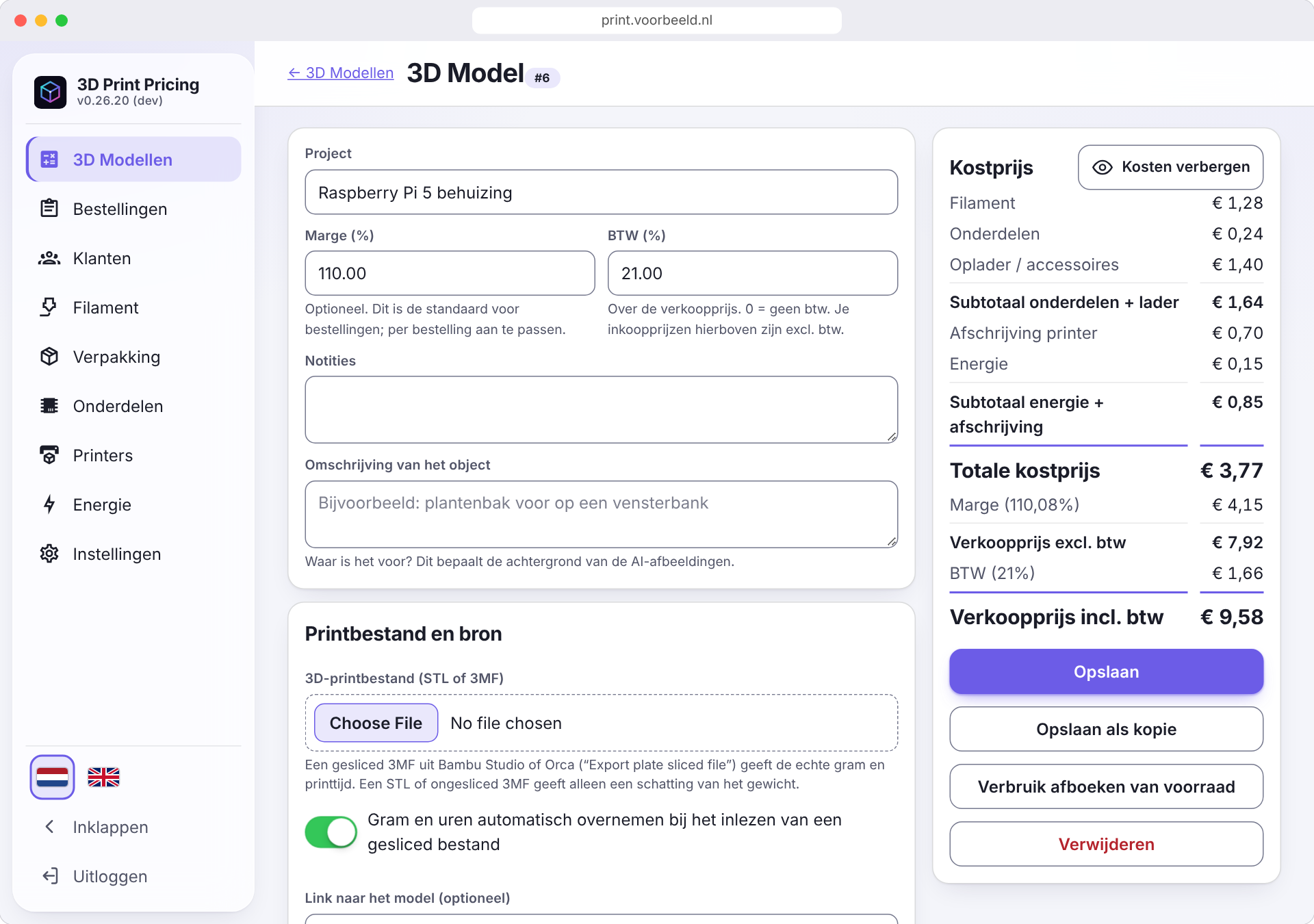
Desktop
| 3D Models | Filament stock | Orders |
|---|---|---|
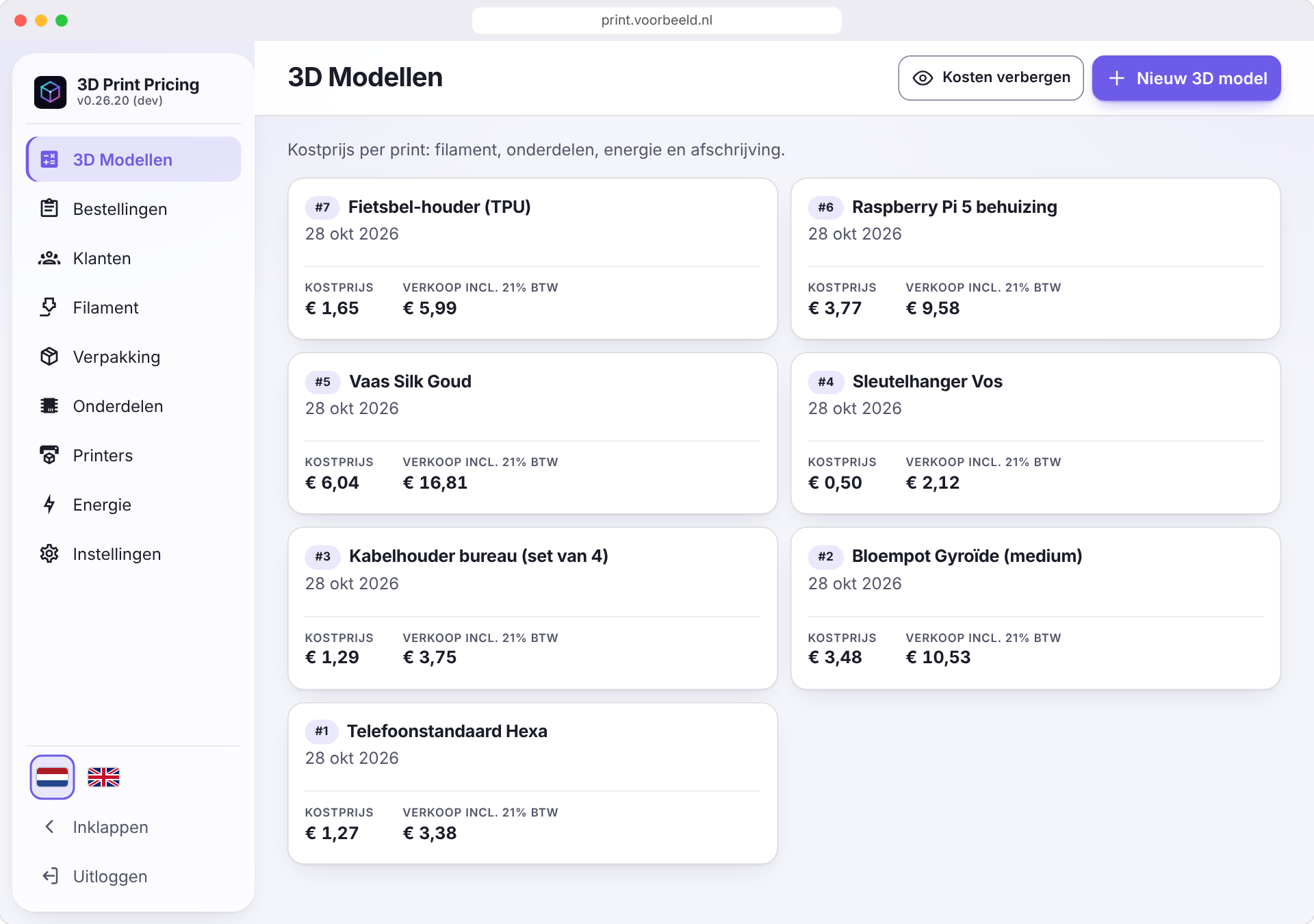 |
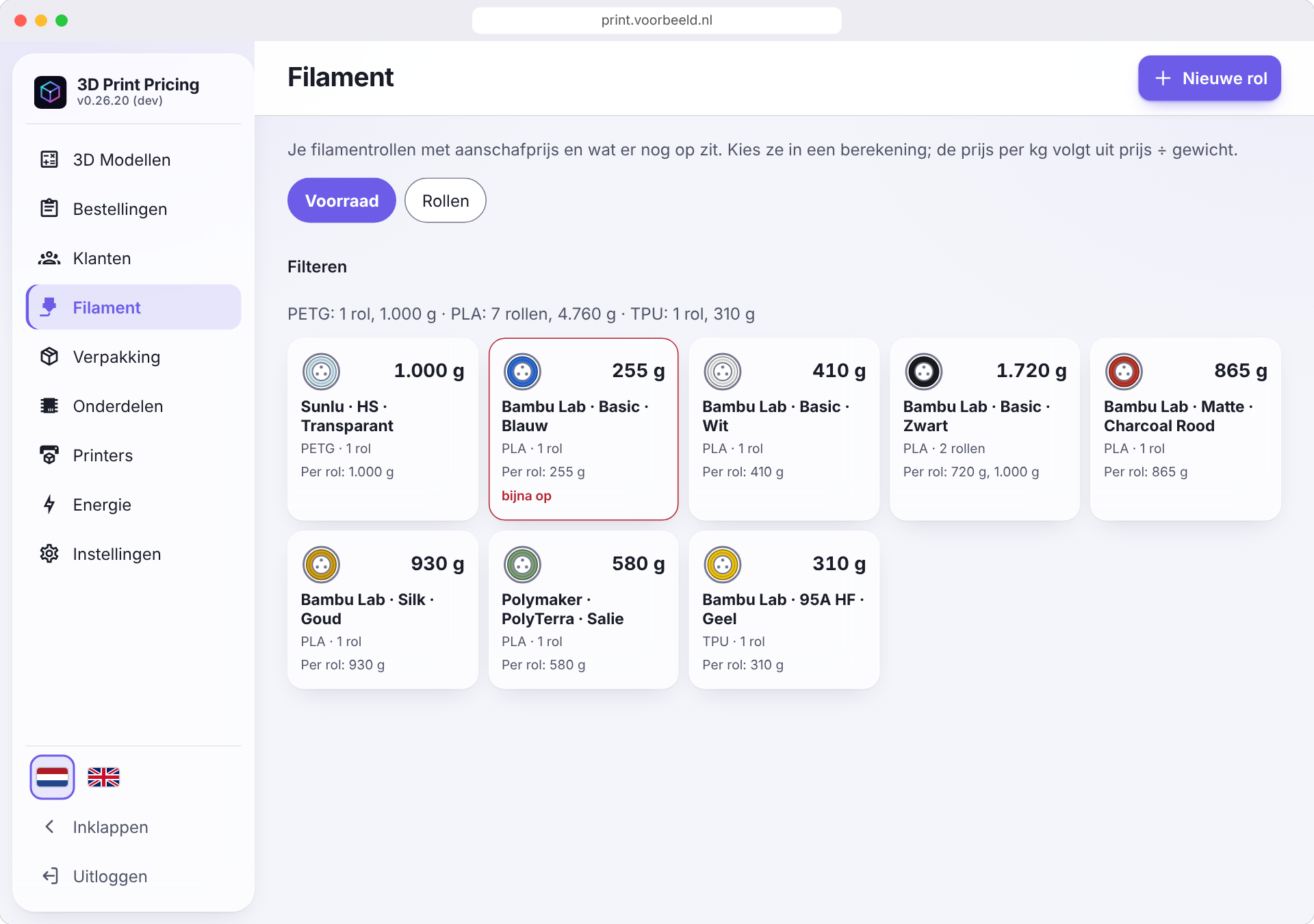 |
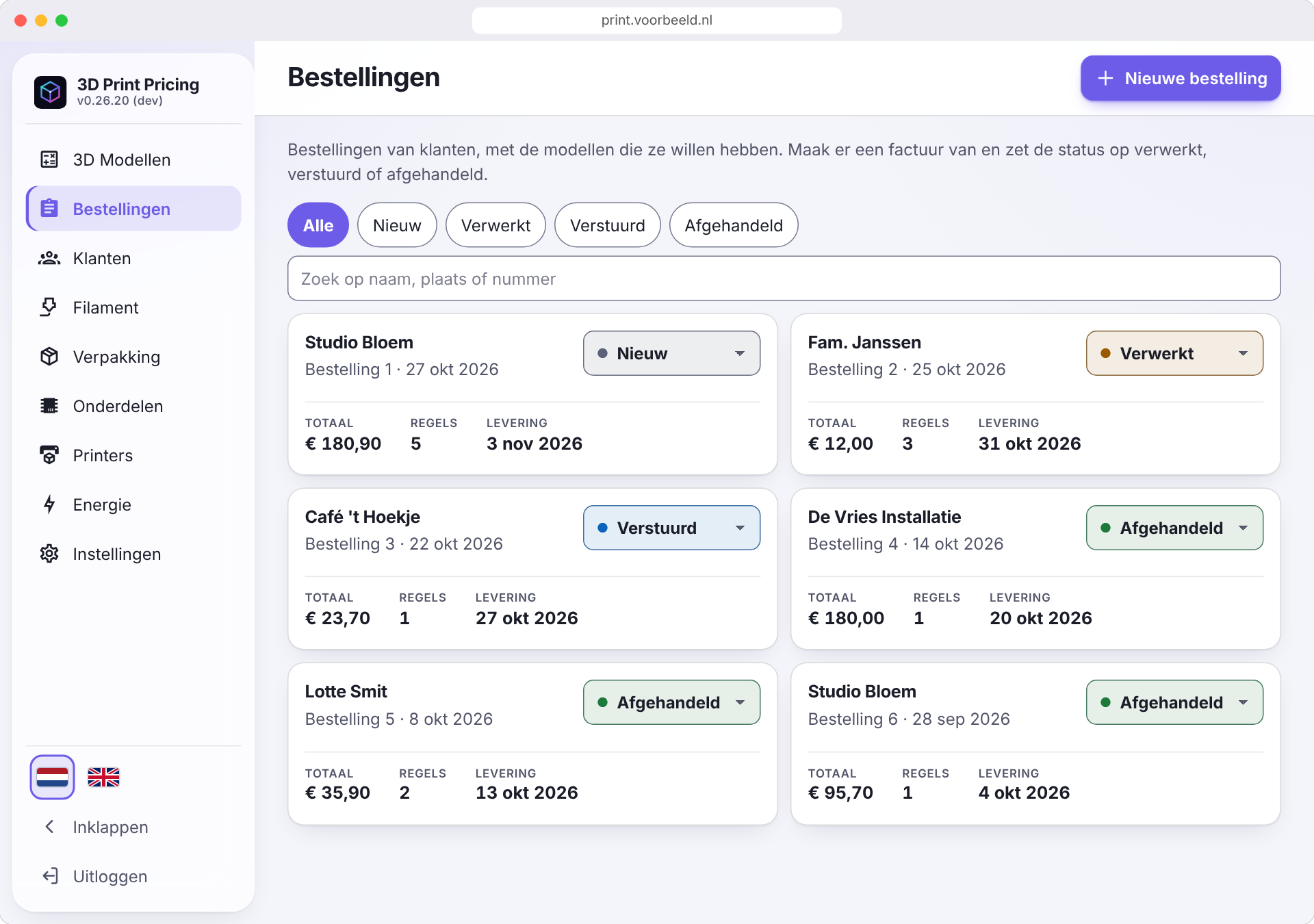 |
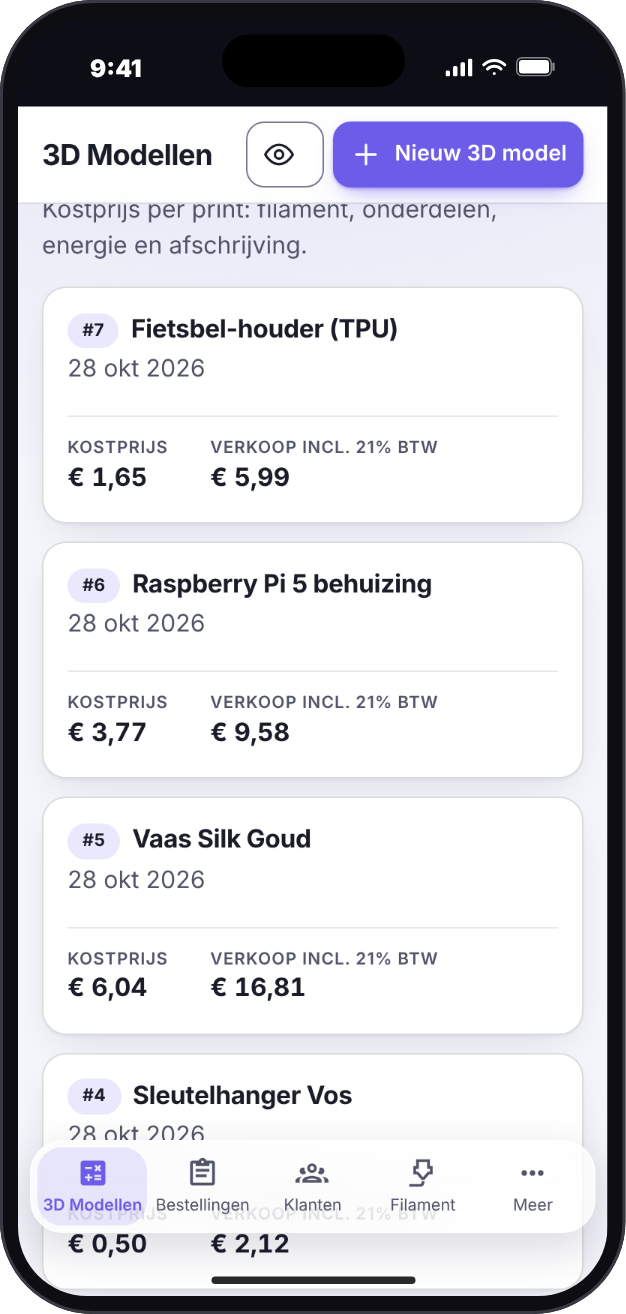
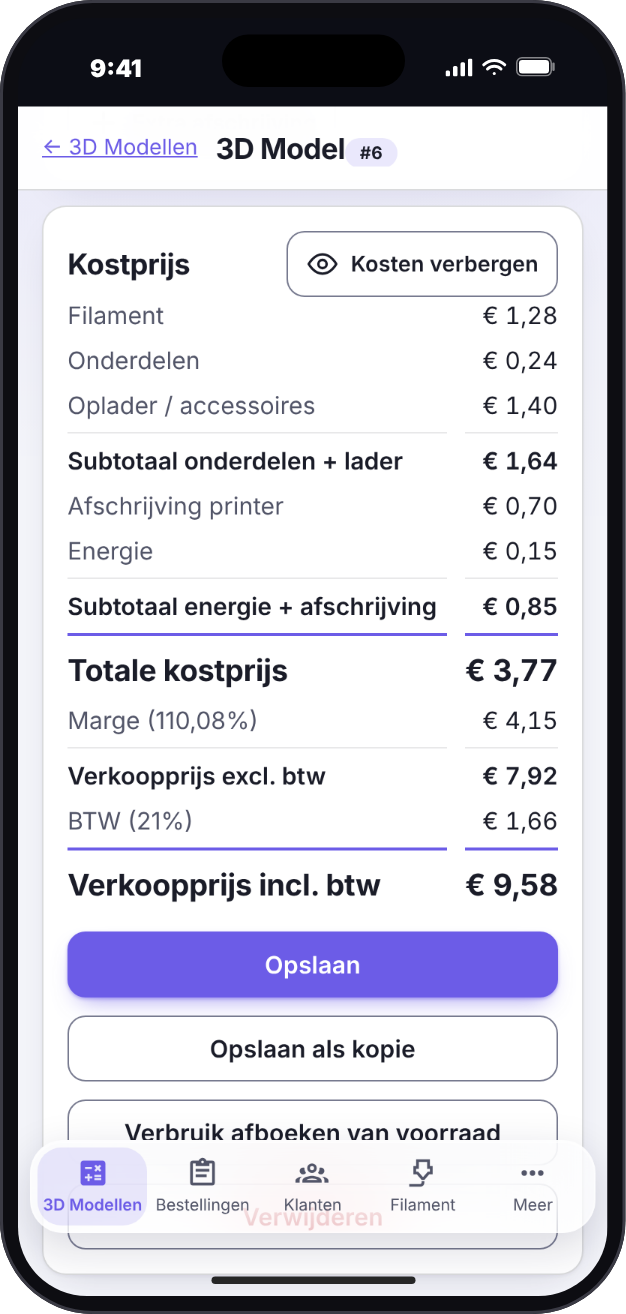
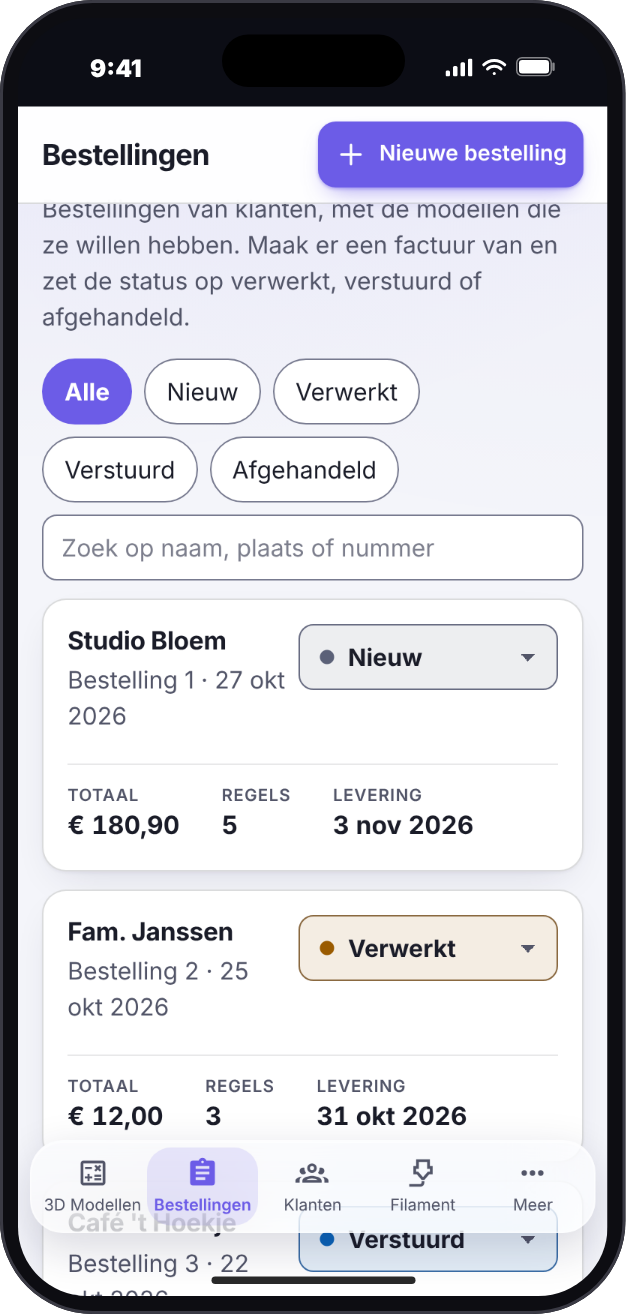
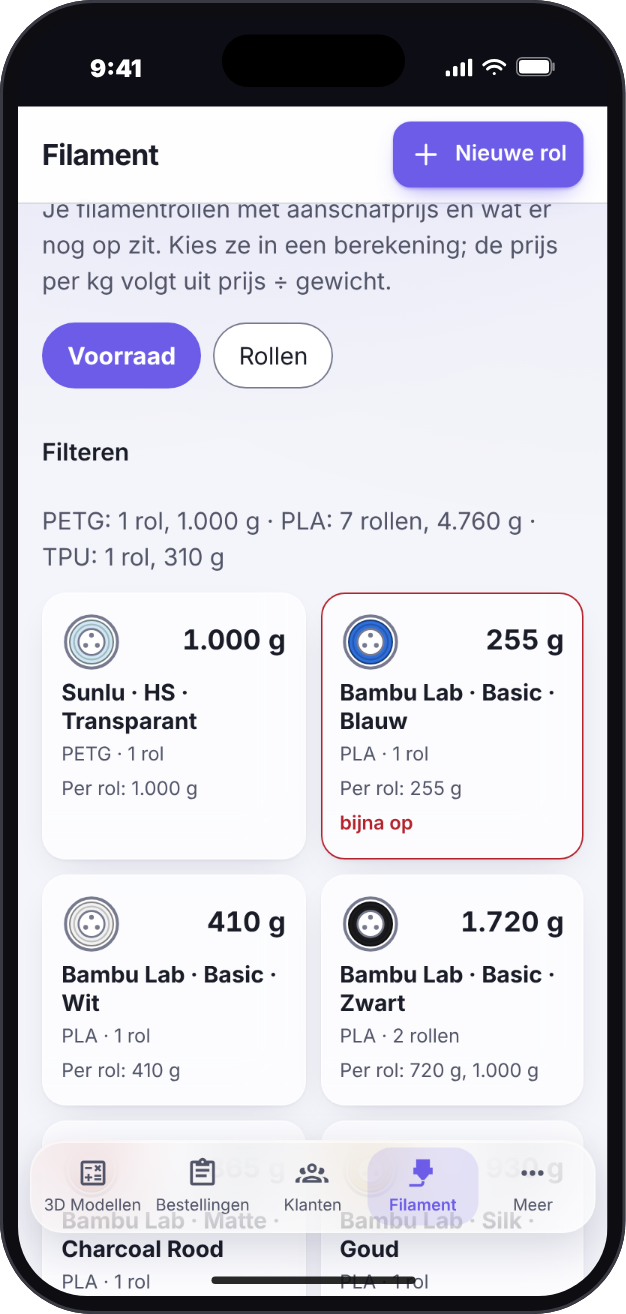
iPhone: the iOS-style look
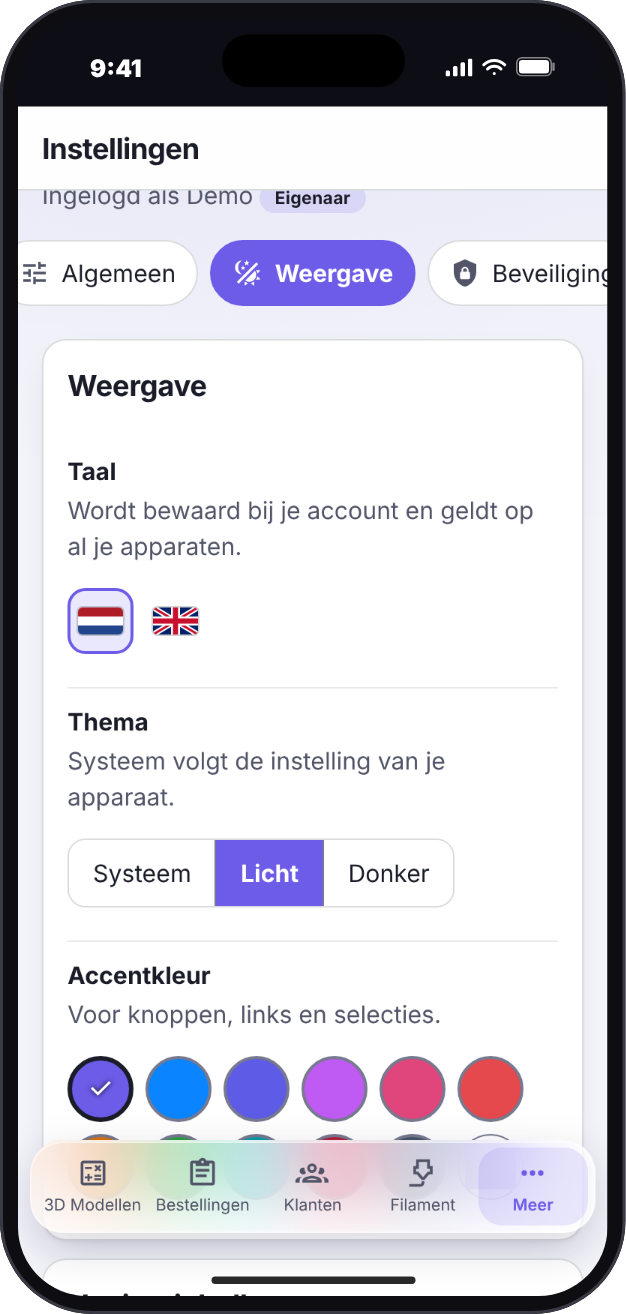
The floating, glass-like navigation bar. Installed on the home screen it runs full screen under the status bar.
| 3D Models | Cost price | Orders | Filament |
|---|---|---|---|
 |
 |
 |
 |
Android: the Android-style look
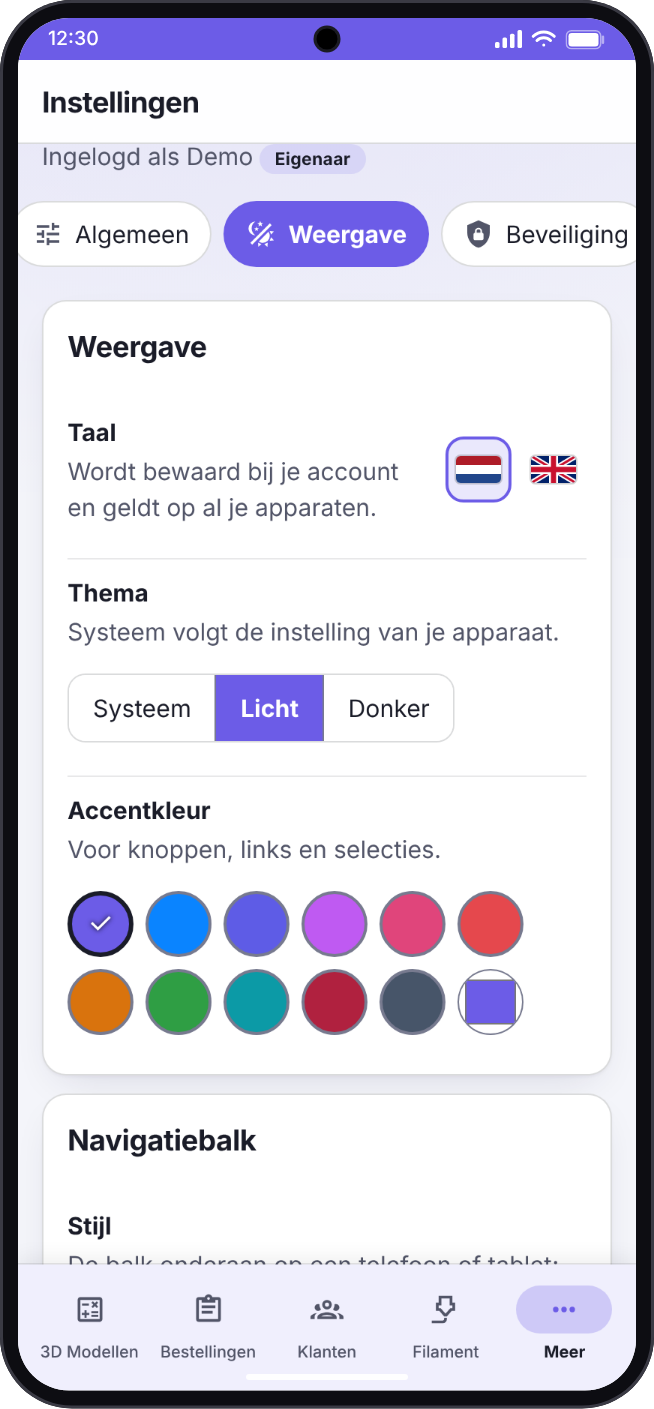
The full-width navigation bar with a pill behind the active icon.
| 3D Models | Cost price | Orders | Filament |
|---|---|---|---|
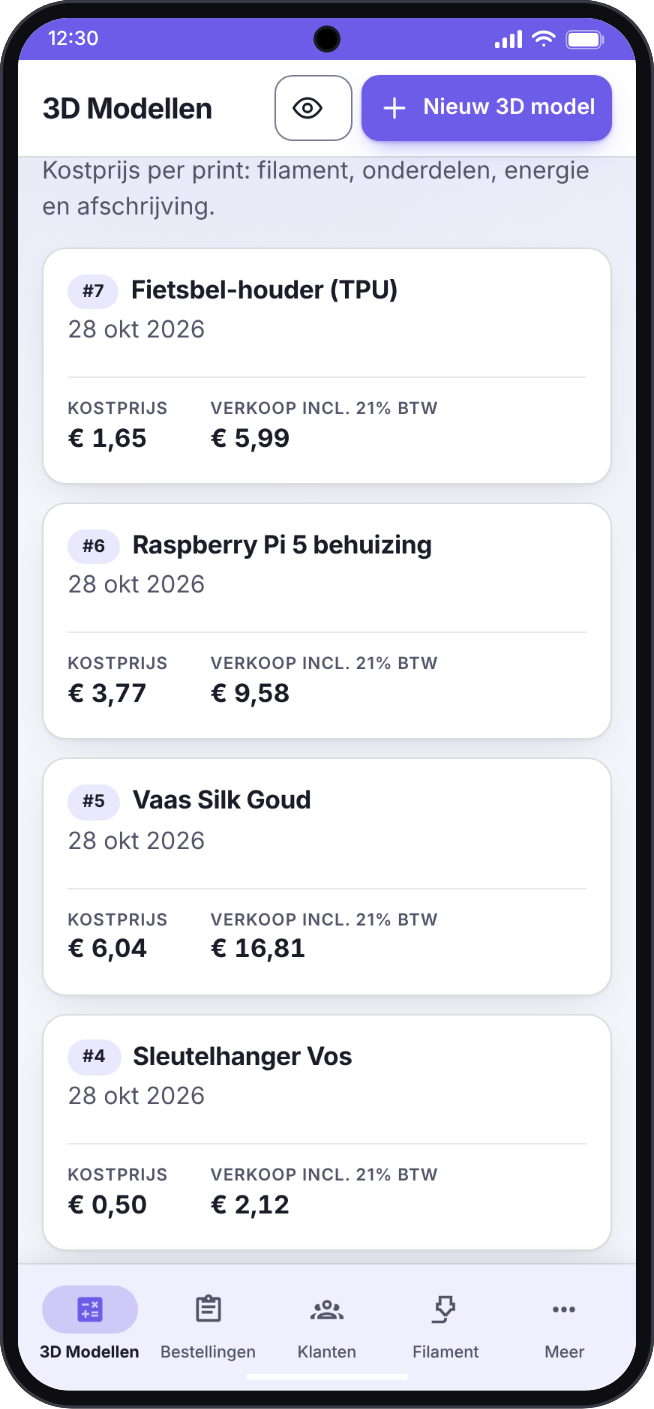 |
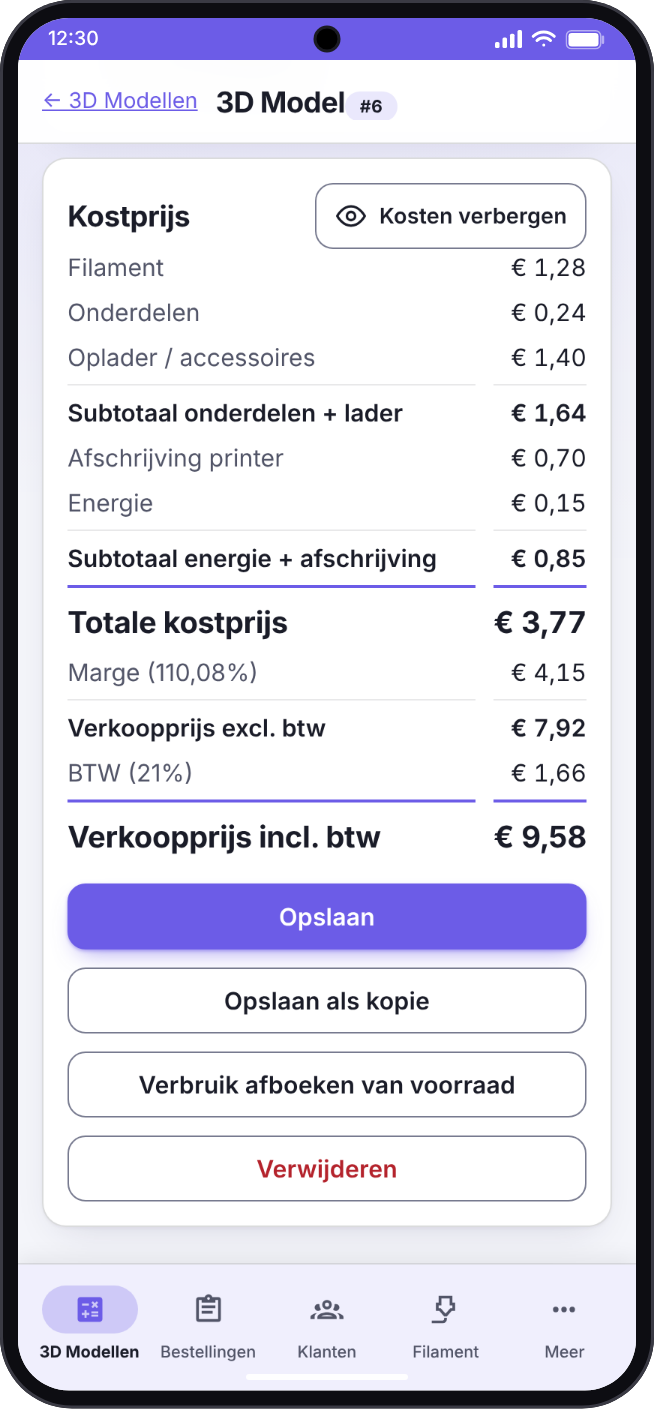 |
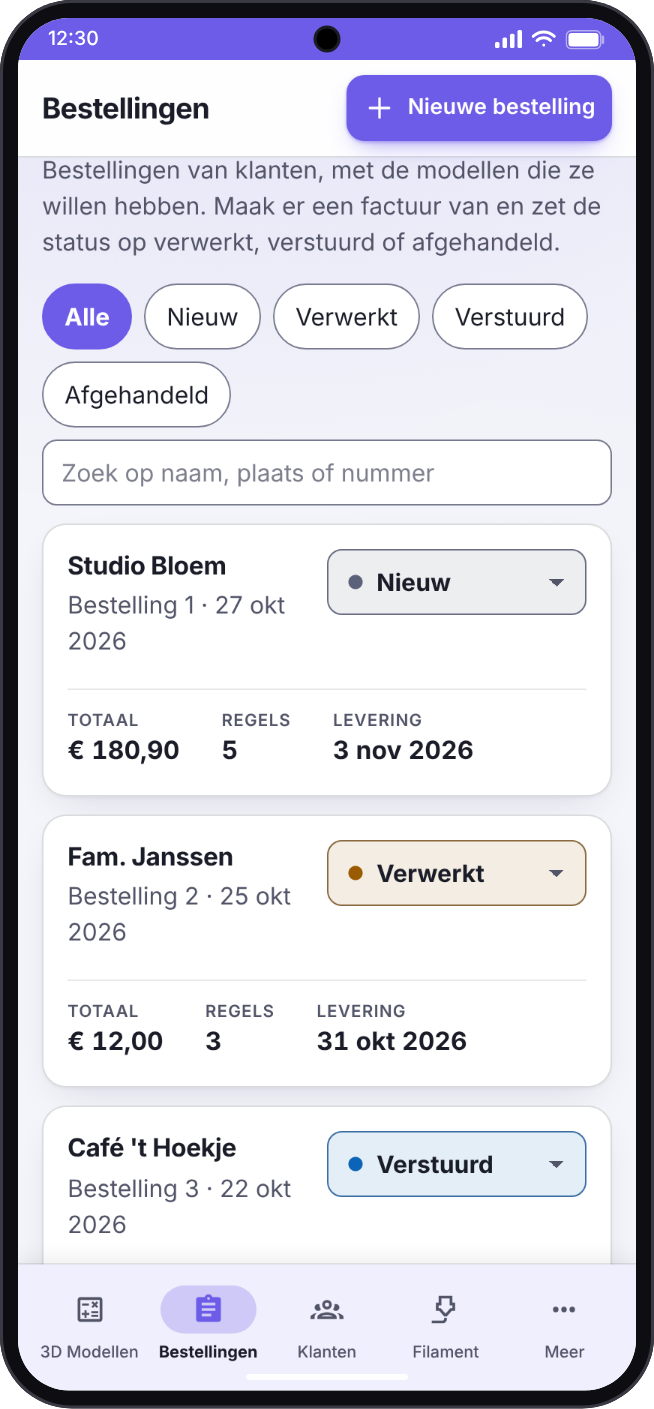 |
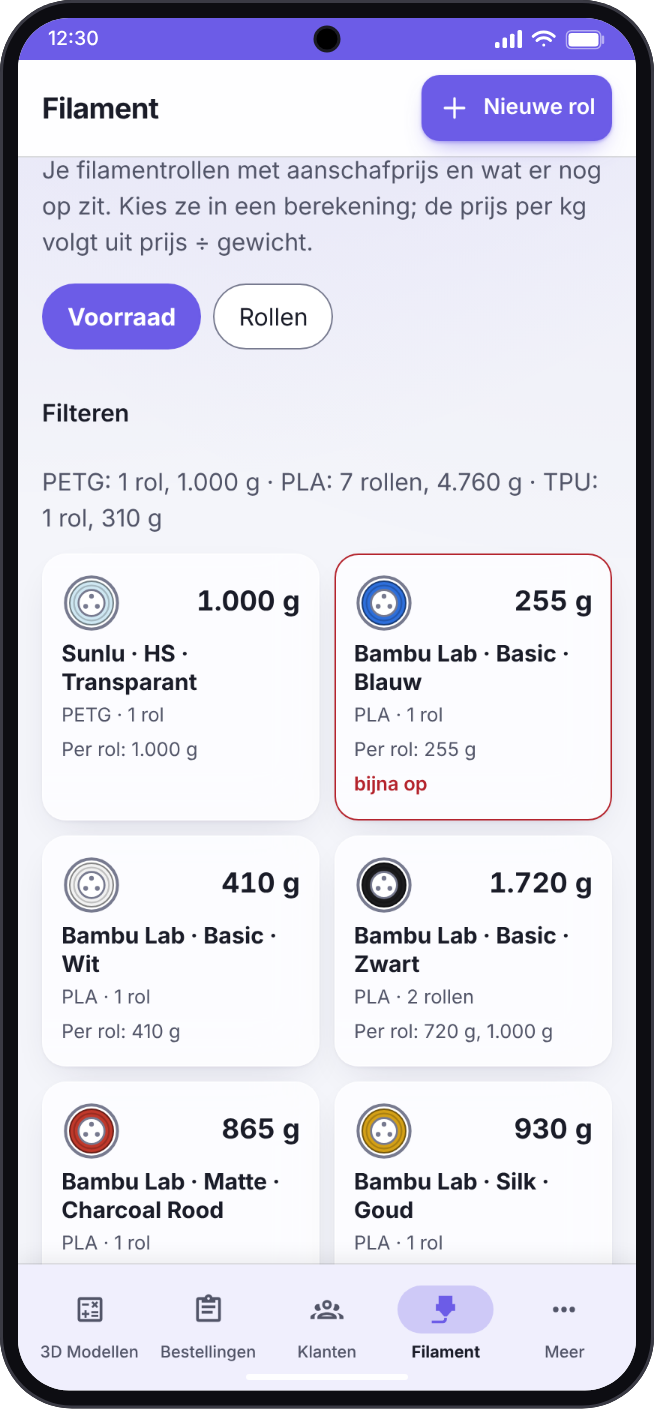 |
Settings and your own colour
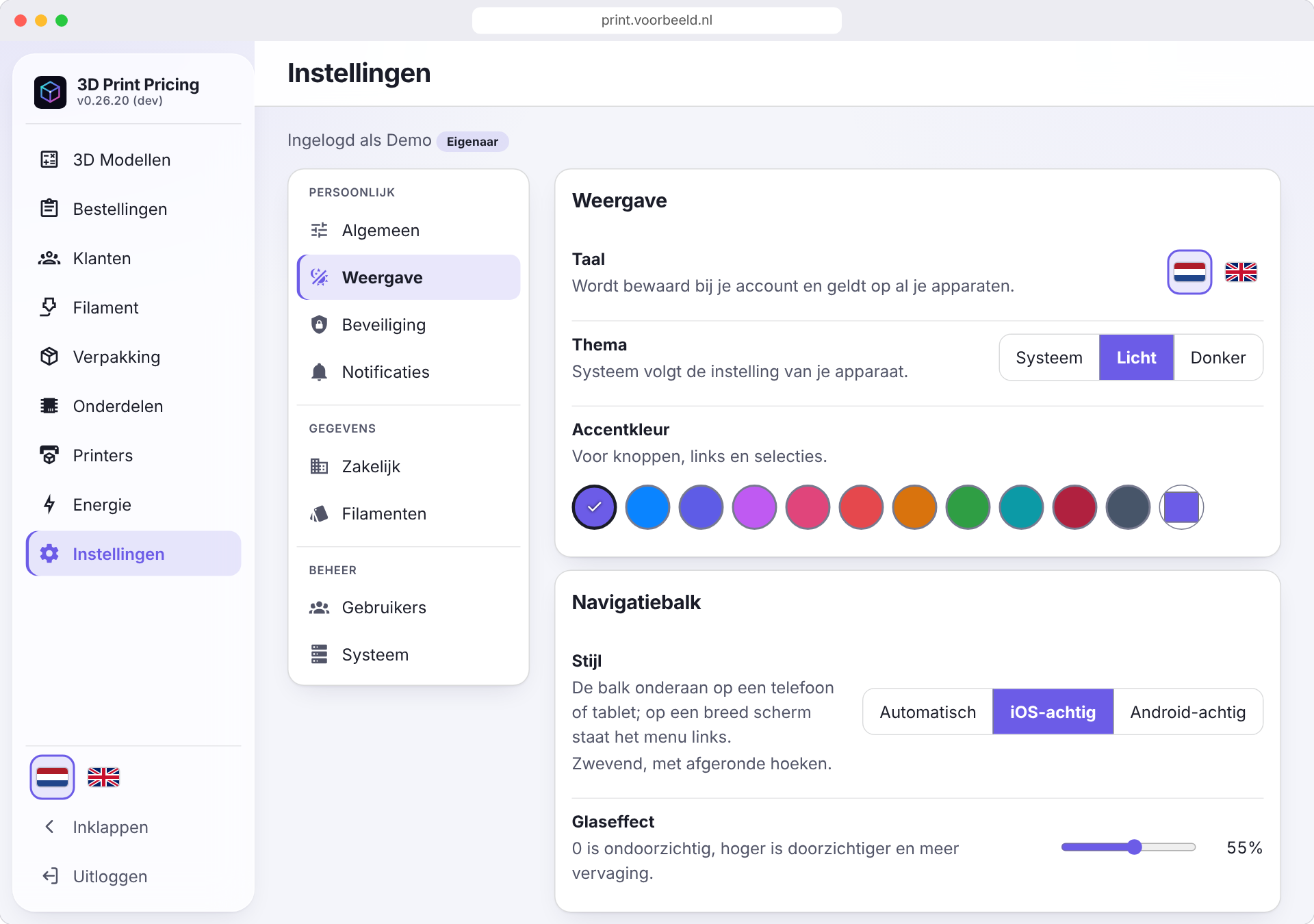
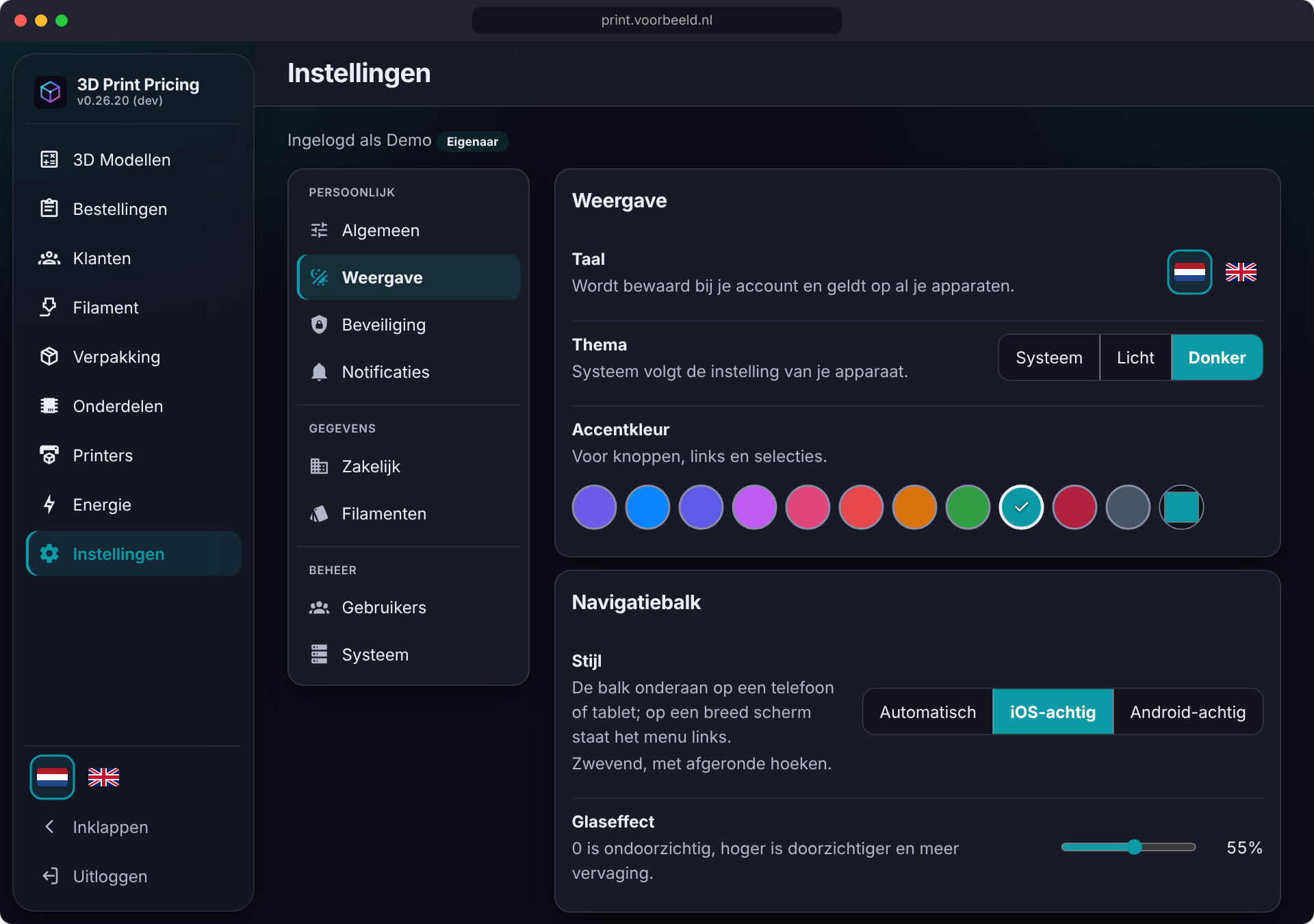
Settings is grouped into Personal, Data and Administration, each part with an icon (what you see depends on your role). On a phone the parts form a row you swipe. Under Display you choose the language, light or dark, and your accent colour: eleven presets, bordeaux and graphite among them, or any colour of your own. The whole interface follows it, not only the buttons. On Filaments, the Spoolman and Import and share blocks fold away.
| Display: light, with the default violet | Display: dark, with teal |
|---|---|
 |
 |
| iPhone: settings | Android: settings |
|---|---|
 |
 |
Filament: library, import and new rolls
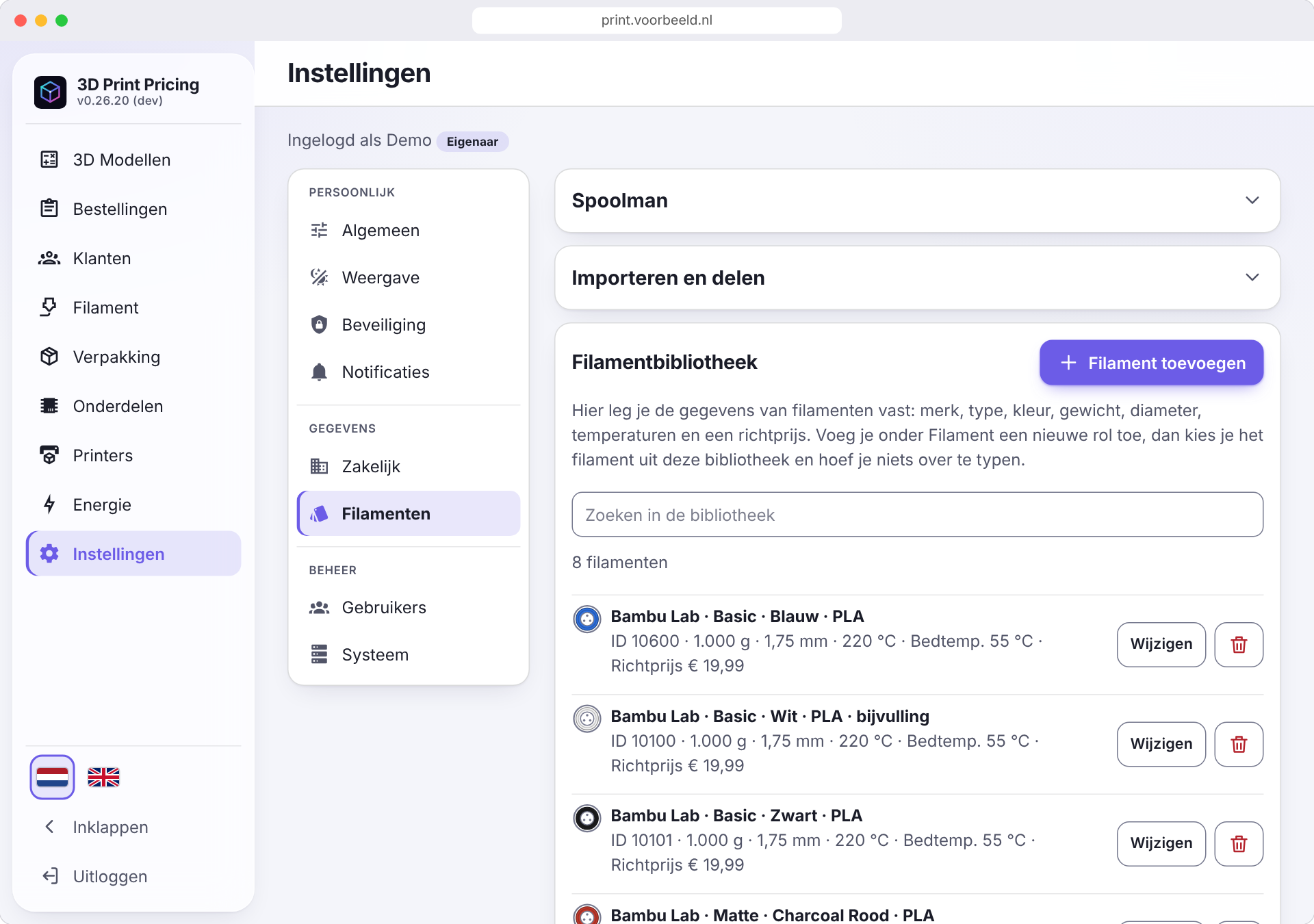
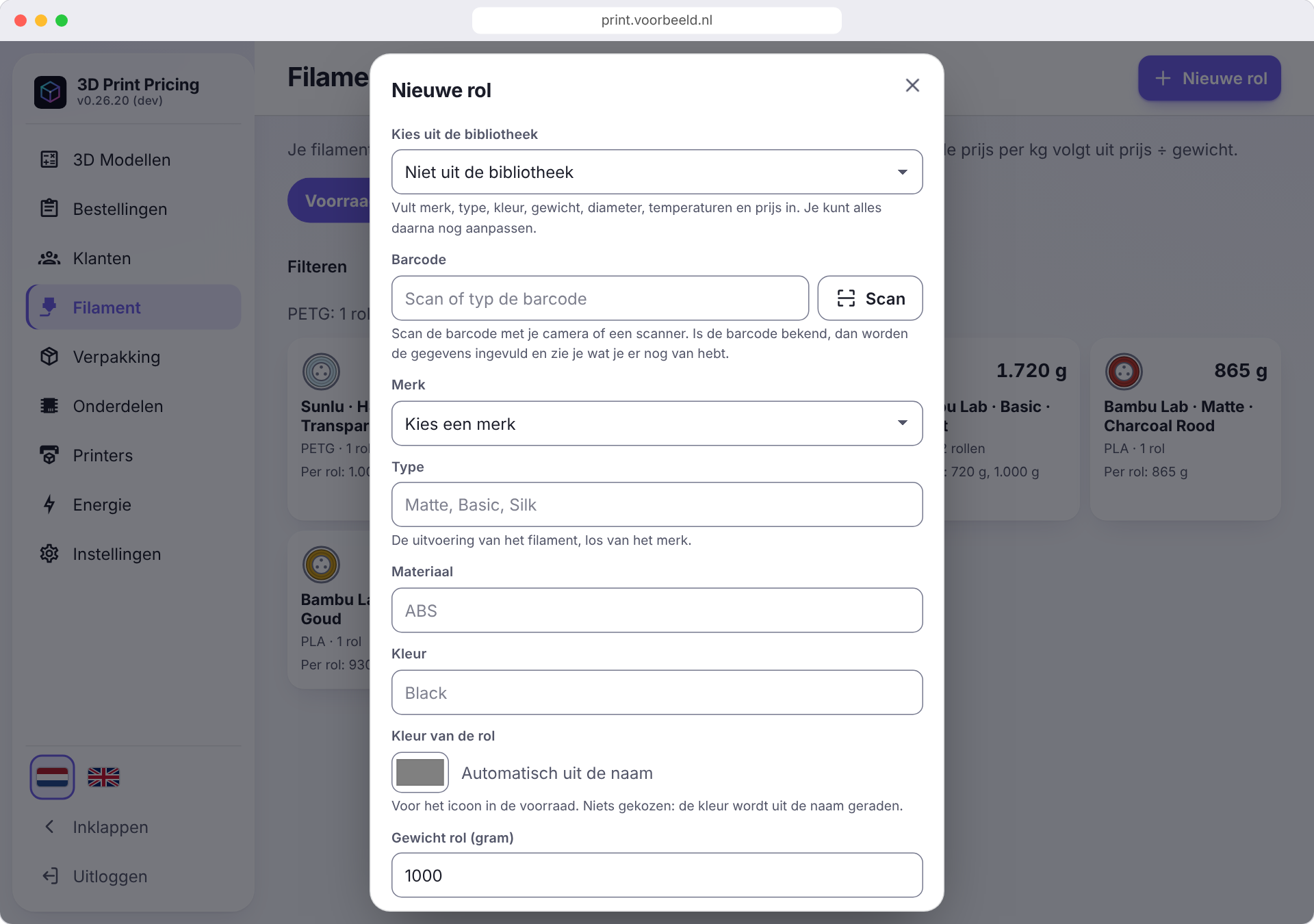
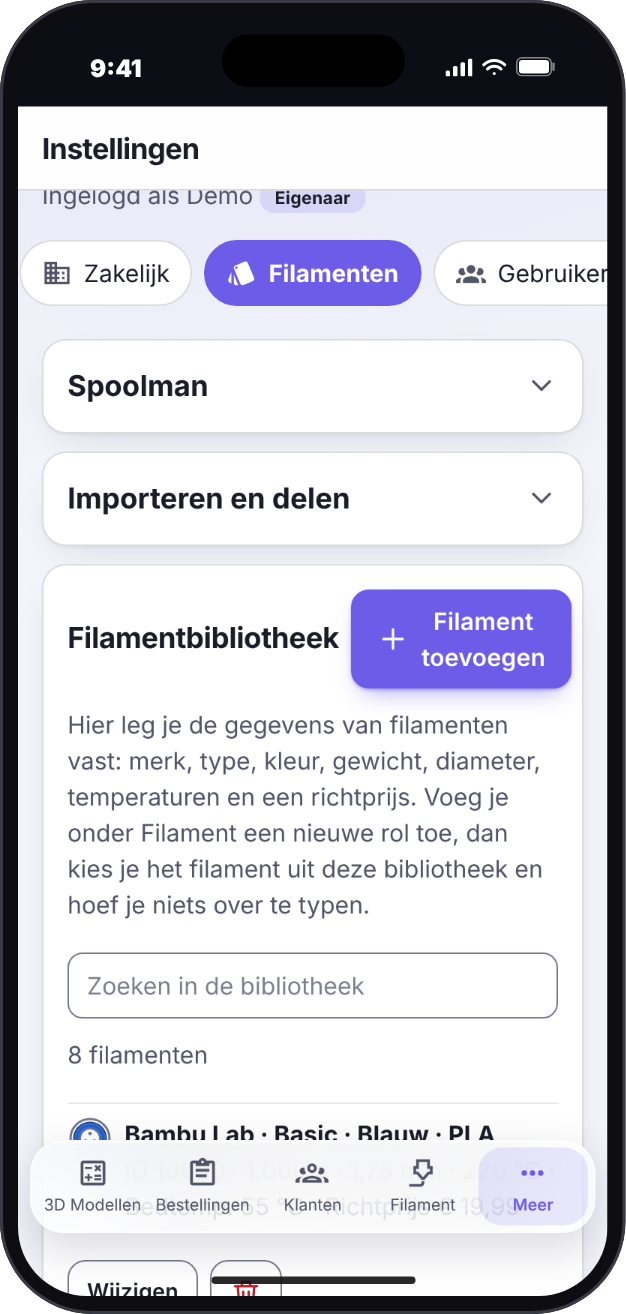
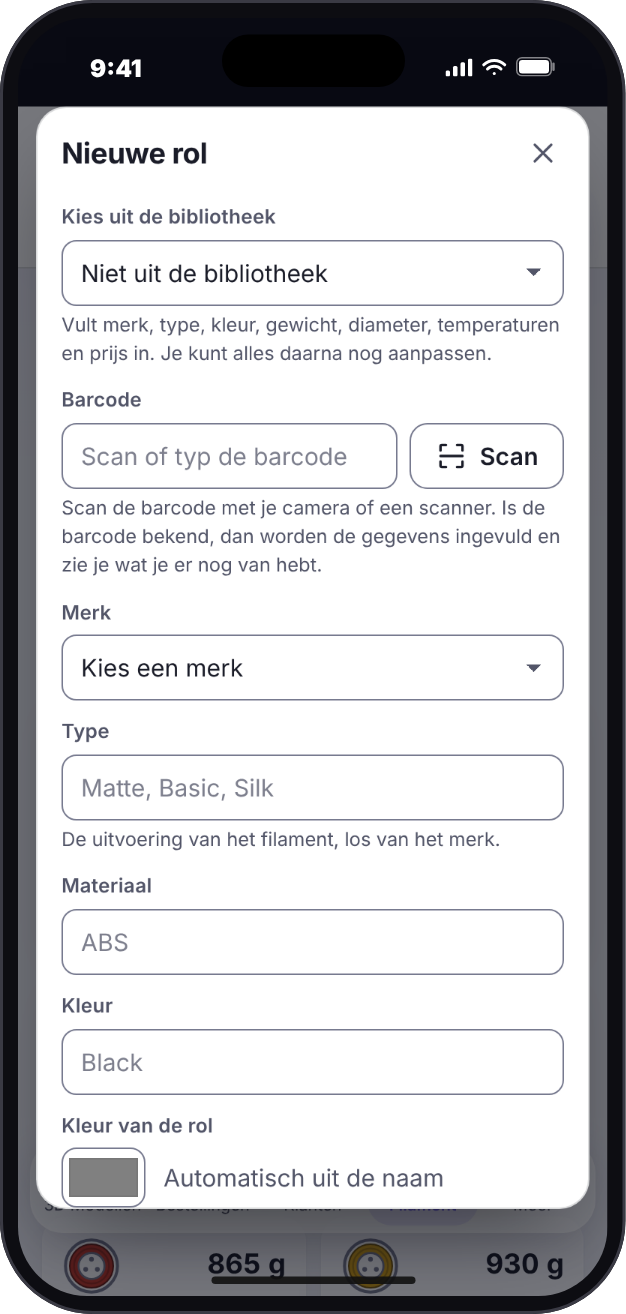
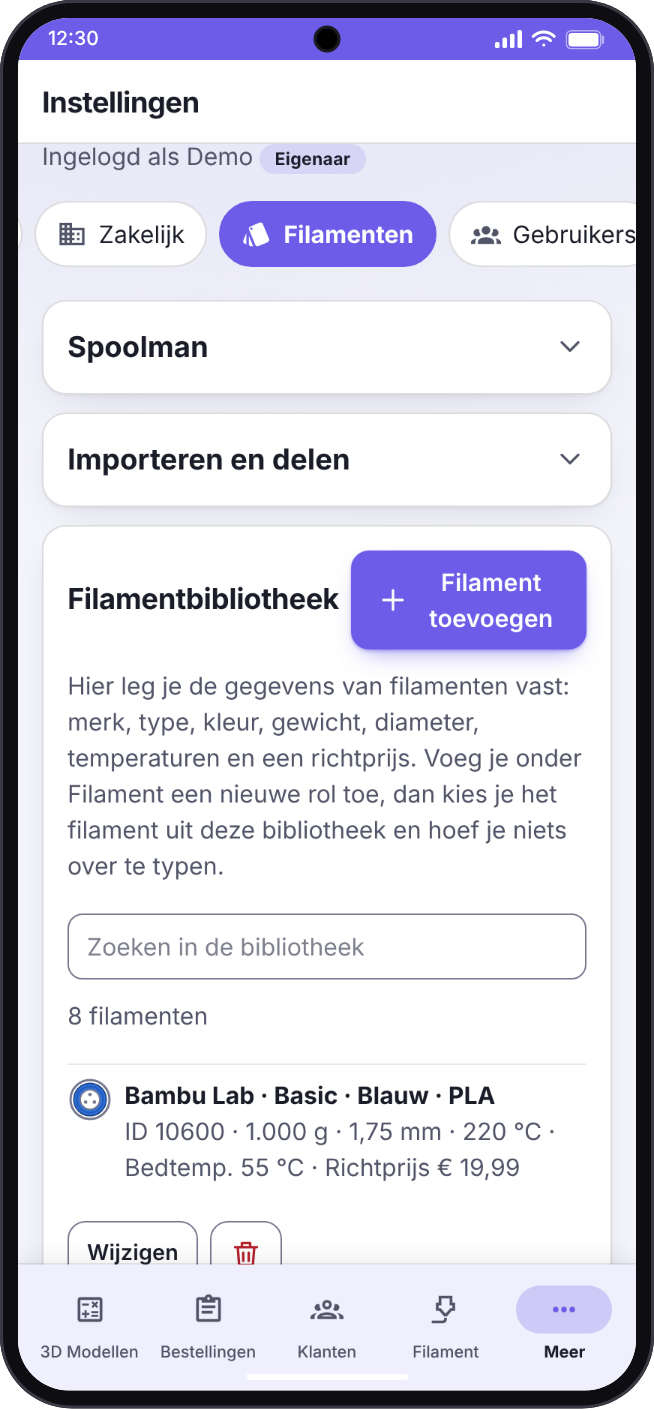
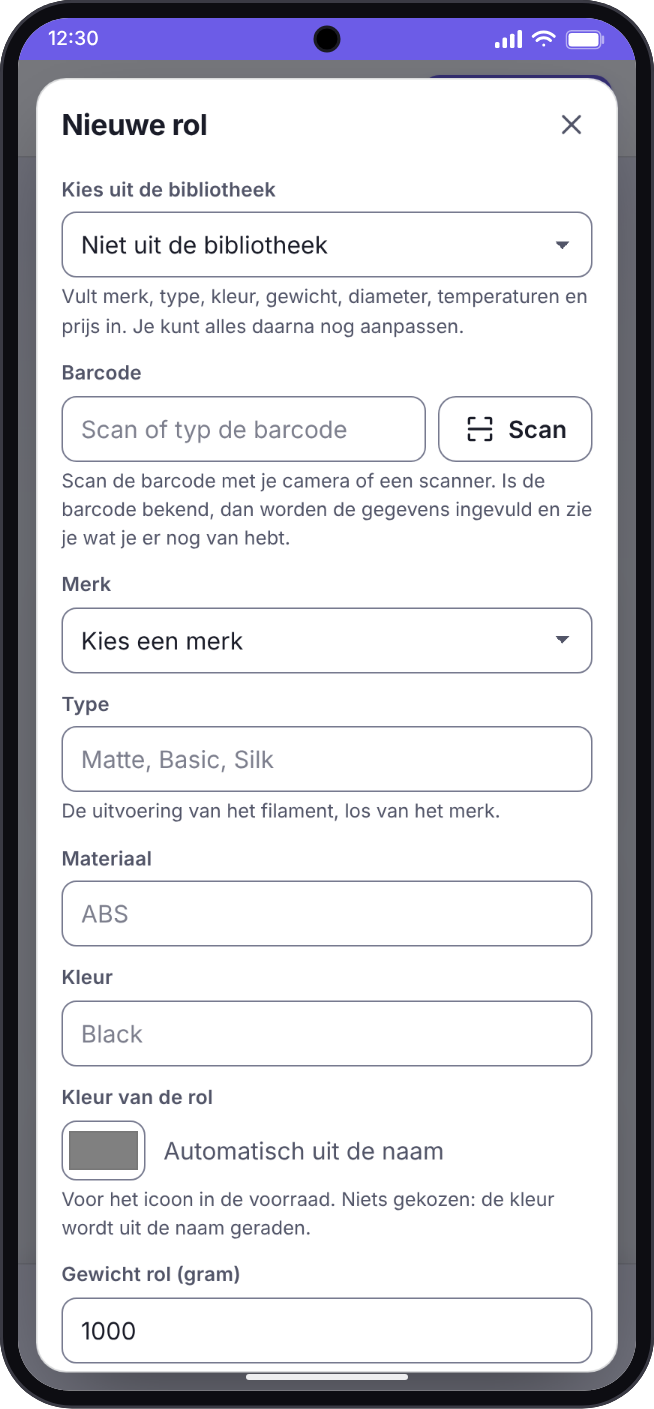
Settings → Filaments holds the filament library: add a filament, import a Bambu Lab invoice, add the rolls of your filament list, import or export the library as JSON, sync it from GitHub, or contribute your filaments to the central library through a pre-filled GitHub issue. Under Filament → New roll you create a roll, either by hand, by scanning its barcode or by picking a filament from the library.
| Library: import, export and sync | New roll |
|---|---|
 |
 |
| iPhone: library | iPhone: new roll | Android: library | Android: new roll |
|---|---|---|---|
 |
 |
 |
 |
Under Settings → Display → Navigation bar, choose iOS-style or Android-style, or leave it on Automatic: the app detects the device and defaults to Android-style on Android and iOS-style elsewhere. Your choice is saved with your account and applies on all your devices. Light, dark and system themes and your own accent colour are included.
The screenshots show demo data.
Why 3D Print Pricing?
Selling 3D prints means knowing what each one costs: filament by the gram, machine time, electricity, packaging and a fair share of the printer's purchase price. A spreadsheet gets you there, until the prices change, the stock runs out unnoticed, or a customer wants an invoice. 3D Print Pricing keeps the prices, the stock and the orders in one place that you host yourself, and works from your phone as well as your desk.
Features
- Cost price in seconds: filament, parts, accessories (cables, chargers), printer depreciation and energy add up to a cost price, with an optional margin for a recommended selling price. Every line is rounded to the cent first, so the lines on screen add up to the total.
- Straight from the slicer: attach a
.3mfor.stlfile. A sliced 3MF (Bambu Studio / Orca) gives the real grams per filament and the print time, which go into the calculation automatically; an STL gives a weight estimate. - Filament library: keep the specs of the filaments you buy (brand, type, colour, supplier filament ID, weight, diameter, temperatures, indicative price) in a library, so a new roll fills itself in. Add a filament by hand with Add filament, or fill the library without typing: import a Bambu Lab invoice (PDF, barcodes included), import a JSON file, or sync the shared library from GitHub. Export the library as JSON to back it up or move it to another installation. JSON import and sync only add and update, never delete, and ask for confirmation with the numbers first; the library never holds the same filament twice and is separate from your stock.
- Filament stock with barcode scanning: your rolls with price, remaining weight, colour and temperatures, grouped per kind. Create a new roll by hand, by scanning its barcode (a known roll fills itself in), by picking a filament from the library, or, for Bambu Lab, by choosing the product and colour from the web shop; a new roll can also add its filament to the library. Get a notification when a kind is nearly out, and book the usage of a calculation off the stock with one click.
- Prices that stay put: a saved calculation keeps the prices of the moment you saved it, so changing a roll price later never rewrites your history.
- Business-ready: VAT on the selling price, a margin and a price rounding per order (to 5/10/50 cents, whole euros, or ending in ,95/,99, with your margin as the minimum), and a button to blur the costs when a customer looks over your shoulder.
- Customers, orders and invoices: customers with a customer number, orders with several prints each, a status from new to completed, and a PDF invoice with your logo, a unique invoice number and a SEPA payment QR code. Bring your own Word or PDF letterhead if you like.
- Passkey login: no password to leak. Or a password where a passkey cannot work (an IP address on your own network), optionally with two-step verification, and recovery codes for emergencies.
- More than one person: an administrator invites people with a one-time link, and each chooses their own passkey or password, so nobody ever knows anyone else's. Regular users do the daily work; an administrator also manages users, the company details, backups and updates, and can promote a regular user to administrator.
- A real app on every device: installs on the iPhone and Android home screen and on the desktop, works with the camera and with notifications, and speaks Dutch and English.
- Your data, your server: backup and restore of everything from within the app, and your data stays on your own server. Settings → System can also put the app back to a new installation: it deletes everything in the database and the uploads (the passkeys too) after a typed word and a fresh passkey (or password and code) confirmation, and leaves
.env, the image andDATA_PATH/backupsalone. Make a backup first if you are not sure.
The full description of every feature is in the operations guide (Dutch).
Getting started
Users
- 🌐 Web: open the address of your own installation. Passkeys need https and a domain name.
- 📱 iPhone / iPad: see Install as an app.
- 🤖 Android: see Install as an app.
- 🐳 Self-hosted: see Installation.
Install as an app
- Android (Chrome, Edge, Samsung Internet) and desktop: open the https address and choose Install app in the prompt, or under Settings → General → Install app. Long-press the icon for shortcuts (new calculation, filament).
- iPhone / iPad: open the https address in Safari → Share → Add to Home Screen. The app then starts full screen with its own icon and launch screen, without pinch-zoom or sideways swiping, like a native app.
Installation (self-hosted)
git clone https://github.com/Flux76HQ/3dprint_pricing.git
cd 3dprint_pricing
python scripts/init_env.py --port 6090 --domain print.example.com   # creates .env with fresh secrets
docker compose up -d
init_env.py is the easy route; copying .env.example to .env and editing it works just as well. A server only needs docker-compose.yml and .env: the image is pulled from ghcr.io/flux76hq/3dprint_pricing. Without --domain, RP_ID and RP_ORIGINS stay empty and the app follows the address you open it on (also an IP address), enough to try it out.
Then open the address and go through the onboarding:
- Enter the setup code and your name. The setup code is the value after
SETUP_CODE=in the.envfile on your server (init_env.pyprinted it too;grep SETUP_CODE .envshows it again). Type or paste it into the Setup code field of the first screen; you only need it for this first setup, afterwards you sign in with your passkey or password. The onboarding screen explains this as well. - Choose how you sign in: create a passkey (fingerprint, face or device code), or choose a password (at least 12 characters). Where a passkey cannot work (an IP address, no https) the screen says so and the password is already open.
- Save the 8 recovery codes. They are shown once and each works once.
A password works on any address, also on your own network. For passkeys, installing, the camera and notifications put a reverse proxy with TLS in front of the app and set RP_ID and RP_ORIGINS to that domain: they only work over https (except on localhost).
Installation as a Home Assistant app
On Home Assistant OS or Supervised, add https://github.com/Flux76HQ/3dprint_pricing under Settings > Apps > Install app > Repositories and install
3D Print Pricing: the app keeps its data (one SQLite database and the uploads) in the app's folder, which Home Assistant backs up. Passkeys still need a
domain with https in front of the app's port, so set rp_id on the Configuration tab for them; with a password the app also works on http://<address of Home Assistant>:6080. The steps are on the app's Documentation tab (homeassistant/DOCS.md). Runs on amd64 and aarch64 (Raspberry Pi 4/5, ARM mini PCs).
Configuration
Set in .env; the file .env.example documents each value.
| Variable | Required | Default | Description |
|---|---|---|---|
WEB_PORT |
✅ | - | Port of the app; compose publishes it and the app listens on it |
DATA_PATH |
✅ | - | Host folder for all data: the database (db/, one SQLite file) and the uploaded files (uploads/). Plain folders, not Docker volumes. Must be an absolute folder of the Docker host on a local disk (e.g. /srv/printpricing, on Unraid /mnt/cache/appdata/printpricing, not /mnt/user/...: SQLite does not belong on a network share or FUSE mount), never ./data; data that ended up elsewhere is moved by scripts/migrate_data.sh |
POSTGRES_USER / POSTGRES_PASSWORD / POSTGRES_DB |
✅ | - | Only for the PostgreSQL of the releases before SQLite, which the app reads once to move your data over when it starts without a SQLite file (see the operations guide, Overstap naar SQLite). Keep them as they are; the next release drops them. Letters and digits only in the password |
RP_ID |
❌ | empty | Domain the app runs on, without scheme or port. Passkeys are bound to it, so set it once you use them. Empty: the address the app is opened on |
RP_ORIGINS |
❌ | empty | Full origin(s), comma separated, for example https://print.example.com. When set, writes from any other origin are refused, and invitation links use the address the administrator is signed in on when it is listed here, otherwise the first one. Empty: the address the app is opened on |
SETUP_CODE |
✅ | - | One-time code for the onboarding, so the first visitor cannot take over the app |
SESSION_SECRET |
✅ | - | Signs session cookies, at least 32 characters |
RP_NAME |
❌ | 3D Print Pricing |
Name shown in the passkey prompt |
SESSION_HOURS |
❌ | 24 |
Lifetime of a session |
MAX_UPLOAD_MB |
❌ | 50 |
Largest STL/3MF upload in MB |
VAPID_PUBLIC_KEY / VAPID_PRIVATE_KEY |
❌ | empty | Key pair for push notifications (python scripts/generate_vapid.py); empty means notifications are off |
VAPID_SUBJECT |
❌ | mailto:admin@<RP_ID> (mailto:admin@localhost without RP_ID) |
Contact address for the push services |
AI_IMAGES_ENABLED |
❌ | FALSE |
Set to TRUE to show the optional AI images feature (product pictures from a photo, made with OpenAI GPT Image). The API key is entered in the app under Settings, not in .env |
FILAMENT_LIBRARY_URL |
❌ | this repository's library/filaments.json |
Where Settings → Filaments → Sync reads the shared filament library from: a JSON file in the format of the library export, on raw.githubusercontent.com. Empty switches the Sync button off |
SPOOLMAN_URL |
❌ | empty (type it in the app) | The address of your Spoolman as the app's container reaches it, e.g. http://spoolman:8000 (no login). With it, Settings → Filaments → Sync reads the rolls and what is left on them from Spoolman, booked filament is reported back, and the library and your own rolls can be pushed to it. Leave it empty to type the address in the app instead (administrators, Settings → Filaments); when it is set here, it wins and the app shows it read-only |
PROXY_HOPS |
❌ | 0 |
Number of reverse proxies in front of the app |
WEB_CONCURRENCY |
❌ | 2 |
Number of Gunicorn workers |
PRINTPRICING_UPDATE_CHECK |
❌ | true |
The update check: the app asks GitHub whether a newer stable release exists and tells the owner with a banner and under Settings → System → Update check. It sends nothing about your installation and never updates anything. false (also 0, no, off) switches it off, for an installation that must not call out. A beta build only sees stable releases |
PRINTPRICING_TAG |
❌ | latest |
Which build runs: latest (stable), beta (the development version) or a version number such as 0.26.15. docker-compose.yml pulls ghcr.io/flux76hq/3dprint_pricing:<tag> and passes the same value to the app, which shows a beta label next to its name on beta. Replaces APP_IMAGE |
Updating is docker compose pull && docker compose up -d (or sh scripts/update.sh, which copies the database first). The app tells you when a newer release exists: it asks GitHub (the latest stable release of this repository, nothing about your installation is sent) and shows a banner and Settings → System → Update check; it only announces, it never updates anything. PRINTPRICING_UPDATE_CHECK=false switches it off. Health checks, backups, notifications and everything else about running the app are in the operations guide (Dutch).
Tech stack
- App / frontend: a Progressive Web App in plain JavaScript, no build step, with a service worker for the offline shell
- Backend: Python, Flask and Gunicorn; passkeys through the open-source
py_webauthnlibrary (webauthnpackage) - Database: SQLite (one file, WAL mode), with forward-only, checksum-guarded migrations
- Infrastructure: Docker Compose, an image published to GHCR by CI
Architecture
flowchart LR
    A[Phone or desktop<br/>installed PWA] -->|https| P[Reverse proxy<br/>TLS]
    P --> B[App container<br/>Flask API + PWA files]
    B --> C[(SQLite file)]
    B --> D[/Uploaded STL and 3MF files/]
    B -.->|optional web push| E[Push services]
Contributing
Contributions are welcome. Pull requests go to the beta branch, never directly to main; main is the stable line and only receives a promotion pull request from beta. The working conventions for people and AI assistants alike are in AGENTS.md: versioning, local checks, tests and the pull request workflow. For bugs and ideas, open an issue.
python -m venv .venv && . .venv/bin/activate
pip install -r backend/requirements-dev.txt
python scripts/setup_hooks.py
cd backend && PYTHONPATH=. python -m pytest -q
The screenshots above are generated from a demo instance: after a change that alters how a screen looks, run pip install playwright && python scripts/generate_screenshots.py and commit the updated images in docs/assets/.
Stable and beta
| Stable | Beta | |
|---|---|---|
| Branch | main |
beta |
| Image | ghcr.io/flux76hq/3dprint_pricing:latest (and X.Y.Z) |
ghcr.io/flux76hq/3dprint_pricing:beta |
| GitHub release | vX.Y.Z |
none |
Every change lands in beta first, and every push to beta builds a new beta image. Only when the beta proves itself is it promoted to main, which raises VERSION and builds latest and the release. To try the beta, set PRINTPRICING_TAG=beta in .env (the app then shows a beta label next to its name) and run docker compose pull && docker compose up -d; use a separate data folder for it.
Privacy & security
- Everything is stored on your own server: there is no account with us, no analytics and no tracking.
- Signing in uses passkeys or, where a passkey cannot work, a password (hashed with argon2id), optionally with two-step verification.
- Backups never contain credentials (passkeys, recovery codes, passwords, push subscriptions) or invitations. An invitation link is shown once and only its hash is stored.
- Report security issues to the maintainers directly (see Contact) rather than in a public issue.
Contact
Flux76HQ · @Flux76HQ
Categories
Related apps
Explore more like this
Explore allDetails
ghcr.io/flux76hq/3dprint_pricing:beta